Ernesto Machado
in

InfoPath Dev

Ernesto Machado

  • Save as PDF in InfoPath (and Office 2007)

    Microsoft has an exporter that allows you to save InfoPath (and Office 2007) documents as PDF files. You can download the add-in here. There is an additional add-in that allows you to save as either PDF or XPS. Click here for that.

    But Microsoft also has detailed instructions on how to save as PDF in each of the Office 2007 programs. Click here to read these step-by-step instructions.

  • Querying manager information using Active Directory

    Qdabra’s Active Directory Web Service allows you to obtain the manager’s alias for a given username. This means that you can load the information for the currently logged in user, then determine his or her manager, then query again to obtain the manager’s full information.

    One common issue we have encountered is the difficulty to determine the sequence and triggers for the rules that call the Active Directory web service to accomplish the goal above. A previous blog entry gave you a glimpse into the sequence of necessary steps, but used a button to query the manager’s information due to a limitation around template parts. If you don’t want a button on your form, and want all the information to load when the form opens, the steps are quite similar.

    The blog post explains three data connections that are necessary.

    • GetMyInfo
    • GetManagerAlias
    • GetUserInfo

    When setting those up, make sure to check “Automatically retrieve data when the form is opened” for GetMyInfo, and uncheck it for the other two.

    There are three general steps that need to execute:

    1. Query GetMyInfo to obtain the Active Directory information for the user that is opening the form.
      • As a result of this query you will obtain the user's alias, which you need as the input for the query in step 2.
    2. Query GetManagerAlias to retrieve the manager for the current user.
      • As a result, you’ll obtain ONLY the manager’s alias, which you’ll need as the input for the query in step 3.
    3. Query GetUserInfo to obtain the Active Directory information for the manager.

    However, don't use rules on a specific field. [For example, DON'T create a rule that executes when the user’s name is retrieved from Active Directory (field is not blank).]Instead, go to Tools > Form Options > Open and Save > Rules and add them there. The rules will then execute when the form opens.

    Once you’ve executed these three rules, you can use the Active Directory information as you please. You can populate fields for both the user and the manager (e.g. name and email), as shown in this previous blog entry. To try the Active Directory web service, you can download a free copy of Database Accelerator, or obtain our standalone tool by checking out the Products page on Qdabra.com.

  • "Save As" in the DBXL Administration Tool (DAT)

    If you edit an existing Document Type in DBXL you’ll see a button labeled Save As in the header. This is an easy way to create a duplicate of your configuration, but under a different name.

    Why is this useful? Here are two possible scenarios:

    • Database mapping: Because this action copies the Database mappings, this is useful if you wish to avoid recreating a large mapping to SQL. This also allows you to create the same mapping but to a new database or SQL instance, by replacing the Connection String.
    • Development and Testing: Save As allows you to create a test DocType. You can edit the InfoPath form, create test documents, edit the SharePoint or Database mappings, or alter Permissions. Once you have tested, you can edit your original DocType to apply whatever changes you wish to implement. This way, you avoided altering your main Document Type (which might be in use by users in a Production environment). 

    These are but two scenarios where the Save As button might prove useful.

  • When only the first row of a repeating table is committed to SQL database

    While setting up a child table database mapping in DAT (whether in DBXL v2.2 or DBXL v2.3), you might find that only the first row of the repeating table (mapped to the child table) is committed to the child table.

    The reason for the problem is an error in mapping. Since it is a very subtle mistake, I wanted to briefly explain via this blog post. The explanation below assumes you have read this document.

    This is the data source for the form:

    As you can see, we have a repeating group (Contact) inside the group called Contacts.

    The parent table is easily mapped, using the fields OwnerName, OwnerPhone and OwnerEmail. The mistake when creating a mapping for the child table is when the user maps the child table to Contacts instead of Contact. When that is done, the columns are mapped as shown below.


    Incorrect

    The solution is to change the child table mapping to Contact, and then remap the fields, to obtain the mapping shown below.


    Correct

    The reason for this is simple: the repeating group is Contact and not Contacts. Fix your mapping and you’ll be able to map all of the rows of your child table.

  • DBXL v2.3 Performance Analysis

    DBXL v2.3 Performance of SharePoint Submit

    One of the main features of DBXL v2.3 is the ability to map your XML documents to SharePoint. This means that you potentially have three storage locations for your documents’ data:

    • DBXL stores the XML version of the document
    • DBXL maps your XML document to your SQL database
    • DBXL can map the same XML documents to SharePoint

    One of the main benefits is that you can continue using SharePoint as you have done – no change there – but also now use SQL to do more advanced reporting on your XML data. What changes however, and this is a good thing, is that you will see a significant performance benefit.

    The graph below summarizes the results of Qdabra’s performance testing using DBXL v2.3 and WSS 3.0 installed on a server running Windows Server 2003 with 1GB of RAM.  We have plotted the time required (in seconds) to submit an increasing number of documents, starting with 10 and going up to 1000. We used the Expense Report sample that ships with InfoPath 2007 to test two methods:

    1. In the first (in purple), we create a SharePoint form library. We then submit documents to this library.
    2. In the second test (in red), we create a Document Type in DBXL. Then we configure a SharePoint mapping in DAT, and proceed to submit documents to DBXL. DBXL then maps those documents to SharePoint. End result is same as #1, we just get there through DBXL.


    We can see that it’s fairly constant with some slower cases when dealing with a small number of documents. This is likely caused by constant processing time required to initialize (or page in) submit processing code. For the direct submit to SharePoint, the submit operation tends to asymptote around 7 seconds. For the DBXL submit, the submit operation levels out around 2 seconds per document – that’s a 5 seconds per document savings! Here are the raw numbers.

    Now, let’s look at client-level submit, i.e. the time required to submit one document. The graph below shows twenty attempts, each time submitting one document, using the same methods described above. The SharePoint submit (blue) varies between five and almost eight seconds, with an average of 6.2 seconds.

    For the DBXL submit (red) the submit operation varies between one and four seconds, with an average of 2.0 seconds.


    DBXL v2.3 Performance of SharePoint Query

    DBXL is also able to query SharePoint lists. To illustrate a comparison between InfoPath’s built-in SharePoint query and DBXL’s QuerySharePoint web method, we will use a SharePoint list containing 3144 items, for all counties in the 50 states in the United States plus the District of Columbia.

    We create InfoPath forms that load this list on-load, and measure the average time required to load this list. The first form will use InfoPath’s built-in SharePoint query data connection; the second form will use DBXL’s QuerySharePoint web method. The graph below shows the result of ten iterations of this test. The built-in InfoPath query takes an average of 78.30 seconds, while QuerySharePoint takes 17.42 seconds.

    The benefit in using QuerySharePoint is the ability to perform server-side filtering, allowing us to avoid loading the entire list of 3144 items. In order to illustrate this, we modify the Travel Request sample form that comes with InfoPath 2007. In the Destination section, we will make use of two dropdowns. In the first, we will list all of the states in the United States, i.e. the unique values in the State column in our SharePoint list. We estimate the on-load time, required to obtain the list of state abbreviations, to be 11.78 seconds (average of 10 attempts).

    When the user selects a state from that dropdown, the InfoPath form will query the SharePoint list to obtain the possible counties for the selected state. The average wait time when a state is selected is 2.52 seconds. If we add the time required to load the state abbreviations plus the average time required to load the counties for a particular state, we come to a total “wait” time of 14.30 seconds. Even if the user selects another state, the wait time (for each state change) will be an additional 2.52 seconds, on average.

  • Installation Issues with SharePoint 2007 and Other IIS Environments

    When installing DBXL on servers with SharePoint 2007 or servers which have any special .config entries you may get the following error in the Qdabra Error Log.

    Event Type: Error
    Event Source: Database Accelerator
    Event Category: None
    Event ID: 2000
    Description: Error initializing DBXL database. Client found response content type of 'text/html; charset=utf-8', but expected 'text/xml'. The request failed with the error message: -- The file you are attempting to save or retrieve has been blocked from this Web site by the server administrators.

    One of the possible reasons for this was covered in a previous blog post. That blog post also provided a solution for the issue. Another possible solution follows.

    Locate the web.config file located in the QdabraWebService directory, and open it with Notepad. Find the <httpModules> tags and replace its contents with the following three lines:

    <httpModules>
        <clear />
        <add name="OutputCache"   type="System.Web.Caching.OutputCacheModule"/>
        <add name="WindowsAuthentication" type="System.Web.Security.WindowsAuthenticationModule"/>
    </httpModules>

    This is to clear the entries from the root folder and add the essential modules needed for DBXL for the webservice to function.

  • Workaround for non-descriptive errors in IPFS

    Sometimes InfoPath Forms Server (IPFS) gives you a non-descriptive error when you try to admin-publish a form using the "Manage Form Templates" UI in SharePoint Central Administration. These steps could provide a more informative error message.

    Deploy the solution via stsadm. First time installations should use uploadformtemplate; otherwise use upgradeformtemplate:

    stsadm -o uploadformtemplate -filename ...
    stsadm -o upgradeformtemplate -filename ... -upgradetype overwrite

    This has to be done from the SharePoint machine. Typically stsadm lives in this folder: C:\Program Files\Common Files\Microsoft Shared\web server extensions\12\BIN

    For example, if the dropped solution is located on a machine from which the admin is term-served from, this can be used (modify the path as needed):

    stsadm -o upgradeformtemplate -filename "\\tsclient\C\SScore.xsn" -upgradetype overwrite


    Posted Sep 19 2008, 07:41 PM by ErnestoM with no comments
    Filed under:
  • More new DBXL v2.2 Documentation published this week

    The following new documents have been published this week.

    • qForm:
      • How To Manage qForm’s Client Side Notifications
      • How To Localize Your InfoPath with QdCatalogBase
      • How to use the template feature in qForm
      • How to customize Status values in qForm
    • Permissions:
      • An Overview of DBXL Permissions
      • Three ways to configure provider permissions in web.config
      • How To Enable QdFlow Permissions for a Document Type - note that this requires qForm
    • Document Deployer:
      • Document Deployer User Guide
      • Deleting all documents for a document type using Document Deployer - note that this download comes with the necessary scenario file
      • Reshredding all documents for a document type using Document Deployer - note that this download comes with the necessary scenario file
    • Other subjects:
      • How to use Full Trust form templates in DBXL
      • How To Setup Server-Side E-Mail Notifications
      • Bulk Assignment Tool - note that this scenario comes with the tool itself

    Check them out if you are using or interested in using DBXL v2.2! The DBXL documentation can be found here.

  • How To Add Documents to Another Document Type Inline

    A solution that uses multiple Document Types that feed data to one another often requires one form to be filled out before another.  However, the user might not realize this requirement until he or she has already started filling out the second form.

    One example is when you have two Document Types: Customer and Timecard.  The Customer Document Type is a qForm that is only opened whenever customers need to be edited or added. The Timecard form pulls from the Customer Document Type to populate the drop-down for assigning hours to a Customer’s Accounts Payable registry.  If a user begins to fill out the Timecard form and the customer is not in the drop-down, it is much easier to add the new customer directly from within the Timecard form than having to open the separate Customer form.
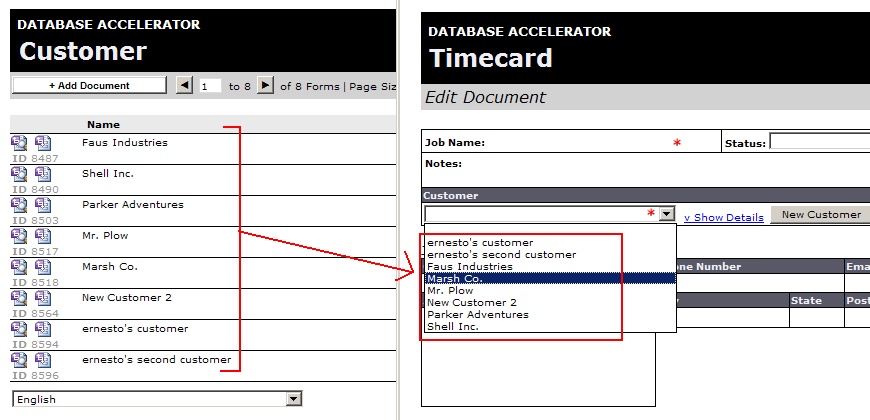
     
    Figure 1. A catalog form populating the drop-down for another form.

    In this task we will look at the steps necessary to solve this problem.
     
    Add a Connection to SubmitDocument

    1. In InfoPath Design mode, open the Data Connections dialog, and then click Add.
    2. Add a connection that will Receive data. In the following screen, select Web Service and click Next.
    3. Type the URL to the DbxlDocumentService.asmx web service that corresponds to your DBXL installation.
    4. Select the SubmitDocument web method, and then click Next.
    5. For the docTypeName parameter, type the name of the Document Type that you will be adding documents to, but leave the rest blank.  Click Next.
    6. Make sure the option to Store a copy of the data in the form template is unchecked, and then click Next.
    7. Name the data connection something descriptive, deselect the option to Automatically retrieve data when the form is opened, and then click Finish.
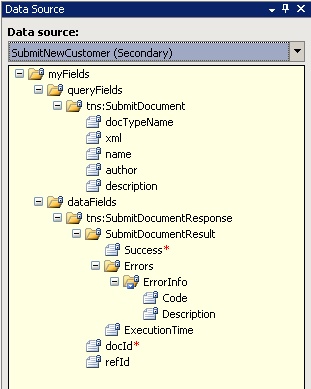

    Figure 2. The data source for the SubmitDocument web method.

    Add Controls to Input Necessary Data

    In the example of adding new Customers from the Timecard form, you will need a control on the view to collect all of the information you need to create a new Customer.  You can bind these controls to nodes on the Main DOM, but it is best practice to create a secondary data connection based off an XML document to collect the necessary data.

    Get a sample XML document to be added as a secondary data connection

    1. Open the target form (in this example, the Customer form) as if you were ready to input a new Customer.

    a. If the form is a Catalog form with qForm, click the Add Document button.

    2. From the InfoPath File menu, select Save As.
    3. Save the XML document to your desktop.

    Now you have an empty XML document that embodies what DBXL is going to receive when adding a new document to the Document Type. In the next step we’ll add that XML Document to the Timecard Document Type to allow input of data.

    Add the sample XML document to the host form template

    1. In the InfoPath Designer, open the Data Connections dialog, and click to Add a new Data Connection.
    2. Select to add a new connection to Receive data.
    3. Select to retrieve data from an XML Document.
    4. Browse to and select the XML document saved to your desktop that was created in the previous section.
    5. Select to Include the data as a resource file, and then click Next.
    6. Name the data connection something significant, deselect the option to Automatically retrieve data when the form is opened, and click Finish.

    Now that the data connection has been added, create the controls to allow entry of the data on the view.  Your design might look something like the Figure 3.
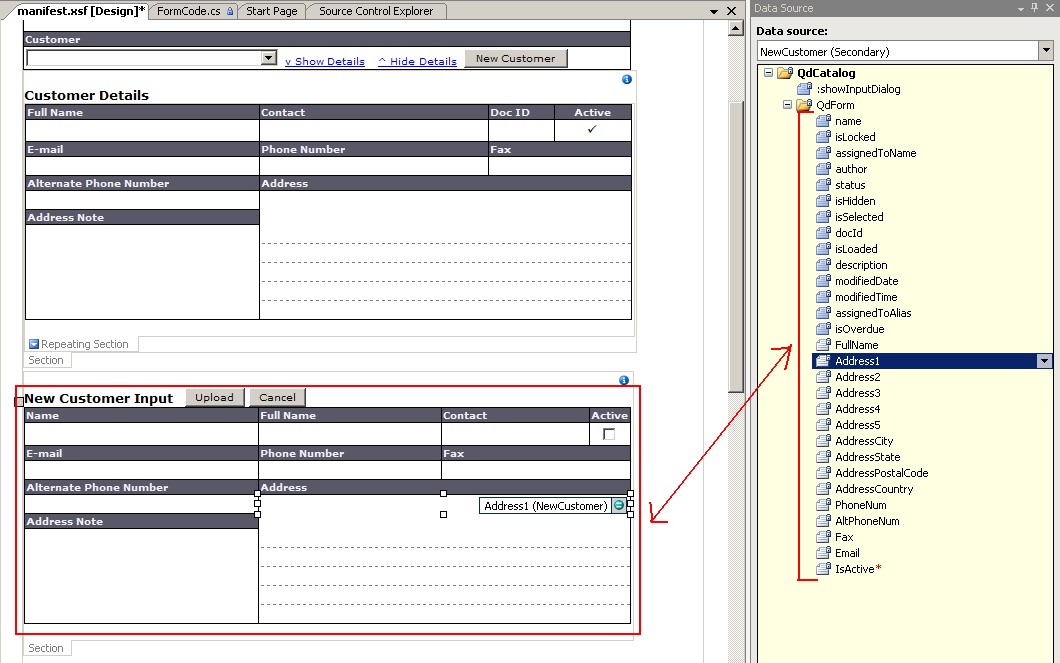
     
    Figure 3. Adding controls to collect document information.
     
    Codeless versus Coded Implementation Techniques

    This task may be accomplished by using rules to construct the necessary XML structure and then submit that XML to the web service. Using rules instead of code can be a quick and easy way to implement this feature for simple forms, but will quickly become too cumbersome for forms that have numerous fields.  In the case of adding more complicated documents, you should use the coded implementation.

    Adding Rules to Submit the New Document

    After all controls have been added, you are ready to add the rules to the Upload button that will upload a new document. To construct the XML needed to submit to DBXL with Rules you must piece it together from one long string using the values that are stored in the secondary data source.

    Breaking the XML Document into manageable pieces

    1. Open the XML Document saved to your desktop in a text editor, such as Notepad.
    2. Separate the document into pieces that you will concatenate together with the values of the secondary data connection.  This process is shown in Figure 4.
    3. Eliminate the Qdabra DBXL PI node, which will look like this: <?QdabraDBXL docid="" doctype="Customer" name="" author="" description="" ?>
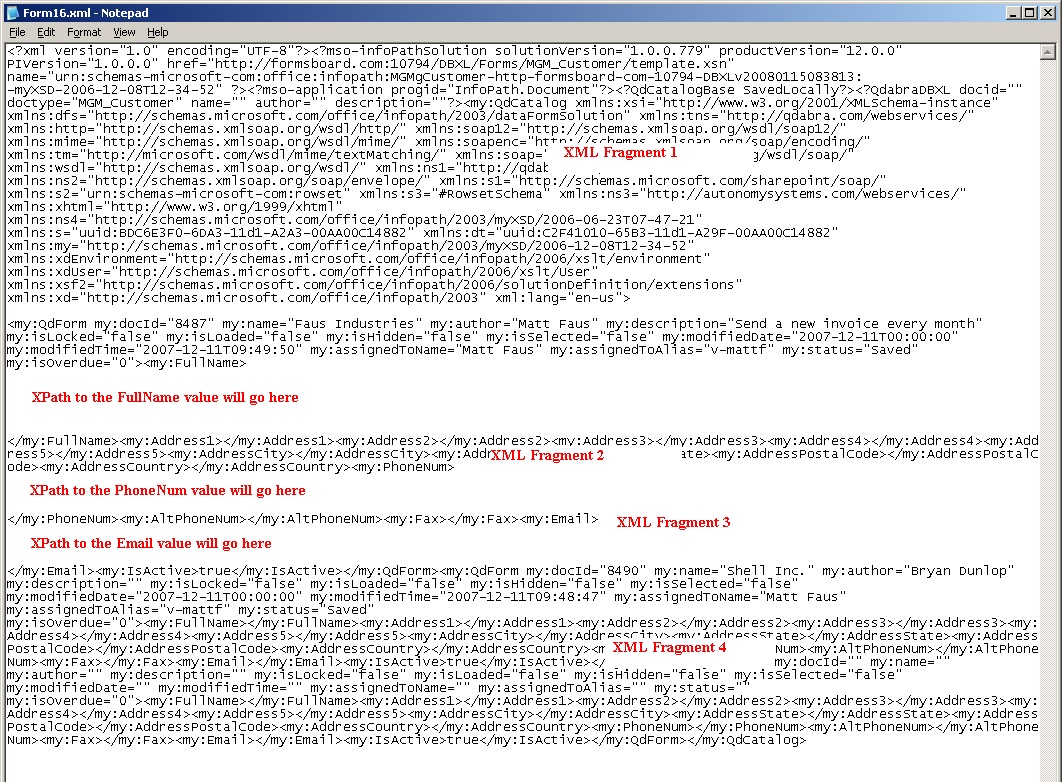
     
    Figure 4. Breaking up the XML.

    Add the rules to the Upload button

    1. Add a rule to the Upload button that will set the value of the /myFields/dataFields/SubmitDocument/xml node, as seen in Figure 5.
    2. For the value, click the fx button to add a new formula.
    3. Select the option to edit the XPath directly, and type the following:

    concat(‘XML Fragment 1’, XPath_to_FullName, ‘XML Fragment 2’, XPath_to_PhoneNum, ‘XML Fragment 3’, XPath_to_Email, ‘XML Fragment 4’)

    4. Be sure to replace the XML Fragment strings with the appropriate XML that you segmented in the previous step.
    5. For the XPaths to the various nodes, you can click on the Insert Field or Value button in the expression builder to graphically find the node.
    6. Click Ok until you are back to the Rules dialog box for the Upload button.

    At this point, you will have a button that creates the necessary XML on the secondary DOM, so now you must add the rules to query the appropriate data connections.

    Add rules to query the data connections

    1. Click to add a new rule, select the Query Web Service action, and specify the SubmitNewDocument data connection. Make sure this rule executes after the rule that creates and sets the XML string.
    2. Add another rule to query the data connection that pulls the Customer list from the database, and then close all dialog boxes.
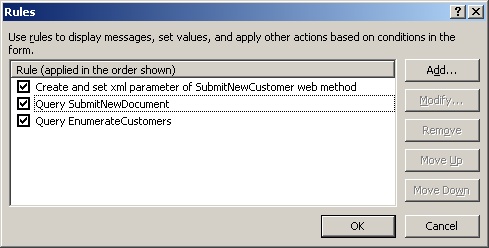
     
    Figure 5. The completed rules.
     
    Coded Implementation

    Implementing this feature using managed code is much simpler and allows for easier manipulation of the XML fragments.  Below is an example of creating the necessary XML, loading it into the xml parameter, querying the web service, and then updating the view to reflect the new data.

    [InfoPathEventHandler(MatchPath="btnUploadNewCustomer", EventType=InfoPathEventType.OnClick)]
    public void btnUploadNewCustomer_OnClick(DocActionEvent e)
    {
        IXMLDOMNode nNewCustomerNode = builtInLogic.GetNode(domNewCustomer, "/my:QdCatalog");

        // Set the query DOM with everything needed to query
        string name = builtInLogic.GetNodeValue(domNewCustomer, "/my:QdCatalog/my:QdForm/@my:name");
        string author = builtInLogic.GetNodeValue(domNewCustomer, "/my:QdCatalog/my:QdForm/@my:author");
        string description = builtInLogic.GetNodeValue(domNewCustomer, "/my:QdCatalog/my:QdForm/@my:description");

        builtInLogic.SetNodeValue(domSubmitNewCustomer, "/dfs:myFields/dfs:queryFields/tns:SubmitDocument/tns:name", name);
        builtInLogic.SetNodeValue(domSubmitNewCustomer, "/dfs:myFields/dfs:queryFields/tns:SubmitDocument/tns:author", author);
        builtInLogic.SetNodeValue(domSubmitNewCustomer, "/dfs:myFields/dfs:queryFields/tns:SubmitDocument/tns:description", description);

        builtInLogic.SetNodeValue(domSubmitNewCustomer, "/dfs:myFields/dfs:queryFields/tns:SubmitDocument/tns:xml", nNewCustomerNode.xml);

        // Upload the new customer           
        ((WebServiceAdapter2)thisXDocument.DataAdapters["SubmitNewCustomer"]).Query();           

        // Enumerate from the DB to pick up the latest customer
        ((WebServiceAdapter2)thisXDocument.DataAdapters["EnumCustomer"]).Query();

        // Determine the last one added in the list, assume sort by DocId is default
        string sLastCustomerDocId = builtInLogic.GetNodeValue(domCustomer, "/dfs:myFields/dfs:dataFields/ns1:GetColumnsForRows2bResponse/ns1:GetColumnsForRows2bResult/Rows/row[last()]/DocId");

        // Set the value of the drop-down to the most recently added customer
        builtInLogic.SetNodeValue(String.Format("/my:QdCatalog/my:QdForm[ @my:docId = '{0}' ]/my:Estimate/my:Customer/my:CustomerDocId", builtInLogic.DocIdToView), sLastCustomerDocId);           
    }

  • More new DBXL v2.2 Documentation

    This week we have published three new documents related to DBXL v2.2.

    • If you are interested in setting up server-side notifications for your forms, check out the document called How To Setup Server-Side E-Mail Notifications.
    • If you are developing a solution based on our QdCatalogBase.xsn form and are interested in promoting properties other than those promoted by default, check out How to Use Promoted Properties in qForm.
    • If you have an existing solution based on the QdCatalogBase.xsn form, you might be interested in deleting documents for a variety of reasons. However, special care must be taken when doing this, as indicated in the DBXL v2.2 Release Notes. For information, please read Deleting Documents and Flow for a qForm.

    For a full catalog of the available documentation for DBXL v2.2, please see the DBXL v2.2 Documentation node in the Browse Folders menu table.

  • Two new documents related to DBXL v2.2

    While this week sees the publication of only two documents, they cover two very important topics.

    • The Web Service Developer's Reference contains development tips and web method descriptions, useful for anyone intending to develop a solution using DBXL.
    • The QueryDB User Manual explains the use of QueryDB, a web method that allows your DBXL instance to gather data from SQL, as well as Query Builder, a form tool that makes working with QueryDB an easy task.

    For the list of all available documents covering DBXL v2.2, click on the DBXL Documentation node on the right, as well as all its subnodes. Stay tuned for future updates!

  • New documentation available for DBXL v2.2!

    Now that DBXL v2.2 Beta is available on our website, we have begun to publish documents that relate to this new product. This week (June 21 to 25) we have published the following documents:

    • How to Create Nodes in Taxonomy: DBXL allows you to tag your qForm-based solution with a set of category filters. This document will explain how to use the qForm feature.
    • Using DBXL Resources: The DBXLResource API allows users to use custom XML in their DBXL Document Type Configurations. This document explains various scenarios that merit the use of XML resources.
    • How To Use the Bulk Edit Tool: Qdabra’s Bulk Edit Tool allows users to quickly perform bulk editing operations. This document will explain the options available in the Bulk Edit Tool, and it comes with the BulkEditForm.xsn file.
    • Installing and using QuickSearch: QuickSearch is a standalone web service that runs against DBXL v2.1 and v2.2. This document explains the steps required to setup and use QuickSearch in your forms.
    • How To Query the Active Directory Web Service: The Active Directory Service supports two methods: GetUserInfo and GetMyInfo. This document will show you how to set up a sample form that queries GetUserInfo with a user-entered username string.
    • Mapping and shredding in DBXL is a hot topic in the forums. You can now find the following related documents on InfoPathDev.com:
      • How to Configure Database Mappings in DBXL v2.2

      • Setting up large database mappings

      • Can't delete when there are mapping errors

      • Shredding Two Document Types to the Same Table Creates Duplicate Rows

      • Shredding Without Key Returns Error in Database Mapping

    For a full list of documents available for DBXL v2.2, see the DBXL v2.2 Documentation node.

    All DBXL related documentation can be found here: http://www.infopathdev.com/files/38/default.aspx

    Posted Jul 25 2008, 08:38 PM by ErnestoM with no comments
    Filed under:
  • Characters in Word cannot be loaded into InfoPath XML

    Microsoft Word's auto-formatting creates special ASCII characters that are illegal in XML and, thus, in InfoPath. Here is a list of ASCII Control Characters that are unique to Word, followed by their ASCII hex value:

      • Tab (hex 09)
      • New line (hex 0B)
      • Page break (hex 0C)
      • Paragraph (hex 0D)
      • Column break (hex 0E)
      • Non-breaking hyphen (hex 1E)
      • Optional hyphen (hex 1F)
      • Non-breaking space (hex A0)
      • Ampersand (hex 26)

    To workaround this problem, there are two options:

    a) Replace any illegal characters before conversion to XML (i.e. before InfoPath sees them).

    b) Change AutoFormat option in Word to prevent generating these characters.

    i. In Word 2003, go to Tools->AutoCorrect Options->AutoFormat->AutoFormat As You Type and uncheck "Hyphens..." and other characters that result in special characters.

    ii. In Word 2007, press Alt-F, click Word Options->Proofing->AutoCorrect Options->AutoFormat->AutoFormat As You Type and uncheck "Hyphens..." and other characters that result in special characters.

    Posted Feb 11 2008, 04:11 PM by ErnestoM with no comments
    Filed under: , ,
More Posts « Previous page
Copyright © 2003-2019 Qdabra Software. All rights reserved.
View our Terms of Use.