During Qdabra’s free weekly webinar on November 10, 2011, we discussed three possible contact selectors, their pros and their cons. This follow up blog post will summarize that webinar and provide you with XTP and XSN samples. You can download the supporting files here.
One of the main concerns when using a contact selector is that it should be reusable. After all, you probably will need similar functionality in more than one form. Save time by creating an InfoPath Template Part (XTP) and simply injecting it into your InfoPath form template (XSN)!
People picker
Microsoft provides users with one such reusable contact selector. It’s called the People Picker and it’s available, out of the box, in InfoPath 2010.
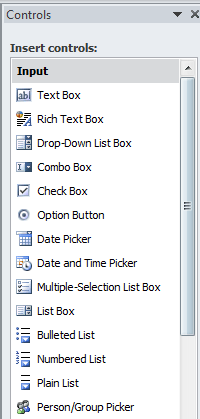
This is definitely one advantage: it comes with InfoPath, so there’s nothing to set up, and it will connect with your SharePoint server to find users.
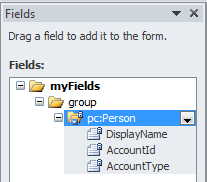
The disadvantage is that the schema is locked. When you add this control to your form, you’ll see that the nodes have a small padlock next to them, meaning that you cannot modify them. You also cannot add more fields under the repeating node (/my:myFields/my:group/pc:Person).
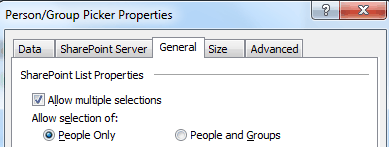
You can perform some configuration on the control, such as allowing more than one user, but it’s not highly customizable.
The control is browser compatible, and the sample form that we include in this package is as well. Simply publish the form to your SharePoint server to test it.
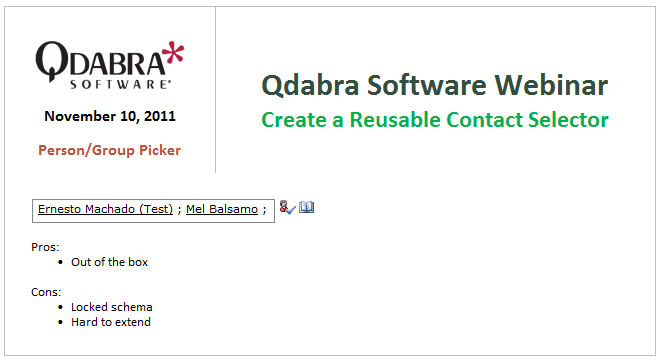
Qdabra’s non-Active Directory Contact Selector XTP
Going one step further we come to a contact selector that still obtains user info from SharePoint, but this one offers more flexibility. Notice that the schema is not locked, meaning that we can modify it as desired.
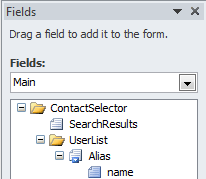
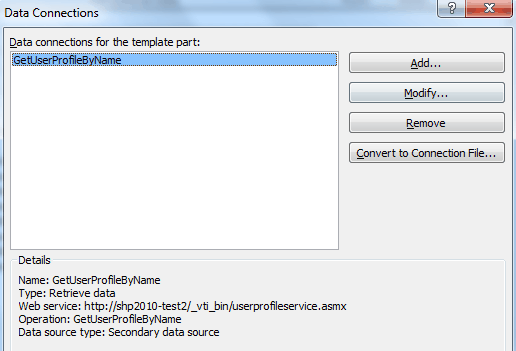
The XTP uses a connection to SharePoint’s UserProfileService to obtain the user’s info.
But this XTP also has its own drawbacks, namely: you’ll need to search for user's EXACT alias (there is no option for partial matches). In addition, there is no option to list all users. You search for a users alias, and select that user. In the example provided, we are also retrieving the user’s email address.
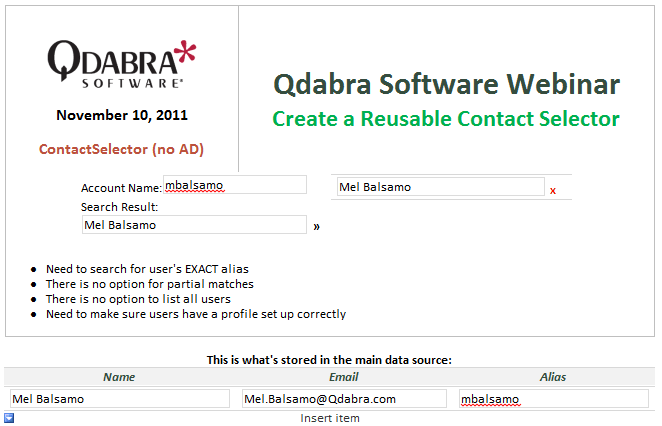
This XTP uses qRules for some actions, though it would be entirely possible to build a simpler non-Active Directory XTP, without qRules. Therefore, the XSN included in this package is injected with a trial version of qRules. If you have purchased the qRules, you can reinject the XSN with the full version.
The XTP is included in the downloadable package. To use it:
1. Create a new XSN form template and save it.
2. Inject your XSN with qRules.
3. Add the XTP to your Controls, and then insert the XTP your canvas.
Once the XTP is on your canvas, you’ll see some configuration steps you’ll need to follow.
Qdabra’s ContactSelector XTP
The previous two XTPs did not query Active Directory, but Qdabra’s Contact Selector XTP does. Why Active Directory? The Active Directory web service allows us to list all users as well as search for partial matches, and the results provided by this web service contain a wealth of information about the users.
It has been discussed in a previous blog post, explained in a video demo, and it is available for sale on Qdabra’s website. If you have any questions, please contact us at support (at) Qdabra (dot) com.