Aruna Akella
in

InfoPath Dev

Aruna Akella

  • How to open doc in Edit mode

    qRules SaveToSharePoint command allows users to save a file, a set of files, an image, or a set of images to a SharePoint document library. qRulesLink field contains the link to the file or image that was uploaded to your SharePoint document library, but often times clicking that link in an InfoPath form opens file in a read-only mode.

    If you wish to open it in edit mode, then replace the http in the link with file, and the file should open in edit mode.

    For example: Create a rule on the qRulesLink field. Set a condition such that run this rule if the link doesn’t already start with file.


    The action of the rule should set the qRules link field to: value =  concat("file", substring-after(., "http"))

    Your final rule on the  qRulesLink field should look similar to the below one:


  • How to query the Active Directory Web Service

    The Qdabra Active Directory Web Service supports the following methods:

    • GetMyInfo - gives the Active Directory properties of the currently Logged In user
    • GetUserInfo - gives the Active Directory properties of the specified user name
    • GetManagerAlias - returns the alias for a user's manager if one is set
    • GetEmployeesForManager - returns a list of employees that have a manager with the specified alias
    • FindUsersByName - attempts to find any users with a name matching the specified search string
    • FindUsersByAlias - attempts to find any users with an alias matching the specified search string
    • IsUserMemberOfGroup - returns true if the user is part of the specified group, false otherwise
    • GetGroupsForUser – returns a list of the groups to which the current user belongs.
    • GetMembersOfGroup – returns the alias, and display name of group members.

    Let's walk through the steps on setting up a sample form which queries all the above operations.

    Design the InfoPath form template

     1.   Open InfoPath and design a new blank form.
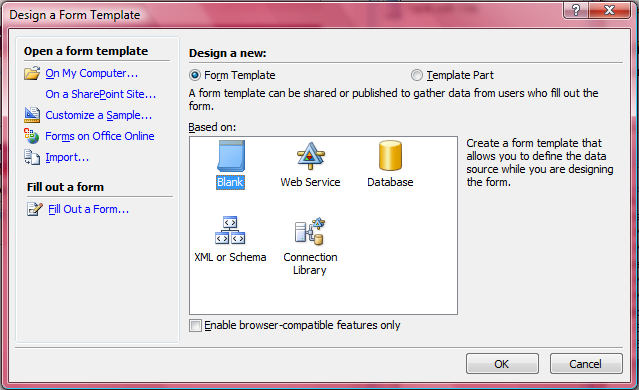
        

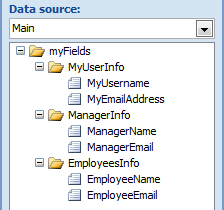
     2.   Add the following groups and fields in your Main data source:
        

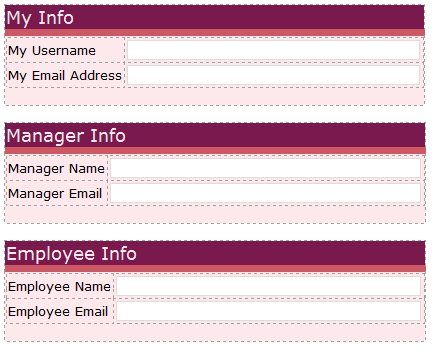
     3.  Add three tables with titles, and place each group’s fields into each of the tables:
        

     4.  Add secondary data connections:

         a.  Go to Tools a Data Connections à Add….

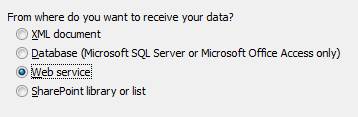
         b.  Create a new connection to receive data from a Web service.
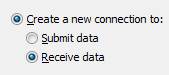


         c.  Enter the URL: http://<servername>/QdabraWebService/ADUserInfo.asmx where <ServerName> is the location where DBXL is installed.

           

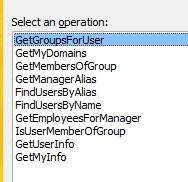
         d.  From the list of operations, select GetGroupsForUser.
           

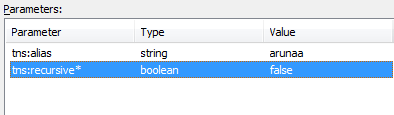
         e.  Enter the default values:
           

         f.  Check the box that says Automatically retrieve data when the form is opened, then click Finish.
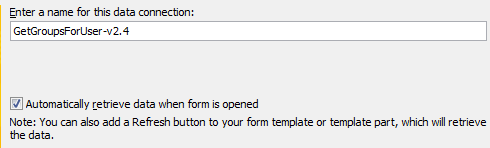
          

     5.  Repeat Steps 2a to 2d to add data connections for the rest of the operations.

     6.  When done, exit the data connections wizard.

    Query GetMyInfo

     1.   Configure the MyUserInfo fields:

         a. Double-click on the MyUserName field to display its properties.
     
         b. In the Data tab, click on the fx button to set a default value.
     
         c. In the Insert Formula window, click the Insert Field or Group button.
     
         d. Select the secondary data source GetMyInfo from the data source drop-down.
     
         e. Expand the dataFields node to display Value, and click Filter Data.
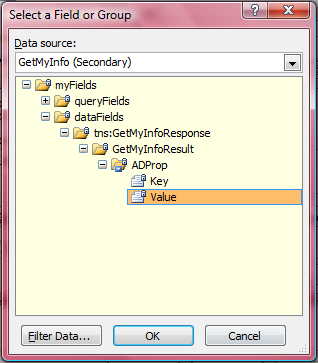
           

         f.  Add a filter so that it only displays data when Key is equal to the text displayName.
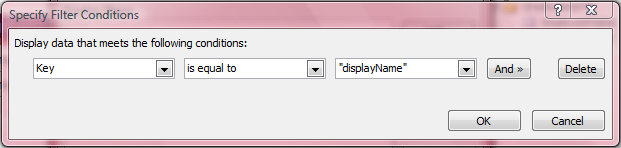
           

         g. Click OK until all the dialogs are closed.
     
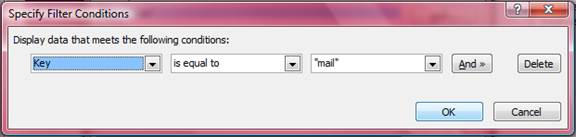
         h. Repeat Steps 1a to 1gfor the MyEmailAddress field, except that Value should be filtered such that Key is equal to the text mail.
           

    Hint: To view a list of all the Active Directory keys, drag the whole ADProp node (/dfs:myFields/dfs:dataFields/tns:GetMyInfoResponse/tns:GetMyInfoResult/tns:ADProp) as a repeating table onto your form, and then preview.

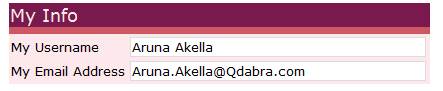
     2.   Preview your form. Your Active Directory username and email address should be displayed in the My Info table.
      

    Query GetManagerAlias

     1.  In the Controls task pane, click to add a button into the Manager Info table.
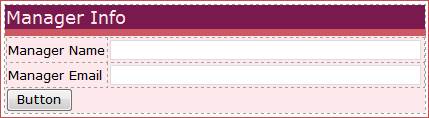
      

     2.  Double-click on the button to display its properties.
     
     3.  Label the button as Get Manager Info, and click Rules à Add à Add Action.

     4.  Add the following actions to query your manager’s alias using your alias which we obtained through GetMyInfo:

          a.  Set the field /dfs:myFields/dfs:queryFields/tns:GetManagerAlias/tns:username to the value of /dfs:myFields/dfs:dataFields/tns:GetMyInfoResponse/tns:GetMyInfoResult/tns:ADProp/tns:Value filtered such that Key is equal to sAMAccountName.
     
          b.  Query using the GetManagerAlias data connection.
     
    Hint: If you wish to see the resulting value, temporarily drag /dfs:myFields/dfs:dataFields/tns:GetManagerAliasResponse/tns:GetManagerAliasResult into the view. When you preview your form and click the Get Manager Info button, you will see the manager’s alias display in the GetManagerAliasResult field. When done, you can now delete the GetManagerAlias field from the form’s view.

    Query GetUserInfo

     1.  Double-click on the Get Manager Info button that we previously added, to go back to the button’s properties.
     
     2.  Add another rule with the following actions to obtain the manager’s name and email address:

         a.  Set the field /dfs:myFields/dfs:queryFields/tns:GetUserInfo/tns:username to the value of  /dfs:myFields/dfs:dataFields/tns:GetManagerAliasResponse/tns:GetManagerAliasResult

         b.  Query using the GetUserInfo data connection.

         c.   Set the ManagerName field /my:myFields/my:ManagerInfo/my:ManagerName to the value of /dfs:myFields/dfs:dataFields/tns:GetUserInfoResponse/tns:GetUserInfoResult/tns:ADProp/tns:Value filtered such that Key is equal to displayName.
     
        d.   Set the ManagerEmail field to the value of /dfs:myFields/dfs:dataFields/tns:GetUserInfoResponse/tns:GetUserInfoResult/tns:ADProp/tns:Value filtered such that Key is equal to mail.
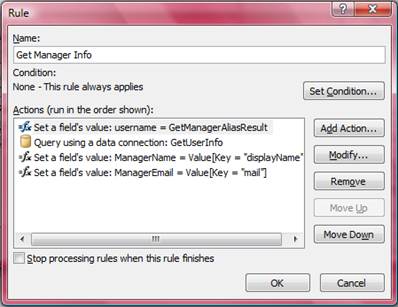
           

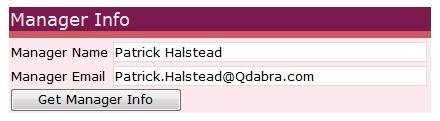
     3.  Preview your form once again. Clicking the Get Manager Info button retrieves your manager’s name and email address.
        

    Query GetEmployeesForManager

     1.   Add a button for the Employee Info table, and label it as Get Employee Info.
     
     2.   Add a rule to this button with the following actions to query a list of employees who have a manager with an alias obtained using GetManagerAlias.
     
         a.  Set the field /dfs:myFields/dfs:queryFields/tns:GetEmployeesForManager/tns:managerAlias to the value   of /dfs:myFields/dfs:dataFields/tns:GetManagerAliasResponse/tns:GetManagerAliasResult

         b.  Query using the GetEmployeesForManager

    Hint: If you wish to see the resulting list of employees, temporarily drag /dfs:myFields/dfs:dataFields/tns:GetEmployeesForManagerResponse/tns:GetEmployeesForManagerResult/tns:entry as a repeating table into the view. When you preview your form and click the Get Employee Info button, you will see a list of employees who have the same manager as yours. When done, you can now delete the table from the form’s view.

     3.   Change the EmployeeName textbox into a drop-down list box.
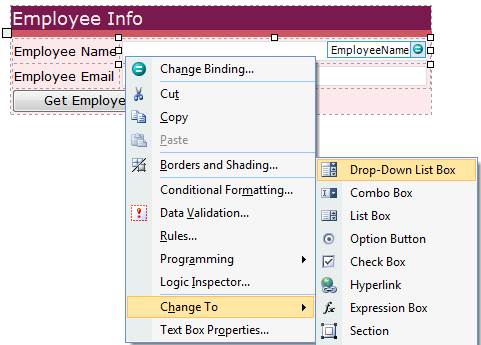
       

     4.   Double-click on the EmployeeName drop-down to display its properties.
     
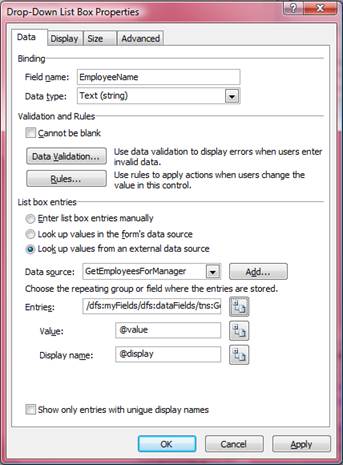
     5.   In the Data tab, under List box entries, select Look up values from an external data source, and choose GetEmployeesForManager from the Data source drop-down.
     
     6.  Click on the Select XPath button  for Entries, and expand the dataFields node to get to the entry repeating node.
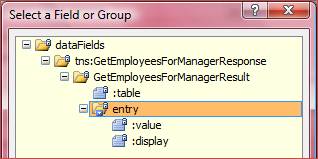
       

     7.  Click on the Select XPath button for Display name, and select the display node. Your EmployeeName dropdown should be similar to this:
       

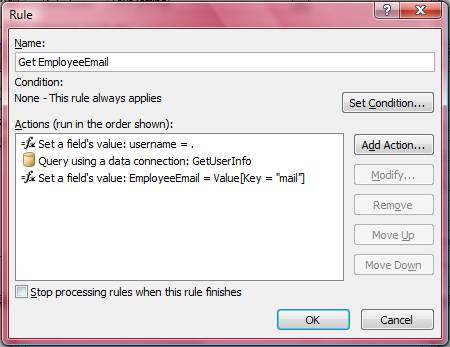
     8.  Click on the Rules button à Add à Add Action.

     9.  Here again, we will use the GetUserInfo method to retrieve the employee’s email address. Add the following actions:
     
         a.  Set the field /dfs:myFields/dfs:queryFields/tns:GetUserInfo/tns:username to the EmployeeName’s value (since it represents the queried employee’s alias).
     
         b.  Query using the GetUserInfo data connection.
     
         c.  Set the EmployeeEmail field to the value of /dfs:myFields/dfs:dataFields/tns:GetUserInfoResponse/tns:GetUserInfoResult/tns:ADProp/tns:Value filtered such that Key is equal to mail.
             

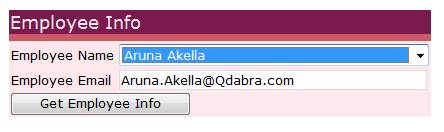
     10. Preview your form. First, you will have to click on the Get Manager Info button to retrieve the manager’s alias, and then click the Get Employee Info button to retrieve a list of employees in a drop-down, after which displays the email address of the selected employee.
       

    Query IsUserMemberOfGroup

    The IsUserMemberOfGroup method returns true if the user is part of the specified group, false otherwise.

    To test this method in our sample form, follow these steps:

       1.  On the Data source task pane, select the IsUserMemberOfGroup secondary data source.
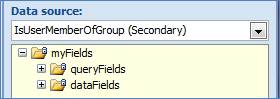
       

       2.  Expand the queryFields node to select tns:IsUserMemberOfGroup.
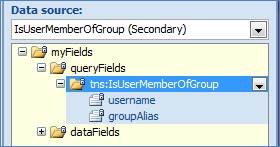
       

       3.  Drag this node as a Section with controls onto your form’s view.

       

       4.  Expand the dataFields node to get to the IsUserMemberOfGroupResult node.
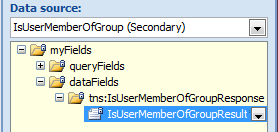
       

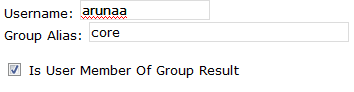
       5.  Drag this node inside the IsUserMemberOfGroup section. By default, it uses a check box control to indicate if the query returns true or false.

         

       6.  Add a button with a rule that queries using the IsUserMemberOfGroup data connection.

       7.  Preview your form. Specify any value in the Username and Group Alias parameters. Clicking the button will result to either true (box checked) or false (box unchecked).
       

    Query FindUsersByName

    The FindUsersByName method attempts to find any users with a name matching the specified search string.  When searching for a user by name, you can select from the following search methods:

    • StartsWith
    • EndsWith
    • Contains
    • Exact

    To test this method in our sample form, follow these steps:

     1.  On the Data source task pane, select the FindUsersByName secondary data source.
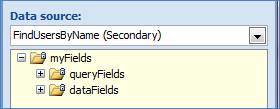
       

     2.  Expand the queryFields node to select tns:FindUsersByName.
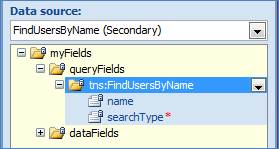
       

     3.  Drag this node as a Section with controls onto your form’s view.

     4.  Expand the dataFields node to get to the entry repeating node.
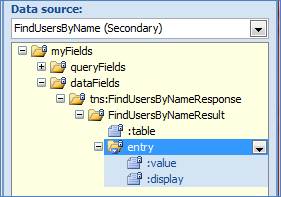
       

     5.  Drag this node as a Repeating table inside the FindUsersByName section.
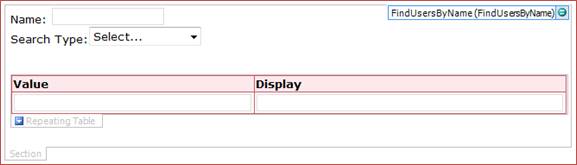
         

     6.  Add a button below the searchType drop-down, and double-click to see its properties.

     7.  Label the button as Find Users, then add a rule that queries using the FindUsersByName data connection.

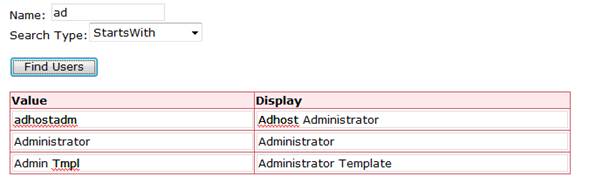
     8.  Preview your form once again. Enter a value in the Name textbox and select any Search Type, and then click Find Users. The repeating table will populate with a list of names that match the specified parameters. The Value column shows the user’s alias, while the Display column shows the user’s display name.
       

    Query FindUsersByAlias

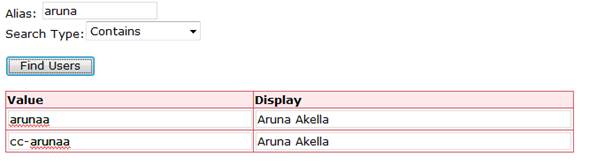
    FindUsersByAlias does the same thing as FindUsersByName, except that it performs the search through the user’s alias. Repeat all of the steps above, using the FindUsersByAlias’ nodes and parameters.
      

    Query GetGroupsForUser

    1.   Drag and drop button onto your canvas.

    2.   Right click on the button and change the label (this tutorial uses GetGroupsForUser).

    3.   Select Rules > Add… > Add Action… to add a new action.

    4.   From the Action dropdown, select Query using a data connection, and select your GetGroupsForUser-v2.4 data connection. The action should look similar to the below screen.
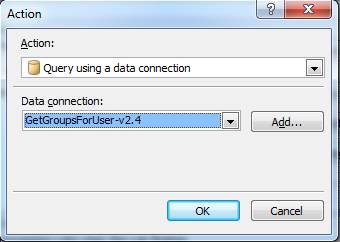
       

    5.   Click OK four times.

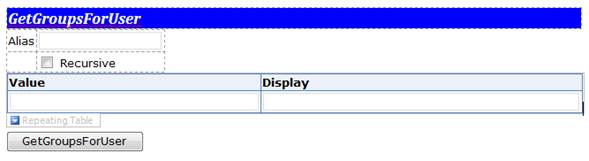
    6.   Drag and drop queryFields (alias, and recursive), and dataFields(value, and display) from GetGroupsForUser secondary data source as a repeating table.
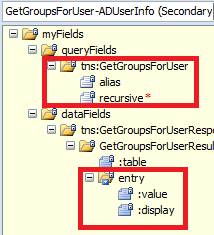
       

    7.   Your final layout should look similar to the below layout.
       

    8.   Preview the form.
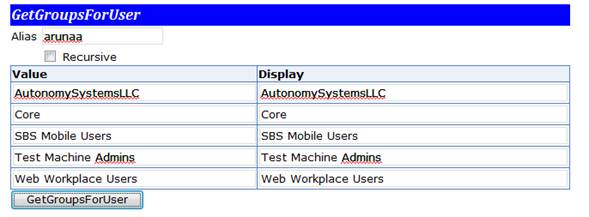
       

    9.   Enter a valid alias in the Alias text box, and click GetGroupsForUser button.

     Select Recursive checkbox, if you wish to get all the child groups of the parent group.

    Query GetMembersofgroup

    1.   Drag and drop a button onto your canvas.

    2.   Right click on the button and change the label (this tutorial uses GetMembersOfGroup).

    3.   Select Rules > Add… > Add Action… to add a new action.

    4.   From the Action dropdown, select Query using a data connection, and select your GetMembersOfGroup-v2.4 data connection. The action should look similar to the below screen.
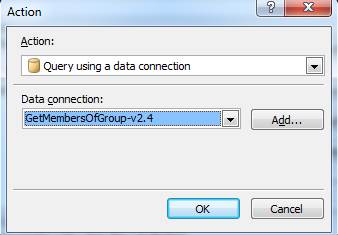
       

    5.   Click OK four times.

    6.   Drag and drop the queryFields (groupAlias, and maxCount), and the dataFields (value, and display) from GetMembersOfGroup secondary data source as a repeating table.
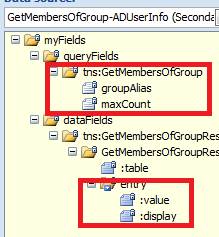
       

    7.   Your final layout should look similar to the below layout.
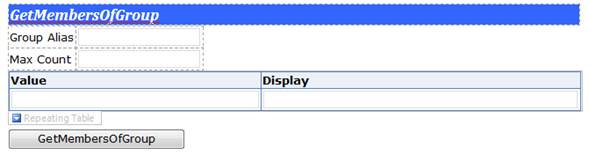
       

    8.   Preview the form.
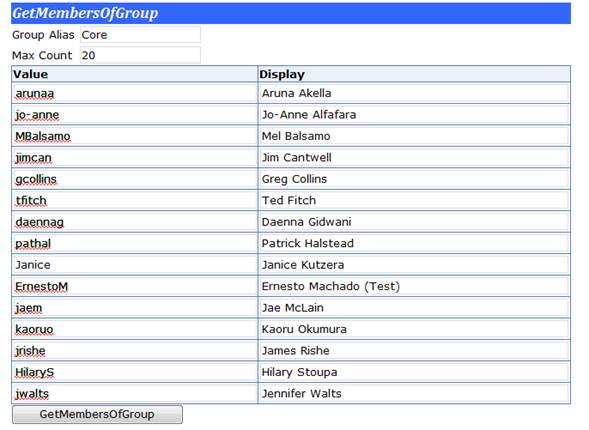
       

    9.   Enter a valid group alias, and max count value.

    10. Click GetMembersOfGroup button.

  • How to use the InsertPi and RemovePi command

    New for qRules v2.2 -- InsertPi and RemovePi (processing instructions)

    Why is this useful? 

    • Change the href attribute of the mso-infoPathSolution PI so to submit to a different SharePoint library and have the form open using the template for that library
    • For DBXL users, RemovePi to easily make a copy of a filled out document

    The InsertPi command inserts the specified PI into the DOM while the RemovePi command removes the specified PI from the DOM, if present.

     InsertPi Arguments:

    • name: Name of the processing-instruction to insert.
    • data: Data content of the processing-instruction.
    • update: (optional) Update the processing-instruction if it already exists (yes | no*).
    • dsname: (optional) Data source to insert the processing instruction.

    InsertPi Examples:

    • InsertPi /name=Test /data=dev=”false”
    • InsertPi /name=Test /data=dev=”false” /dsname=QdabraRules
    • InsertPi /name=Test /data=dev=”false” /dsname=QdabraRules /update=yes
    • concat("InsertPi /name=", name, " /data=", data, " /dsname=", dsname, " /update=true")

    RemovePi Arguments: 
     

    • name: Name of the processing-instruction to remove.

    RemovePi Examples:

    • RemovePi /name=Test


    PRE-REQUISITE

    This tutorial assumes that you already have qRules v2.2 or later installed on your machine. For details on this, please see the User Guide included with the installer.

    1. Create a new InfoPath form: In InfoPath, design a new, blank form. Select File > Save As and save the XSN to your local drive. Close the form.
    2. Launch the qRules v2.2 Injector, browse to select the XSN you created and click Inject. Close the qRules Injector and open the form in Design mode.

    For more information on the steps above, refer to the User Guide.

    EXECUTION STEPS

    Design your form template based on the following steps:

         1.  Your main data source should be similar to the below one:

                
         2.  Drag and drop the data source nodes onto your form canvas, so you have something like this:

               
         3.  Click on the InsertPi button, and then from Home > Add Rule > When This Button is Clicked > Set a Field’s Value:

                
         4.  Set the value of the QdabraRules(Secondary) Command field.


         5.  Set the command value to the InsertPiCommand field from the main data source and click OK.


          6.  Right click on the InsertPiCommand, and select Text Box Properties… and enter the value:
                       InsertPi /name=Test /data=dev=”false”

                
         7.  Click OK.

         8.  Click on the RemovePi button, and then from Home > Add Rule > When This Button is Clicked > Set a Field’s Value:

         9.  Set the value of the QdabraRules(Secondary) Command field again, this time, however....

         10. For the value, click on the fx button, and add the below formula (Note: name points to the name field from the main data source).
                     concat("RemovePi /name=", name).

                
          11. Your final action  should look similar to the below one:

               
          12. Click OK.

          13. Now drag and drop the QdabraRules Result, Success, and Error fields into the view.

          14. Preview the form.

          15. Click InsertPi button to execute the InsertPi command.

              
          16. Save, and close the form, and open the XML in a text editor to view the inserted processing instruction.

          17. Next test removing a PI.

          18. Enter an existing PI name in the Name field (this tutorial uses Test).

          19. Click RemovePi button to execute the command.


          20. Now save, and close the form and open the saved form in a text editor to see the removed processing instruction. 

          21. You can also use a concat command if you wish to use specific fields with dynamic values in your InsertPi command parameters. Let’s replace InsertPiCommand field with a concat command.

                  a. In design mode, right click on InsertPiCommand field, and select Text Box Properties… to set the value to the below concat command (Note: Since concat is an InfoPath function, you will have to enter it as a formula, pointing name, and data, to  their respective nodes in the main data source:
                                       concat("InsertPi /name=", name, " /data=", data, " /update=true")

                               
                  b. Preview your form.

                  c.  Enter Test in the Name field, and dev=”false” in the Data field.

                             
                  d. Click InsertPi button.

                             
                  e. Now save, and close the form and open the saved form in a text editor to see the inserted processing instruction. You should see a PI similar to the below one.
                                      <?Test dev="false"?>

          22. Similarly you can also insert a processing instruction to a secondary data source using /dsname parameter:

                 a. In the design mode, right click on InsertPiCommand field, and select Text Box Properties… to add a new parameter to the InsertPi command. Your command should look similar to the below one:
                                      concat("InsertPi /name=", name, " /data=", data, " /dsname=", dsname, " /update=true")


                 b. Save and preview the form.

                 c. Enter data in the fields as shown below (this tutorial uses QdabraRules as a secondary data source).

                             
                 d. Click InsertPi button.

                                 
                 e. Now the PI is inserted to QdabraRules data source (Note: You can verify that by having an expression box with the following value: xdXDocument:GetDOM("QdabraRules")/processing-instruction()[local-name(.) = "Test"]


  • How to use the GetAttachmentAttribute command

    New for qRules v2.2 -- GetAttachmentAttribute! 

    Why is this useful?

    • Promote the name of the attachment in a form to a form library, by getting the file name and copying it into a main data source node
    • Send information about form attachments in an email submit to users

    This command extracts the details of an attachment, including file name, extension, and size.

    Arguments:

    • xpath: Xpath to field to Decrypt.
    • attr: Specific attribute value to get (Name | Ext | Size | File).
    • dsname: (optional) Data source name.

    Examples:

    • GetAttachmentAttribute /xpath=/my:myFields/my:FileAttachment  /attr=Name
    • GetAttachmentAttribute /xpath=/my:myFields/my:FileAttachment  /attr=Ext
    • GetAttachmentAttribute /xpath=/my:myFields/my:FileAttachment  /attr=Size
    • GetAttachmentAttribute /xpath=/my:myFields/my:FileAttachment  /attr=File
    • GetAttachmentAttribute /xpath=/my:myFields/my:FileAttachment  /attr=Name /dsname=<SECONDARY DATASOURCE>

    PRE-REQUISITE

    This tutorial assumes that you already have qRules v2.2 or later installed on your machine. For details on this, please see the User Guide included with the installer.

    1. Create a new InfoPath form: In InfoPath, design a new, blank form. Select File > Save As and save the XSN to your local drive. Close the form.
    2. Launch the qRules v2.2 Injector, browse to select the XSN you created and click Inject. Close the qRules Injector and open the form in Design mode.

    For more information on the steps above, refer to the User Guide.

    EXECUTION STEPS

    Design your form template based on the following steps:
           1.   Drag and drop a file attachment control, a drop-down list box, a text box, and a button onto your canvas. Your main data source should be similar to the below one:

                    
           2.   You will have a layout similar to the one below on your canvas:

                
           3.   Click GetAttachmentAttribute button, and then from Home > Add Rule > When This Button is Clicked > Set a Field’s Value:

                
           4.   Now set the Field value to point to the QdabraRules (Secondary) Command field.

                       
           5.   Set a Value: to point to the GetAttachmentAttributeCommand field from the main data source. Click OK.

                     
           6.   Right click on the GetAttachmentAttributeCommand, and select Text Box Properties… and enter the value:
                           GetAttachmentAttribute /xpath=/my:myFields/my:FileAttachment /attr=Name


           7.   Click OK.

           8.   Now drag and drop the QdabraRules Result, Success, and Error fields into the view.

           9.   Preview the form.

           10. Attach a file or a picture in a file attachment control.

           11. Click GetAttachmentAttribute button to execute the command.

                       
           12. You will see the file or picture name in the result field.

           13. Change the /attr param to Ext, Size, or File and click the button again to obtain a different attribute.

           14. Similarly you can also get specific attributes of a file attachment from a secondary data source using /dsname parameter.

           15. You can also use a concat command if you wish to use specific fields with dynamic values in your command parameters. Let’s replace GetAttachmentAttributeCommand field with a concat command.

           16. In design mode, right click on GetAttachmentAttributeCommand field, and select Text Box Properties… to add a new parameter to the command. Your command should look similar to the below one:
                          concat("GetAttachmentAttribute /xpath=/my:myFields/my:FileAttachment  /attr=", AttributeValue)

                     
           17. In the AttributeValue dropdown box, add four entries as shown below:

                    
           18. Save and preview the form.

           19. Attach a file or a picture in a file attachment control.

           20. Select one of the attribute values from the dropdown list.

           21. Click the GetAttachmentAttribute button.


  • How to use the DelimitedList command

    New for qRules v2.2 -- DelimitedList!

     Why is this useful?

    • Hate trying to understand the syntax of the double eval method?
    • Need to have data from a repeating field rolled up into another field?

    This command can replace the double eval method, as it concatenates a repeating field into a single delimited value. Unlike the double eval method, however, qRules can use filtered XPath to select only certain fields from the repeating data source!

    Arguments:

    • xpath: Xpath for field with values.
    • Dsname: (optional) Data Source Name.
    • separator: (optional) List separator.
    • space: (optional) Before|After|Both..

    Examples:

    • DelimitedList /xpath=/my:myFields/my:DelimitedTextFld
    • DelimitedList /xpath=/my:myFields/my:DelimitedTextFld /separator=& /space=before
    • DelimitedList /xpath=/my:myFields/my:DelimitedTextFld /separator=& /space=after
    • DelimitedList /xpath=/my:myFields/my:DelimitedTextFld /separator=& /space=both
    • DelimitedList /xpath=/my:myFields/my:DelimitedTextFld /separator=& /space=both /dsname=<SecondaryDataSource>

    PRE-REQUISITE

    This tutorial assumes that you already have qRules v2.2 or later installed on your machine. For details on this, please see the User Guide included with the installer.

    1. Create a new InfoPath form: In InfoPath, design a new, blank form. Select File > Save As and save the XSN to your local drive. Close the form.
    2. Launch the qRules v2.2 Injector, browse to select the XSN you created and click Inject. Close the qRules Injector and open the form in Design mode.

    For more information on the steps above, refer to the User Guide.

    EXECUTION STEPS

    Design your form template based on the following steps:

    1.   Drag and drop the following controls onto your canvas, all of data type string.
           a. Bulleted List (this tutorial uses DelimitedTextFld).
           b. Text Box (this tutorial uses DelimitedCommand).
           c. Button (this tutorial uses DelimitedList).
       

          Finally you will have the following layout on your canvas:

                
    2.   Click on the DelimitedList button, and then from Home > Add Rule > When This Button is Clicked > Set a Field’s Value:


    3.   Now set a Field: value to point to the QdabraRules(Secondary) Command field.

                   
    4.   Set a Value: to point to the DelimitedCommand field from the main data source. Click OK.

                 
    5.   Right click on the DelimitedCommand, and select Text Box Properties… and enter the value:
                  DelimitedList /xpath=/my:myFields/my:DelimitedTextFld /separator=& /space=before
                     

    6.   Click OK.

    7.   Now drag and drop the QdabraRules Result, Success, and Error fields into the view.

    8.   Preview the form.

    9.   Enter a delimited text:

                       
    10. Click DelimitedList button to execute the command.

                   
    11. Similarly you can also take a repeating field from a secondary data source to return a single value of the field separated by a chosen separator using /dsname parameter.

          For example:
             a. Let’s save the preview mode of the form at step10 locally.

             b. Click Data > Data Connections.

             c. Click Add… button to add a receiving data connection.

             d. Select XML document as source of your data.

                             
             e. Click Next.

             f.  Navigate to the xml file saved at step a.

             g. Click Next.

             h. Select Include the data as a resource file in the form template or template part.

                                
             i.  Click Next.

             j.  Click Finish.

                              
             k. Right click on the DelimitedCommand, and select Text Box Properties… and enter the value:
                       DelimitedList /xpath=/my:myFields/my:DelimitedTextFld /separator=& /space=before /dsname=sampleform

             l.  Drag and drop the DelimitedTextFld from sampleform secondary data source onto your canvas.

             m.Click Preview.

             n. Click DelimitedList button.

             o. The result field returns a single return value (from a secondary data source) by a chosen separator.


  • How to use the ClearErrors command

    New for qRules v2.2 -- ClearErrors!

    Why is it useful?

    • Add a "save" function to your form that allows submitting with validation errors (an InfoPath impossibility!)
    • Save time when testing by not having to fill out all required fields in a form to submit (or figure out why a formula is producing an invalid value)

    This command deletes the error collection, and it is useful when submitting an incomplete form. However, note that InfoPath provides no way to restore the error collection other than closing and reopening the form.

    PRE-REQUISITES

    This tutorial assumes that you already have qRules v2.2 or later installed on your machine. For details on this, please see the User Guide included with the installer.

    1.  Create a new InfoPath form: In InfoPath, design a new, blank form. Select File > Save As and save the XSN to your local drive. Close the form. 
    2.  Launch the qRules v2.2 Injector, browse to select the XSN you created and click Inject. Close the qRules Injector and open the form in Design mode.

    For more information on the steps above, refer to the User Guide.

    This tutorial also assumes that user has configured a Submit button, which uses SubmitToSharePointList qRules command. Please refer this blog post to learn more about this command.

    EXECUTION STEPS

    Let’s discuss ClearErrors command with an example. Design your form template based on the following steps:

    1.  Your main data source should be similar to the below one (Note: Name field cannot be blank).


    2.  Drag and drop the above created controls onto your canvas. You will have a layout similar to the one shown in the screenshot below.
     
     3.  Click on the ClearErrors button, and then from Home > Add Rule > When This Button is Clicked > Set a Field’s Value:

     4.  Now set the Field value to point to the QdabraRules(Secondary) Command field.


     5.  Set the Value: to ClearErrors. Finally the rule should look similar to that shown below:


     6.  Click OK.

     7.  Now drag and drop the QdabraRules Result, Success, and Error fields into the view.

     8.  Preview the form.

     9.  Enter data in the Date, and Purpose field as shown below, and click Submit button.


     10. You will notice a validation error in the Error field, because there is no data in the Name field.


     11. Now click ClearErrors button to delete the error collection, and click Submit button again. This time you will notice that the form is published to a SharePoint library.


  • New documentation for Qdabra's Excel to XML Tool

    Qdabra's Excel to XML tool, available on Qdabra.com, allows you to export row data (in Excel) to XML files.

    Did you know the tool also allows you to export XML files directly to SharePoint? To find out more, click here to download a tutorial (PDF format).

    The tool was also recently updated to allow converting repeating data! For more info, click here to download a tutorial (PDF format).

Copyright © 2003-2019 Qdabra Software. All rights reserved.
View our Terms of Use.