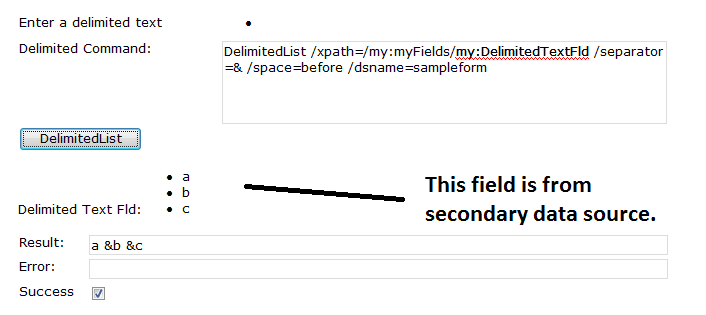
New for qRules v2.2 -- DelimitedList!
Why is this useful?
- Hate trying to understand the syntax of the double eval method?
- Need to have data from a repeating field rolled up into another field?
This command can replace the double eval method, as it concatenates a repeating field into a single delimited value. Unlike the double eval method, however, qRules can use filtered XPath to select only certain fields from the repeating data source!
Arguments:
- xpath: Xpath for field with values.
- Dsname: (optional) Data Source Name.
- separator: (optional) List separator.
- space: (optional) Before|After|Both..
Examples:
- DelimitedList /xpath=/my:myFields/my:DelimitedTextFld
- DelimitedList /xpath=/my:myFields/my:DelimitedTextFld /separator=& /space=before
- DelimitedList /xpath=/my:myFields/my:DelimitedTextFld /separator=& /space=after
- DelimitedList /xpath=/my:myFields/my:DelimitedTextFld /separator=& /space=both
- DelimitedList /xpath=/my:myFields/my:DelimitedTextFld /separator=& /space=both /dsname=<SecondaryDataSource>
PRE-REQUISITE
This tutorial assumes that you already have qRules v2.2 or later installed on your machine. For details on this, please see the User Guide included with the installer.
- Create a new InfoPath form: In InfoPath, design a new, blank form. Select File > Save As and save the XSN to your local drive. Close the form.
- Launch the qRules v2.2 Injector, browse to select the XSN you created and click Inject. Close the qRules Injector and open the form in Design mode.
For more information on the steps above, refer to the User Guide.
EXECUTION STEPS
Design your form template based on the following steps:
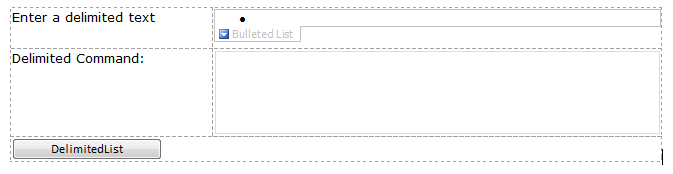
1. Drag and drop the following controls onto your canvas, all of data type string.
a. Bulleted List (this tutorial uses DelimitedTextFld).
b. Text Box (this tutorial uses DelimitedCommand).
c. Button (this tutorial uses DelimitedList).
Finally you will have the following layout on your canvas:
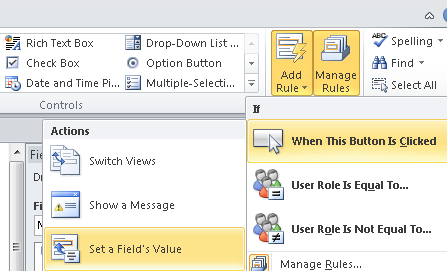
2. Click on the DelimitedList button, and then from Home > Add Rule > When This Button is Clicked > Set a Field’s Value:
3. Now set a Field: value to point to the QdabraRules(Secondary) Command field.
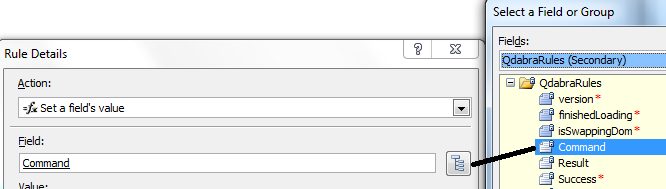
4. Set a Value: to point to the DelimitedCommand field from the main data source. Click OK.
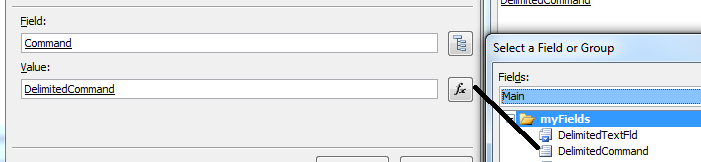
5. Right click on the DelimitedCommand, and select Text Box Properties… and enter the value:
DelimitedList /xpath=/my:myFields/my:DelimitedTextFld /separator=& /space=before
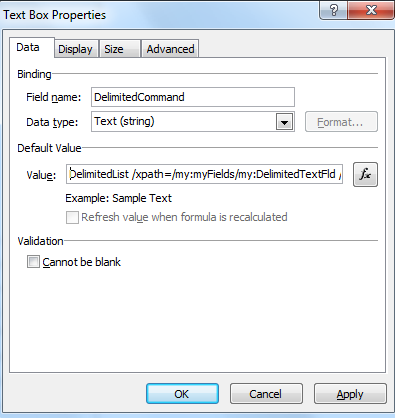
6. Click OK.
7. Now drag and drop the QdabraRules Result, Success, and Error fields into the view.
8. Preview the form.
9. Enter a delimited text:

10. Click DelimitedList button to execute the command.
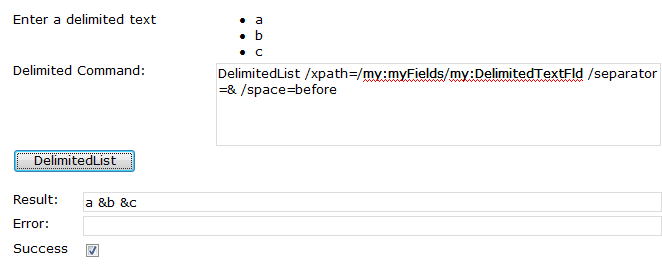
11. Similarly you can also take a repeating field from a secondary data source to return a single value of the field separated by a chosen separator using /dsname parameter.
For example:
a. Let’s save the preview mode of the form at step10 locally.
b. Click Data > Data Connections.
c. Click Add… button to add a receiving data connection.
d. Select XML document as source of your data.
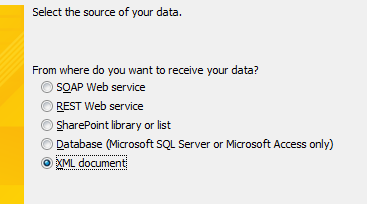
e. Click Next.
f. Navigate to the xml file saved at step a.
g. Click Next.
h. Select Include the data as a resource file in the form template or template part.
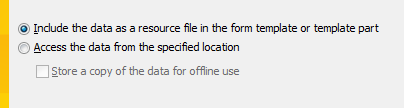
i. Click Next.
j. Click Finish.
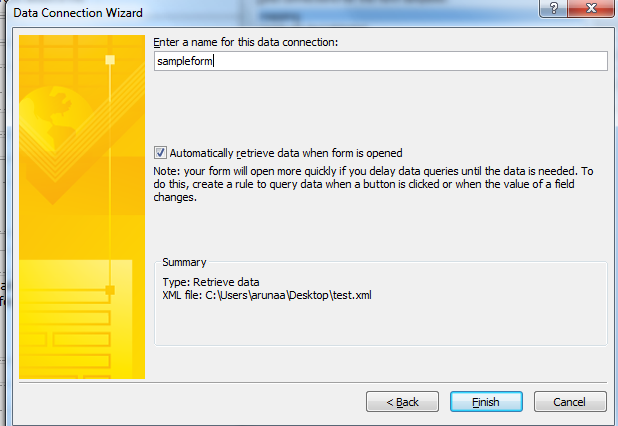
k. Right click on the DelimitedCommand, and select Text Box Properties… and enter the value:
DelimitedList /xpath=/my:myFields/my:DelimitedTextFld /separator=& /space=before /dsname=sampleform
l. Drag and drop the DelimitedTextFld from sampleform secondary data source onto your canvas.
m.Click Preview.
n. Click DelimitedList button.
o. The result field returns a single return value (from a secondary data source) by a chosen separator.