New for qRules v2.2 -- ClearErrors!
Why is it useful?
-
Add a "save" function to your form that allows submitting with validation errors (an InfoPath impossibility!)
-
Save time when testing by not having to fill out all required fields in a form to submit (or figure out why a formula is producing an invalid value)
This command deletes the error collection, and it is useful when submitting an incomplete form. However, note that InfoPath provides no way to restore the error collection other than closing and reopening the form.
PRE-REQUISITES
This tutorial assumes that you already have qRules v2.2 or later installed on your machine. For details on this, please see the User Guide included with the installer.
-
Create a new InfoPath form: In InfoPath, design a new, blank form. Select File > Save As and save the XSN to your local drive. Close the form.
-
Launch the qRules v2.2 Injector, browse to select the XSN you created and click Inject. Close the qRules Injector and open the form in Design mode.
For more information on the steps above, refer to the User Guide.
This tutorial also assumes that user has configured a Submit button, which uses SubmitToSharePointList qRules command. Please refer this blog post to learn more about this command.
EXECUTION STEPS
Let’s discuss ClearErrors command with an example. Design your form template based on the following steps:
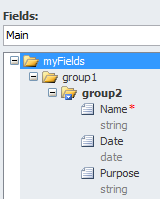
1. Your main data source should be similar to the below one (Note: Name field cannot be blank).
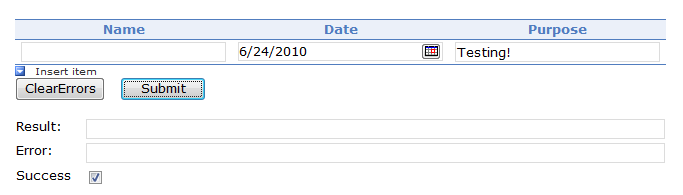
2. Drag and drop the above created controls onto your canvas. You will have a layout similar to the one shown in the screenshot below.

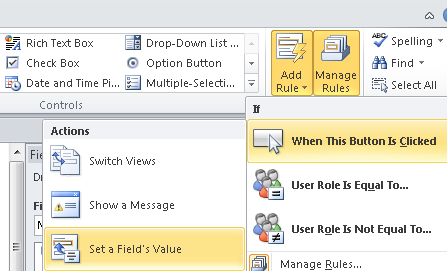
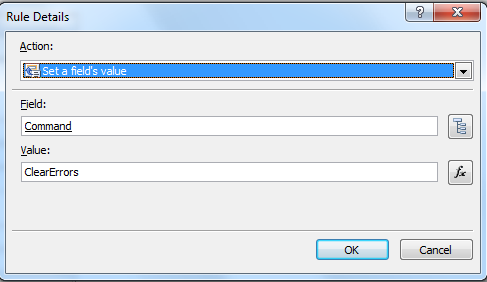
3. Click on the ClearErrors button, and then from Home > Add Rule > When This Button is Clicked > Set a Field’s Value:
4. Now set the Field value to point to the QdabraRules(Secondary) Command field.
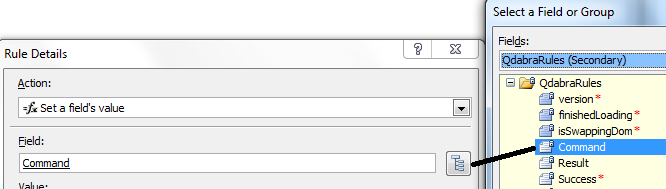
5. Set the Value: to ClearErrors. Finally the rule should look similar to that shown below:
6. Click OK.
7. Now drag and drop the QdabraRules Result, Success, and Error fields into the view.
8. Preview the form.
9. Enter data in the Date, and Purpose field as shown below, and click Submit button.

10. You will notice a validation error in the Error field, because there is no data in the Name field.
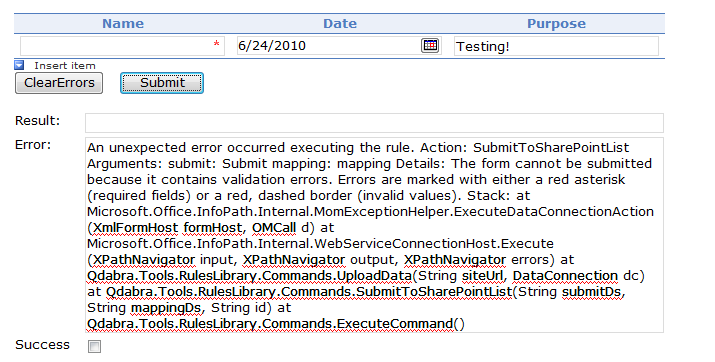
11. Now click ClearErrors button to delete the error collection, and click Submit button again. This time you will notice that the form is published to a SharePoint library.