New for qRules v2.2 -- InsertPi and RemovePi (processing instructions)
Why is this useful?
-
Change the href attribute of the mso-infoPathSolution PI so to submit to a different SharePoint library and have the form open using the template for that library
-
For DBXL users, RemovePi to easily make a copy of a filled out document
The InsertPi command inserts the specified PI into the DOM while the RemovePi command removes the specified PI from the DOM, if present.
InsertPi Arguments:
-
name: Name of the processing-instruction to insert.
-
data: Data content of the processing-instruction.
-
update: (optional) Update the processing-instruction if it already exists (yes | no*).
-
dsname: (optional) Data source to insert the processing instruction.
InsertPi Examples:
-
InsertPi /name=Test /data=dev=”false”
-
InsertPi /name=Test /data=dev=”false” /dsname=QdabraRules
-
InsertPi /name=Test /data=dev=”false” /dsname=QdabraRules /update=yes
-
concat("InsertPi /name=", name, " /data=", data, " /dsname=", dsname, " /update=true")
RemovePi Arguments:
RemovePi Examples:
PRE-REQUISITE
This tutorial assumes that you already have qRules v2.2 or later installed on your machine. For details on this, please see the User Guide included with the installer.
-
Create a new InfoPath form: In InfoPath, design a new, blank form. Select File > Save As and save the XSN to your local drive. Close the form.
-
Launch the qRules v2.2 Injector, browse to select the XSN you created and click Inject. Close the qRules Injector and open the form in Design mode.
For more information on the steps above, refer to the User Guide.
EXECUTION STEPS
Design your form template based on the following steps:
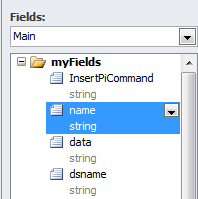
1. Your main data source should be similar to the below one:
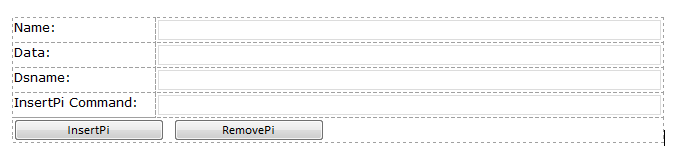
2. Drag and drop the data source nodes onto your form canvas, so you have something like this:
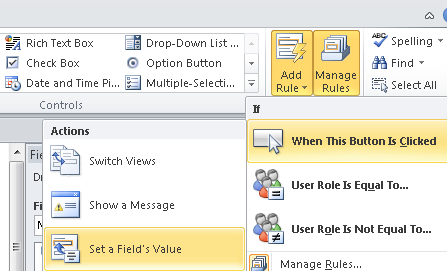
3. Click on the InsertPi button, and then from Home > Add Rule > When This Button is Clicked > Set a Field’s Value:
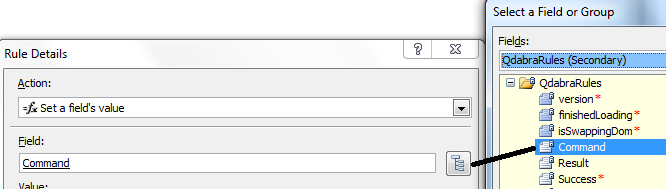
4. Set the value of the QdabraRules(Secondary) Command field.
5. Set the command value to the InsertPiCommand field from the main data source and click OK.
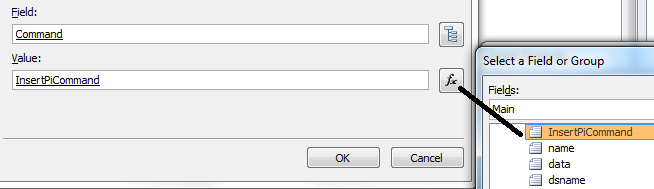
6. Right click on the InsertPiCommand, and select Text Box Properties… and enter the value:
InsertPi /name=Test /data=dev=”false”
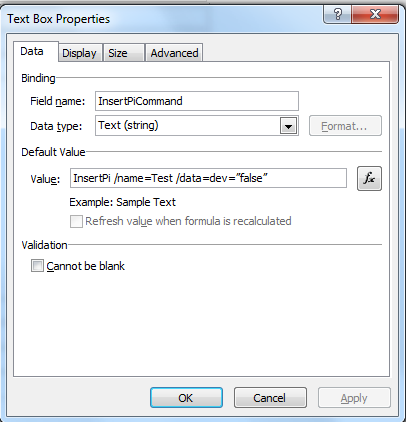
7. Click OK.
8. Click on the RemovePi button, and then from Home > Add Rule > When This Button is Clicked > Set a Field’s Value:
9. Set the value of the QdabraRules(Secondary) Command field again, this time, however....
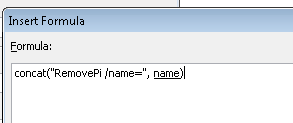
10. For the value, click on the fx button, and add the below formula (Note: name points to the name field from the main data source).
concat("RemovePi /name=", name).
11. Your final action should look similar to the below one:
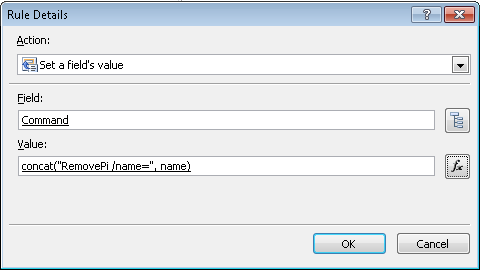
12. Click OK.
13. Now drag and drop the QdabraRules Result, Success, and Error fields into the view.
14. Preview the form.
15. Click InsertPi button to execute the InsertPi command.
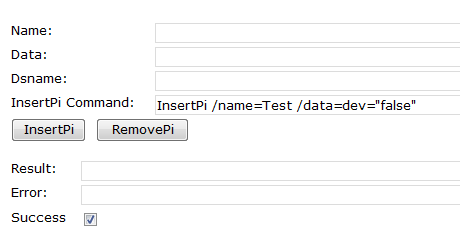
16. Save, and close the form, and open the XML in a text editor to view the inserted processing instruction.
17. Next test removing a PI.
18. Enter an existing PI name in the Name field (this tutorial uses Test).
19. Click RemovePi button to execute the command.
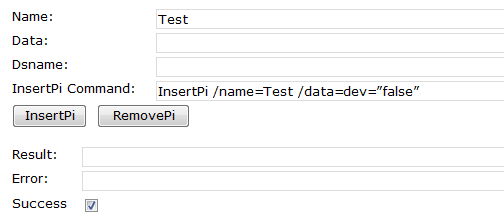
20. Now save, and close the form and open the saved form in a text editor to see the removed processing instruction.
21. You can also use a concat command if you wish to use specific fields with dynamic values in your InsertPi command parameters. Let’s replace InsertPiCommand field with a concat command.
a. In design mode, right click on InsertPiCommand field, and select Text Box Properties… to set the value to the below concat command (Note: Since concat is an InfoPath function, you will have to enter it as a formula, pointing name, and data, to their respective nodes in the main data source:
concat("InsertPi /name=", name, " /data=", data, " /update=true")
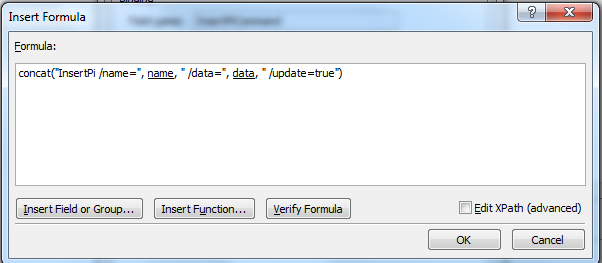
b. Preview your form.
c. Enter Test in the Name field, and dev=”false” in the Data field.
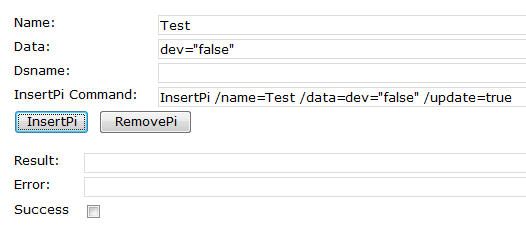
d. Click InsertPi button.
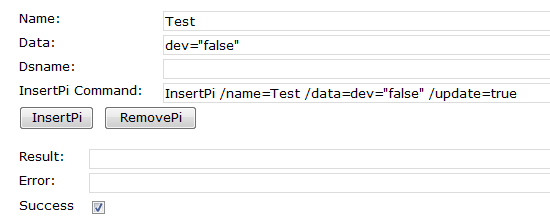
e. Now save, and close the form and open the saved form in a text editor to see the inserted processing instruction. You should see a PI similar to the below one.
<?Test dev="false"?>
22. Similarly you can also insert a processing instruction to a secondary data source using /dsname parameter:
a. In the design mode, right click on InsertPiCommand field, and select Text Box Properties… to add a new parameter to the InsertPi command. Your command should look similar to the below one:
concat("InsertPi /name=", name, " /data=", data, " /dsname=", dsname, " /update=true")
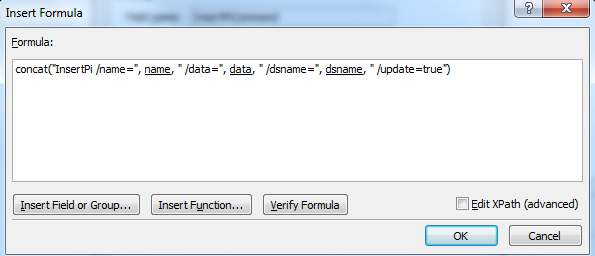
b. Save and preview the form.
c. Enter data in the fields as shown below (this tutorial uses QdabraRules as a secondary data source).
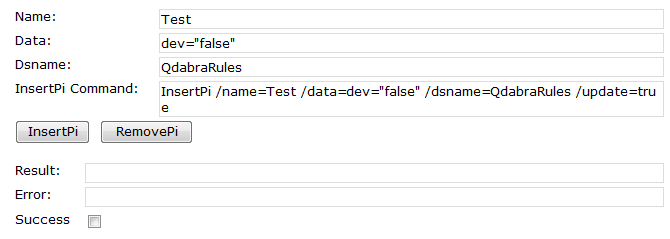
d. Click InsertPi button.
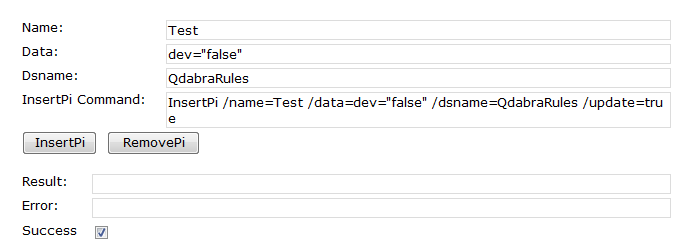
e. Now the PI is inserted to QdabraRules data source (Note: You can verify that by having an expression box with the following value: xdXDocument:GetDOM("QdabraRules")/processing-instruction()[local-name(.) = "Test"]