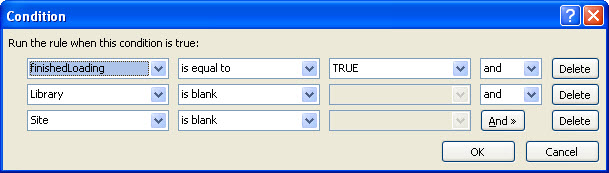
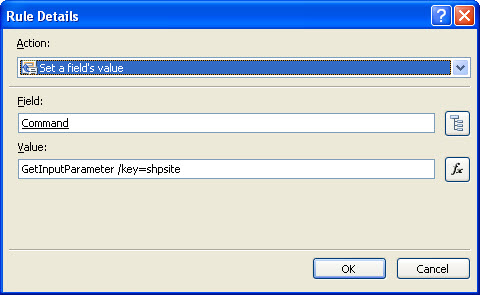
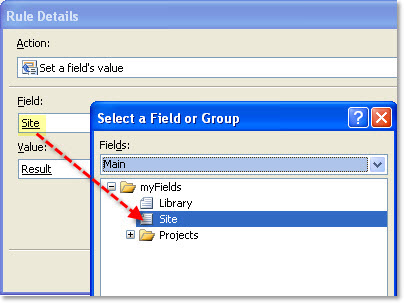
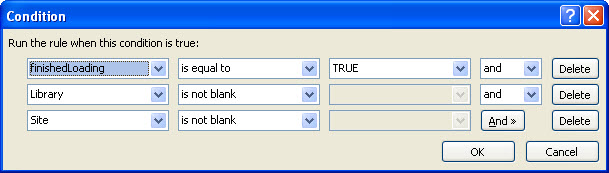
Jo-Anne Alfafara Sign in | Join | Help in Jo-Anne Alfafara Tutorials (Entire Site) InfoPath Dev InfoPath Dev is dedicated to bringing you the information and tools you need to be successful in your Microsoft Office InfoPath development projects. Home Blogs Forums Photos Downloads This Blog Home Syndication RSS Atom Comments RSS Recent Posts DBXL and SharePoint Document Sets Forms with code? Use Content Type mapping in DBXL! Prevent Shredding Errors using Conditional Shredding Retrieve Images and Files from DBXL using Web Service URL Dynamic SharePoint List Submit with Content Types Tags active directory ADWS browser-enabled content type mapping DBXL form code InfoPath IPFS Archives June 2012 (1) March 2012 (2) June 2011 (1) March 2011 (1) October 2010 (3) September 2009 (1) July 2009 (2) May 2009 (1) April 2009 (1) February 2009 (1) Jo-Anne Alfafara DBXL and SharePoint Document Sets Have you ever used Document sets in SharePoint? Document Set is a feature in SharePoint 2010 that helps you manage a group of documents in a special kind of folder:Some call Document Sets the “super folder”. If you dig more into this feature, you’ll find a broad range of capabilities for managing content – it can have unique folder attributes, metadata, workflows and what’s more – a great user interface! So, if you are a DBXL user and you want to utilize this feature and integrate with your document types, it can be done by using qRules to submit to DBXL. Follow the steps below:1. Inject qRules in your form. (If you don’t have qRules yet, you can download a trial from our site)2. Add a submit data connection to the DBXL Submit Document web service.3. Add a submit button and add a rule in your submit button that sets the value of qRules Command (/QdabraRules/Command) to:concat("SubmitToDbxl /submit=<name of submit data connection to DBXL> /doctype=<DocumentType Name> /name=", Name, " /author=", Author, " /desc=", Description)Note: Name, Author, and Description are fields in the form. You can change it to any fields that you want to map to DBXL.4. Add a submit data connection to your SharePoint Document Set. For the file name, select Result field from the QdabraRules schema and check allow overwrite if file exists. The reason why you’ll be using Result is because we want the file name to be unique, and the Result field in qRules contains the DocID of the document submitted in DBXL.5. Click on your button and add a new action that submits data using the submit data connection to your document set. Make sure that you add it after the qRules action that submits to DBXL. 6. Save the form.7. If your SharePoint is not sandbox enabled, you need to publish the form as admin approved template and activate it to your site collection.8. After you have activated the form in the site collection, go to the Document Set folder and click Library tab > Library Settings > Document Set (under Content Types).9. Click Document Set settings.10. Select the form from Available Site Content Types and click Add. Click OK.11. Now when you go back to the main form library page and create a new Document Set, the form should be available when you select from Documents tab > New Document of that Document Set folder.12. You also need to attach the activated form in DAT. To do that, open DAT and click Edit Configuration for your document type. In the General tab, attach the activated form. You can enter the full URL to attach the form or you can also download the activated form from your site and attach that. After doing so, click Save in DAT.Test document submit:1. In your document set, click Documents tab > New Document.2. Select the content type.3. Fill out the form and submit.The form will be submitted to the SharePoint document set and DBXL. You can also try editing the form from your document set and you’ll see the changes reflected in DBXL. Posted Jun 06 2012, 02:49 PM by Jo-Anne Alfafara with no comments Forms with code? Use Content Type mapping in DBXL! You can now integrate your browser-enabled qRules form or forms that have custom code using the content type mapping in DBXL! This is previously done by using the qRules command called SwapDOM. Now with the content type mapping feature, DBXL makes it possible to do this without the use of qRules. You can download the PDF tutorial (13 pages, 921Kb) by clicking here. Posted Mar 20 2012, 08:56 PM by Jo-Anne Alfafara with no comments Filed under: content type mapping DBXL, form code Prevent Shredding Errors using Conditional Shredding Imagine that you have an InfoPath form that submits to DBXL. There will be instances that the value entered for a specific field doesn't match the data type stored in the database - thus results in shredding errors. When errors occur during shredding, the document is still saved in DBXL, but the associated record in the SQL database will not be created. It is possible that a numeric field has an invalid value, or blank. These can be handled by adding a condition on the database mapping to store NULL for these cases or add validation in the InfoPath form. For numeric fields, you can append [string(number(.))!='NaN'] to the field xpath in the DBXL Admin tool database mapping. For more information about conditional shredding in DBXL, please see this document. Posted Mar 20 2012, 08:41 PM by Jo-Anne Alfafara with no comments Retrieve Images and Files from DBXL using Web Service URL Scenario: You have images or files stored in a form and would like to view or open these via URL link. A simple technique to do this is described in the following steps. 1. I have a form with a picture attachment field below. This form is saved as a Document Type and submits to DBXL. This can also be a File Attachment, but, in this example, I’m using a picture control. 2. Open the DBXL database. It should be QdabraDBXL or the database name you specified in your DBXL installation. Find the table called QdQueryProcessing: 3. Open the table and add a new entry to specify the node in your form template containing the picture or file attachment: a. In the DocumentType column, enter the Document Type ID of your form template. If you do not know what the ID is, this can be seen in the General tab of DAT: b. Enter a value in the QueryStringArg, in the example above, I’m using “picture”. c. In the XPath column, enter the XPath to the node containing the picture or file using the syntax //*[local-name()=’<XPath>’]. Save the changes in your table. 7. Now you can open the image or file in your browser via the Web Service URL link: http://<server>/QdabraWebService/Documents/<DocID>/<DocID>.xml?cmd=picture Posted Jun 10 2011, 11:32 PM by Jo-Anne Alfafara with no comments Dynamic SharePoint List Submit with Content Types PROBLEM: You have an InfoPath form, which you want to publish once and then reuse as a template in multiple SharePoint form libraries across any number of SharePoint sub sites. Sure, content types will let you do that. But what if you want data from the content type to a SharePoint List and XML to a SharePoint Library in one fell swoop? InfoPath and SharePoint won’t do this for you, but qRules can. SOLUTION: PRE-REQUISITES To follow the steps, you need to: 1. Create an InfoPath form template, injected with qRules v3.1. We will use a sample InfoPath form template that contains the following fields: 2. Create a SharePoint Library where we will open the content type from (this tutorial uses ProjectLibrary). 3. Create two SharePoint lists. One for form list submission and another to store the list GUID and site. This tutorial uses: a. Project List – the form will submit data to this list. b. Master List – Master List is a SharePoint list that all users have access to. It contains two columns – one for ListGUID and one for Site (which is the library URL). When a new project is set up, the master list needs to have an entry added with the ListGUID of the SharePoint list we will be submitting to, and the URL of the form library the form will submit to. NOTE: To know the list GUID, click Settings > List Settings. You’ll see a URL that looks like this: http://<SharePointSite_layouts/listedit.aspx?List=%7B88D72FCD%2D925C%2D4BF6%2D8DDE%2D57314D139292%7D. The List GUID is in red, but we need to decode it to obtain the GUID. You can use an online tool such as http://meyerweb.com/eric/tools/dencoder/ to obtain the GUID, which in this case is {88d72fcd-925c-4bf6-8dde-57314d139292}. Go ahead and add the Site URL of the SharePoint library you created in step 2 (make sure to omit /Forms/AllItems.aspx and enter the URL in lowercase) and the list GUID of the SharePoint list created in step (3-a) to the master list. CREATE A MAPPING FILE AND ADD TO TEMPLATE 1. Go to Start > All Programs > Qdabra > Tools > qRules > qRules Mapping Tool. 2. This will launch the InfoPath to SharePoint List Tool. When the form is opened, click on Define Mapping. 3. In the Source XSN field, attach your InfoPath form template (XSN). 4. Enter the root SharePoint site in the Target SharePoint Site URL field, e.g. http://SharePointSite 5. Click on the Get SharePoint Lists button. 6. In the SharePoint Lists dropdown, select the list you wish to submit items to, in this sample, “ProjectList”. 7. Click on the Extract Schemas button. 8. Since we’re using a repeating group in our form, we will have to check the box “Data is from repeating group” in the Mapping Definition section. 9. Click on the icon to display the Schema Tree task pane and select the repeating group for your data, which in this case is my:myFields/my:Projects/my:ProjectDetails. 10. Click on the icon in each Form Field row to select the fields from the Schema Tree task pane, and then select the corresponding SharePoint Column to map the fields to. You can also indicate if any of the fields you wish to submit should be treated as Rich Text. 11. When done mapping, click on the Save As qRules Mapping button. 12. Save the mapping as an XML file in your local drive. In this example, we will leave the default name as mapping.xml, although we can use any filename. 13. Once done, close the tool and open the form template in InfoPath Design mode. 14. Go to Data > Data Connections and add a receive data connection. 15. Select XML document as the source of your data and browse to the mapping.xml file that’s been saved in Step 11. 16. Leave the default to include the data as a resource file in the form template and allow automatic retrieve on form open. For simplicity, we will call this data connection “mapping”. ADD THE DATA CONNECTIONS TO SHAREPOINT I. Add the data connection to submit to your SharePoint Library 1. Go to Data > Data Connections > Add > Create a new connection to submit data > To a document library on a SharePoint site. 2. Enter the URL to your form library, such as: 3. In the sample, we have added the formula concat("Project Form - ", now()) as the file name. 4. Click Next and name the data connection ShPLib. II. Add the data connection to receive data from your master list 1. Go to Data > Data Connections > Add > Create a new connection to receive data > SharePoint Library or list. 2. Enter the URL to your SharePoint and select the master list. 3. Select the ListGUID and Site columns. 4. Name the data connection MasterList and select check box for loading data on open. III. Add the data connection to SharePoint Lists Web Service UpdateListItems 1. Add another data connection that submits data to a Web Service since SharePoint uses a web service for the list methods. The URL should be: http://SharePointSite/_vti_bin/lists.asmx where <SharePointSite> is the root site for the SharePoint list. 2. In the list of operations, select UpdateListItems. 3. For the listName parameter, select the ListCollection node from the mapping secondary data source: 4. For the updates parameter, select the Batch group node: 5. Select to include the updates parameter as an XML subtree, including selected element: 6. Name this data connection ShPSubmit, although, like the mapping connection, you may use whatever name you like. Just be certain to use the same name in the qRules command, including the same case (i.e., if the data connection is “MySpecialMappingFile” you won’t want to use “mYsPeciaLmaPPingfIlE” for the /mapping parameter). IV. Add a receive data connection to the list using owssvr.dll 1. Go to Data > Data Connections > Add > Create a new connection to receive data > XML document. 2. Enter the link to owssvr.dll of the SharePoint list. An owssvr.dll link is in the following format:http://<serverName>/_vti_bin/owssvr.dll?Cmd=Display&List={88d72fcd-925c-4bf6-8dde-57314d139292}&XMLDATA=TRUE&NOREDIRECT=TRUE&Query=* You need to change <serverName> to the name of your server. Change the GUID in the curly braces to the GUID to your list. If you want to test the link in the browser to see if XML is returned from your list, you can. For SharePoint 2007, you may need to remove &NOREDIRECT=TRUE for the XML to render. Select the option to access the data from the specified location: 3. Name the data connection owssvr, and deselect the checkbox for loading the data on open: SET THE RULES ON FINISHED LOADING Get the library and site input parameters and store them in the main data source of the form 1. Add two new fields in the main data source – Library and Site: 2. Drag the QdabraRules node in the view. While you probably won’t want this showing on your final template, it is helpful when you are working on a form with qRules, as you will be able to see any error messages. 3. Double click on the Finished Loading check box. We’re going to add four rules in this field: 4. Click Manage Rules to open the rules task pane. Rule 1: Get Input Parameters and set Library and Site This rule will get the values for the input parameters we will set up to pass in later when we modify the “New” button. 1. Click New > Action. Name the first rule Get Input Params and set Library and Site. 2. Add the following conditions: finishedLoading (QdabraRules data source) is equal to TRUE andLibrary (main data source) is blank andSite (main data source) is blank 3. In this rule, we’re going to have 4 actions to set a field’s value. a. Set the Command (QdabraRules data source) field’s value to GetInputParameter /key=library. b. Set the Library (main data source) field’s value to the Result node from QdabraRules data source. c. Set the Command (QdabraRules data source) field’s value to GetInputParameter /key=shpsite. d. Set the Site (main data source) field’s value to the Result node from QdabraRules data source. Final rule should look like: Rule 2: Change Submit URL 1. Click New > Action. Name the second rule Change Submit URL. 2. Add the following conditions: finishedLoading (QdabraRules data source) is equal to TRUE andLibrary (main data source) is not blank andSite (main data source) is not blank 3. Set the Command (QdabraRules data source) field’s value to concat("ChangeSubmitUrl /submit=ShPLib /url=", Site, "/", Library). Rule 3: Set List Collection and Site 1. Click New > Action. Name the third rule Set ListCollection and Site. 2. Add the following conditions: finishedLoading (QdabraRules data source) is equal to TRUE andLibrary (main data source) is not blank andSite (main data source) is not blank 3. Set the ListCollection field’s value to the formula @ListGUID[@Site = concat(Site, "/", Library)] Where: ListCollection (mapping data source) @ListGUID (master list data source) @Site (master list data source) Library (main data source) Site (main data source) Rule 4: Refresh SharePoint List Items 1. Click New > Action. Name the fourth rule Refresh SharePoint List Items. 2. Add the following conditions: finishedLoading (QdabraRules data source) is equal to TRUE andLibrary (main data source) is not blank andSite (main data source) is not blank 3. Set the Command (QdabraRules data source) field’s value to the formula RefreshSharePointListItems /dsname=owssvr /id=my:Id /mapping=mapping /mode=Update. 4. Close the rules task pane for the finished loading field. 5. RefreshSharePointListItems requires an attribute called qRulesLastModified to be added to whatever field you are using for the /id parameter in your SubmitToSharePoint list command. Right click on the field and add a string attribute called qRulesLastModified. When items are submitted to a SharePoint list via the SubmitToSharePointList command, this attribute will be populated with the date and time of the submit. When the RefreshSharePointListItems command is run, that date and time will be compared to the Modified field from the SharePoint list to determine whether the item should be updated. SET RULES ON FORM SUBMIT 1. Click Data > Submit Options. Check to allow users to submit the form and select option to perform custom action using Rules. Click OK. 2. Go to Data > Form Submit. 3. We are going to add two submit rules: (1) Submit to SharePoint list and (2) Submit to the SharePoint library where the form was opened from. 4. Click New > Action. Name the first rule Submit To ShP List. 5. Add a new action that set’s a fields value. 6. Set the value of the QdabraRule’s Command field to SubmitToSharePointList /submit=ShPSubmit /mapping=mapping /id=my:Id. Where: /submit – name of the Submit connection you set up to your SharePoint List /mapping – name of the Receive connection you set up to your mapping.xml file /id - the XPath to the field you want to use for the returned Id of your new SharePoint List item after your data is submitted. If your form data is repeating, you want to use the relative XPath (just the bit after the repeating group, i.e. instead of my:myFields/my:repeatingGroup/my:id, you would use my:id). If your form data is NOT repeating, use the full XPath. 7. Create another rule and name it Submit To SharePoint Library. 8. Add the conditions: Library is not blank andSite is not blank 9. Add an action to submit data using the submit data connection you created for your SharePoint library. 10. Once all the rules have been set, let’s drag some fields to the view. 11. Drag the repeating table that contains the nodes that we mapped to the SharePoint list: 12. Drag the fields: SharePointListURL, ListCollection, Site and Library to the view. We’re placing it in the view just to see their values when we test the form. 13. Save the changes to your form. PUBLISH FORM AS A CONTENT TYPE AND USE IN SHAREPOINT LIBRARY 1. In InfoPath, click File > Publish > SharePoint Server. 2. Enter the URL to your SharePoint server. Click Next. 3. In the next window, select Site Content Type (advanced). 4. Select option to create a new content type. 5. Enter a name for your content type. Click Next. 6. When specifying the location and file name of the form template, enter http://<SharePoint Server>/FormServerTemplates/<ContentTypeName>.xsn. Click Next. 7. Select the fields to promote. Click Next and then Publish. 8. Go to SharePoint and open your SharePoint Library. 9. Click Settings > Form Library Settings. 10. Click Advanced Settings. Select “Yes” option to allow management of content types. Click OK. 11. Under Content Types section, click Add from existing site content types. 12. Select the content type you published in step 7. Click the "Add" (>) button, and then click OK. 13. Back in the form library settings, click Change new button order and default content type. 14. Uncheck the check box next to the Form content type and click OK. MODIFY "NEW" BUTTON IN SHAREPOINT 1. Launch SharePoint Designer 2007 or 2010, depending on your version of SharePoint. 2. Click Open Site and enter the URL to your SharePoint library. 3. Once it’s finished loading, right click the library web part and select Convert to XSLT data view. 4. Click on the code tab underneath. 5. You’ll see that the code is now converted to XSLT. Put the cursor on top of the code, press CTRL+F and find “NewMenu”. 6. Highlight it and replace with the following lines of code: <xsl:variable name="library"><xsl:value-of select="substring-before(substring-after($PageUrl, concat($HttpVDir, '/')), '/Forms/')"/></xsl:variable> <td style="padding-right:10px; padding-left:10px" onMouseOver="this.className='highlight'" onmouseout="this.className='normal'"> <a href="http://<SharePointServer>/FormServerTemplates/<ContentTypeName>.xsn?shpsite={$HttpVDir}&library={$library}">New</a></td> 7. Click Save to save changes to the site. OPTIONAL: Edit the New link to mimic a button Since it’s just a link, not a button, it isn’t highlighting on hover like a “real” new button. You can add code to prettify it and mimic the orange highlighting on hovering over the New button in SharePoint. 1. Go back to the SharePoint Designer, if your library web part is still open, click the code tab. 2. Find <style type="text/css">: 3. Insert a new link after the closing braces for padding: Opx; and add the following code: td.highlight { background-color: orange }td.normal {background-color:transparent } 4. Save changes to the site. TEST YOUR SOLUTION 1. Refresh your SharePoint library and click on New. 2. Click Open when prompted to open the content type. You’ll see that the form opens with the correct parameters: 3. Enter some data in the repeating fields (leave the Id blank) and click Submit button from the menu. 4. Verify that your form is submitted to the SharePoint library and SharePoint List: 5. Modify the list item. Make some changes and then click OK. 6. Open the XML from the SharePoint library and verify that it is also updated with the changes in the list item. USE CONTENT TYPE IN ANOTHER SHAREPOINT LIBRARY AND LIST Now that we have a content type as our form template, we can reuse it in another SharePoint library and list in the same site or even on a different sub site. 1. Create your second SharePoint library and list: NOTE: The easiest way to create your second list and avoid mapping issues would be to save the list as a template, then create your new list off it. In SharePoint, click Create and under Custom List, you’ll see your template: Below I have created my second project list out of a template. The columns are automatically copied so I don’t have to worry recreating them: 2. Add both the library and list to your “master” list. We’re adding the GUID of the SharePoint list to the ListGUID column, and the SharePoint Library URL to the Site column (omit the /Forms/AllItems.aspx and then make sure that the URL is in lowercase). 3. Go to the form library settings of your SharePoint Library, and add the content type. Remember that we already went over these steps using our first library. You may go back and review how we added the content type. 4. Modify the All Items view in the SharePoint library to use a hyperlink in place of the new button using SharePoint Designer. And then, edit the link to mimic the “new” button. You may just copy the code that you previously added to your first library. 5. Now refresh your SharePoint library, add and edit items as you’ve done previously. See how the form knows where to submit list items and XML! J Another option is to save your sub site as a template – then you can easily create new sub sites that have the same library and list, with the “New” button already set up. All you’d need to do is add the library and list to your master list! Posted Mar 04 2011, 06:42 PM by Jo-Anne Alfafara with 2 comment(s) Best way to launch forms from SharePoint Scenario: Whenever you want to expose your forms on a web page the tendency is to want to put a plain hyperlink to your XML file. The problem with this ranges from getting Open/Save dialogs all the time (see below). In this tutorial we’re providing the script below that calls OpenXMLDocument from a data view just for this purpose. You may copy this script in a text editor of your choice and save as a .js file. function CreateNewXMLDocument(url){ try{ // Based on WPQ3combineDocuments() var objOpenXMLDoc = new ActiveXObject("SharePoint.OpenXMLDocuments.1"); var bSuccess = false; bSuccess = objOpenXMLDoc.CreateNewDocument2(window , url , url ); } catch(e) { // Some browsers will not support this feature. window.location = url; }} function OpenXMLDocument(url){ try { // Based on WPQ3combineDocuments() var objOpenXMLDoc = new ActiveXObject("SharePoint.OpenXMLDocuments.1"); var bSuccess = false; bSuccess = objOpenXMLDoc.EditDocument2(window , url , "InfoPath.Document" ); } catch(e) { // Some browsers will not support this feature. window.location = url; }} Add the javascript to your website 1. Create a new folder called “script” underneath C:\Inetpub\wwwroot\wss\VirtualDirectories\80\ and put the JS file in that folder. 2. So now the JS file can be accessed at http://<SharePointServer>/script/InfoPathOpen.js. Add a reference of the script to your website 1. Now you need to edit your page, in this case, we’re editing a data view from SharePoint designer to add reference to the javascript file. 2. Open your data view from SharePoint Designer. 3. Click the code tab found underneath. 4. Place a reference somewhere in the code. You want to put in a place where it’s not going to be repeated. <script type="text/javascript" src="http://<SharePointServer>/script/InfoPathOpen.js"></script> Change the link format 1. In the code tab, find the line called <td class="style1">. 2. Insert this code just after <td class="style1">: <a href="{@Link}" onclick="OpenXMLDocument('{@Link}'); return false;"><xsl:value-of select="@DocID" /></a> 3. Save the changes to your data view. Now refresh your list and open the link. In the example below, the DocID link directly opens the form without the pop ups. Also, check out Jim's latest blog on how to prevent the Open/Save dialog box in SharePoint 2010 using a code snippet. Jim's technique is similar to what's shown above but does not require code level page editing. Posted Oct 16 2010, 12:01 AM by Jo-Anne Alfafara with 3 comment(s) Side-by Side versioning with Content Types Scenario Do you have InfoPath forms created in different versions? Want to have old forms shown in old form template and new forms in new form template? No problem!!! Follow this document and you will be able to create side-by-side versioning of InfoPath form using Content Types. If you want to use DBXL to map these content types to your SharePoint library, see this previous blog post. Design the form (Version 1) 1. Open a blank form in design mode. 2. Create the following fields in the form. Notice that “Issue” group is a repeating section. 3. Drag and drop the fields into the form. Now we are done with creating the form template. Your form will look like this: 4. Save the form template locally as CustomerContact-v1.xsn. Let’s consider this as version 1 form. Design the form (Version 2) 1. Create the next version (version 2) of the form and name it CustomerContact-v2.xsn. 2. Change a bit of the schema by adding a new field called “Company” under “CustomerInfo” and make it a required field. Add another new field “DateTime” (of datatype Date) under “Issue” and enter today() as the default value for the field. 3. Clear the previous display, and drag & drop the new schema into the form. 4. Change the control of the DateTime field to textbox, and change the display of the field to Read-only. 5. Go to form template properties and make sure the name of the form template is “CustomerContact-v2”. Save your changes to the form. Publish the Form Templates as Content Types 1. Create a Form Library that will hold the content types (i.e. http://dbxl-vm/MyContentTypes/Forms/AllItems.aspx). 2. Open the first form template (CustomerContact-v1.xsn) in design mode. 3. Select File > Publish. 4. In the Publishing Wizard, enter the SharePoint server root where you want to publish the form template. Click Next. 5. The key thing here is to choose Site Content Type, click Next. 6. Select Create a new Content Type and click Next. 7. In the next window, enter a name for your content type (CustomerContact-v1). Click Next. 8. Specify a location and file name for the form template (e.g. http://dbxl-vm/MyContentTypes/Forms/CustomerContact-v1.xsn), and then click Next. 9. When asked to choose the columns you want to display in the SharePoint library, add the fields and click Next. 10. Click Publish. When done, click Close. Your form template will be published as content type. 11. Repeat steps 1-10 to publish CustomerContact-v2.xsn to the same content type library. Create a new Form Library and add the Content Types 1. Create a new form library. 2. Go to your SharePoint Form Library -> Settings -> Form Library Settings -> Advanced Settings. 3. Select Yes to allow management of content types, and click OK. 4. Back in the Form Library Settings, select Add from existing site content types under Content Types section. 5. In the Add Content Types page, select the two content types that were published in the SharePoint site (CustomerContact-v1 and CustomerContact-v2) and click Add. Click OK. 6. Back in the Form Library Settings, select Change new button order and default content type under the Content Types section. 7. Choose CustomerContact-v1 as Position 1, which makes it the default content type, and CustomerContact-v2 as Position 2. Then uncheck the visible check box for “Form”. Click OK. Create two versions of the form 1. In the form library, click the down arrow for New Document. You can see that we can choose the templates from both versions. 2. Select CustomerContact-v1. 3. Fill out the Customer Contact form and save it as “Version1Form”. Close the form. 4. Now, select CustomerContact-v2 under the New Document. 5. Fill out the Customer Contact form and save it as “Version2Form”. 6. Now we have two versions of the InfoPath forms both using their own templates to save information. Posted Oct 06 2010, 03:16 PM by Jo-Anne Alfafara with 1 comment(s) How to map two document types in a SharePoint Library using Content Type mapping Do you want to submit using two form templates from one SharePoint library to DBXL? You can do this now in DBXL v2.4 by mapping to SharePoint using content types. Let’s walk through the steps on setting up two content types and mapping them to DBXL. Pre-requisites InfoPath 2007 or InfoPath 2010 DBXL v2.4 SharePoint 2007 or SharePoint 2010 A SharePoint form library created to store content types (i.e. http://dbxl-vm/MyContentTypes/Forms/AllItems.aspx) Design the Form We will begin by designing our forms and declaring the document type names into an XML. Declaring the document type name in XML is required if your form has code. You can skip this section if your form is code-free. 1. Design the first form. In this example, we will be adding three nodes to our main data connection (Name, Author, and Description). 2. We will label the form as Content Type1, so we can better identify the two forms later in this tutorial. 3. Declare Document Type name in XML. a. Create an xml file with one node, which declares the name of the Document Type that you will be using. Its contents may look like this: <declaration><doctypename>ContentType1</doctypename></declaration> b. Save this xml document to your local drive. c. Open the form template in design mode in InfoPath. d. Click on Tools > Data Connections and click Add. e. Select Create a new connection to and select Receive data. Click Next. f. Select XML document and click Next. g. Click Browse and select the xml file that you created in step 3a. h. Click Next twice and then click Finish. If you receive a warning, click Ignore. 4. Create a submit data connection. a. Select Tools > Data Connections and click Add. b. Select Create a new connection to and select Submit data. Click Next. c. Select To a Web service and click Next. d. Enter the URL to the DBXLDocumentService, usually http://<servername>/QdabraWebService/DBXLDocumentService.asmx, and click Next. e. Select SubmitDocument from the list of operations and click Next. f. Double click the tns:docTypename parameter and select the secondary xml connectioncreated in Step 3 from the data source dropdown. g. Expand the tree to display the node, select the doctypename node, check the checkbox forSubmit data as string and click OK. h. Select the tns:xml parameter, select the Entire form toggle, and check the checkbox forSubmit data as string. i. Double click the tns:name parameter and select the field Name from the main data source. Check Submit data as a string. j. Double click the tns:author parameter and select the field Author from the main data source. Check Submit data as a string. k. Double click the tns:description parameter and select the field Description from the main data source. Check Submit data as a string. l. Click Next, enter a name for the submit data connection, and then click Finish. If you receive a warning, click Ignore. Then close the data connections dialog box. 5. Configure a Submit button. a. Add a button and double click on it to open the Button Properties. b. Change the Action dropdown to Submit and click on Submit Options. c. Check the checkbox for Allow users to submit this form and select Web Service from theSend form data to a single destination dropdown. d. Make sure that the Web Service submit data connection created in step 4 is selected in theChoose a data connection for submit dropdown. e. Click OK twice to close the dialogs. 6. Save the XSN in your local drive. For the purposes of this tutorial, we will call the form template ContentType1.xsn. 7. Repeat steps 1-6 to create your second form template, saving it as ContentType2.xsn. You may change the form by adding new fields. Note that when you create the XML, make sure that you declare a different document type name. Publish the Form Templates as Content Types 1. Open the first form template (ContentType1.xsn) in design mode. 2. Select File > Publish. 3. In the Publishing Wizard, enter the SharePoint server root where you want to publish the form template. Click Next. 4. In the next window, select Site Content Type option, and then click Next. 5. Next, you may opt to create a new content type or update an existing one in your site. In this case, we are creating a new content type. 6. In the next window, enter a name for your content type (i.e. ContentType1). Click Next. 7. Specify a location and file name for the form template (e.g. http://dbxl-vm/MyContentTypes/Forms/ContentType1.xsn), and then click Next. 8. When asked to choose the columns you want to display in the SharePoint library, add the fields and click Next. 9. Click Publish. When done, click Close. Your form template will be published as content type. 10. Repeat steps 1-9 to publish ContentType2.xsn to the same content type library. Create a new Form Library 1. Create a new form library. 2. In your form library, select Settings > Form Library Settings. 3. Under General Settings, click Advanced settings. 4. Select Yes to allow management of content types, then click OK. 5. Back in the Form Library Settings, select Add from existing site content types under Content Types section. 6. In the Add Content Types page, select the two content types that were published in the SharePoint site and click Add. Click OK. 7. Back in the Form Library Settings, select Change new button order and default content type under the Content Types section. 8. Uncheck Form as default content type and click OK. Create the Document Types 1. Open the DBXL Administration Tool or DAT. 2. Click New Configuration. 3. Click the XSN File attachment field. 4. In the File name field, enter the URL to your first content type (ContentType1.xsn). 5. Click Insert. Your content type will be attached to DBXL. 6. Enter a name for the Document Type. Make sure that your Document Type name matches the same name that was hardcoded in your XML file. 7. Click Save. 8. Create your second document type (ContentType2.xsn), repeating steps 3-7. Create the SharePoint Mappngs 1. In DAT, click Edit Configuration for ContentType1.xsn. 2. Click on the SharePoint tab. 3. Click Insert Mapping. 4. Enter the URL to the form library you created earlier. 5. Check the Content Type check box. You’ll notice that a Content Type Url field is now displayed. 6. Enter the Url to your content type (e.g. http://dbxl-vm/MyContentTypes/Forms/ContentType1.xsn) 7. Your mapping should now look like this: 8. Click Save. 9. Click Catalog. 10. Click Edit Configuration for your second content type (ContentType2.xsn). 11. Repeat steps 2-6, using the second Content Type Url: 12. Click Save. Test the solution 1. In Internet Explorer, open the SharePoint form library you created. 2. Click on New. 3. Select ContentType1 or ContentType2. 4. Fill out the form and click Submit. 5. You can open, edit and re-submit the documents by clicking on each item in the SharePoint library. 6. In DBXL, select a document type and click new to open a blank form. Fill out the form and click Submit. NOTE: When your form has code, do not click New in DBXL. Instead, click on the Download button. 7. You can open, edit and re-submit the documents via their document handler URL, that is, http://<servername>/QdabraWebService/Documents/<docID>/<docID>.xml, or by selecting them from the Documents tab in DAT. Posted Oct 05 2010, 12:23 PM by Jo-Anne Alfafara with 3 comment(s) How To Deploy A Form To Multiple SharePoint Libraries There are times when you want to deploy a template to multiple SharePoint form libraries. For example, multiple teams may use the same template but need to keep their documents separate. The typical way to do this is to deploy the form twice, once for each library. However, a few problems arise when you do this: If a user tries to open a form from the other library, they will get the form conflict dialog even though the form is supposed to be the same. A user who has cached a form from one library cannot view forms from the other library offline. InfoPath thinks they're different. To deploy form updates you have to republish to each library separately.There is a little known feature whereby you can publish the XSN template to one location and then reference it in multiple SharePoint form libraries. The steps to do this are as follows. DEPLOY A TEMPLATE.XML FILE 1. Deploy the XSN to your shared location. It can be on the same SharePoint server in a document library (using the deploy to file share publish wizard option) or any file share or web site. 2. Launch the form from that location and immediately save a blank form instance and call it "template.xml" 3. Next, browse to the first form library where you want to publish the template. In the top right View dropdown, click Explorer View. In SharePoint 2003, you can find this link displayed in the left column. 4. You will see a Forms folder. Double-click that to go there. NOTE: Make sure Show hidden files and folders option is selected in your Folder Options. Otherwise, the folder will not be displayed. 5. Once Forms folder is opened, you will see a file called template.xsn. 6. Right-click the template.xsn and delete it.7. Copy the template.xml file you created earlier into this folder. 8. Click Form Library Settings in the library toolbar. If you’re using SharePoint 2003, click Modify Settings and Columns in the left column. 9. Under General Settings, click Advanced settings. 10. In the Document Template field, rename the Template URL from template.xsn to template.xml. Note you might think you could point directly to the other XSN from here but you can't because this link can only be a file in this library. 11. Click OK and you're done! 12. Now when you click New button in the SharePoint library toolbar it will launch the form that you deployed in the central location. 13. Repeat for other libraries where you want to use the same template. DEFAULT CONTENT IN THE TEMPLATE.XML FILE An advanced use of this can also be to have the template.xml file have some prefilled content that you want users to have when launching a new file. At step 2, fill in the default form data and save that locally. You can make a different copy of the template.xml with different default data for each library (only 1 per library). Then upload that file and when the user clicks in the library to create a new form, that default data will be pre-populated. Posted Sep 12 2009, 02:07 AM by Jo-Anne Alfafara with 3 comment(s) How to use QuerySharePoint with data that contains special XML characters In a previous post, we looked at creating dynamic queries using QuerySharePoint in repeating tables. In that post, the repeating dropdown field dynamically queries data from a SharePoint list by using current() parameter in the concat rule. We saw the result in the form and each row was able to query the correct data from our SharePoint list based on the value selected in the dropdown: However, it appears that another problem starts to occur when a user queries data that contains special XML characters: For example, if the repeating field in your form (the field that sets a static query in a QuerySharePoint connection) queries a value that contains special xml characters (e.g. & and <), you’ll encounter a QuerySharePoint error. In this case, I have this dropdown which contains a QuerySharePoint connection to query and display the Product Name as item list (static query), then upon selecting an item, another query retrieves the corresponding row values in the repeating fields (dynamic query). If I select a value in the dropdown that contains the special character &, I get the error below: The same thing happens when selecting a value that has < in it. In effect, the dynamic query associated with the dropdown will not work and thus gives us an empty row: This is due to QuerySharePoint rejecting special characters, such as & and <: To avoid this error, you must edit the rule that sets the dynamic query in the repeating table and use an XML tag in the concat that will allow these special characters. In this case, I’ll double click the Product Name dropdown field, click on Rules: I’ll select the first rule (that is, the rule that sets the dynamic <query> for our QuerySharePoint connection): Click Modify and then click the value button in the Action dialog box. If you’ll recall, our concat query looks something like this: concat("<query><columns><column name='Product_x0020_Code'/><column name='Category'/><column name='Unit_x0020_Of_x0020_Measure'/><column name='Price'/></columns><filter><eq><column name='Product_x0020_Name'/><value>", current(), "</value></eq></filter></query>") What we need to do is just add a CDATA inside the query <value> </value>: concat("<query><columns><column name='Product_x0020_Code'/><column name='Category'/><column name='Unit_x0020_Of_x0020_Measure'/><column name='Price'/></columns><filter><eq><column name='Product_x0020_Name'/><value><![CDATA[", current(), "]]></value></eq></filter></query>") Note that CDATA should always start with the sequence: <![CDATA[ And ends with: ]]> All characters enclosed between these two sequences will be interpreted as characters. We’re adding CDATA so that our query will be able to read special characters like & and <. After applying this solution to the form, let’s preview and select a Product Name that contains special characters: It works without any errors. If you are using QuerySharePoint, you might want to use this tip to prevent problems in the future. NOTES: If you are using repeating tables with dynamic queries on QueryDB and you encountered a similar issue, please use the solution advised above.To get started and learn more about using QuerySharePoint in your form, please read our QuerySharePoint User Manual or read this related document. Posted Jul 31 2009, 05:31 PM by Jo-Anne Alfafara with 1 comment(s) How to use the QuerySharePoint Web Service in Repeating Tables Are you a DBXL user who uses QuerySharePoint in your form? You might encounter a problem when using QuerySharePoint to dynamically retrieve values from your SharePoint list into a repeating table, as one of our clients experienced this. To illustrate the scenario, imagine a form similar to this: Basically, we want to query from a SharePoint library with a Product list that looks like: The Product Name dropdown populates using a QuerySharePoint connection and works perfectly: When the user selects a Product Name, the goal is to set the Code and the rest of the repeating table fields with the corresponding product values. A second QuerySharePoint connection is created to dynamically query this. The problem? The query (as generated by QueryBuilder) will not get updated when inserting new rows. The query always used the Product Name from the first row and returns the same value. I’ll give a quick walkthrough to show you an easy fix. With this form opened in design mode, I’ll double click on the Product Name dropdown field inside the Repeating Table, and then click Rules. To get the product fields, I had six actions already set as follows: I’ll select the first rule (that is, the rule that sets the dynamic <query> for our QuerySharePoint connection), click Modify and then click the value button in the Action dialog, which in turn gives me the formula dialog box: The formula to set the value was created using Query Builder. The concat formula that we used shows a query that looks like: concat("<query><columns><column name='Product_x0020_Code'/><column name='Category'/><column name='Unit_x0020_Of_x0020_Measure'/><column name='Price'/></columns><filter><eq><column name='Product_x0020_Name'/><value>", ProductName, "</value></eq></filter></query>") Notice that it uses the value ProductName to compare to the value of Product Name column in the SharePoint list. All the other columns (Product Code, Category, etc) are then filtered based on the value of the ProductName. This type of query normally works when used in a non-repeating field. In this case, using a repeating field leads to the error we saw above. If you have the same issue, what you need to do is just replace ProductName with current(): concat("<query><columns><column name='Product_x0020_Code'/><column name='Category'/><column name='Unit_x0020_Of_x0020_Measure'/><column name='Price'/></columns><filter><eq><column name='Product_x0020_Name'/><value>", current(), "</value></eq></filter></query>") After applying this solution to the form, let’s preview and select a Product Name from the dropdown: It does query the correct code for the Product Name I just selected. Now if I insert a new row, and select a different Product Name: This time with no duplicates! The trick is done by the current() parameter which gets the correct value in the repeating Product Name dropdown. If you'd like to try QuerySharePoint, you can download a free trial package of DBXL which includes the QuerySharePoint web service. NOTES: If you are using repeating tables with dynamic queries on QueryDB and you encountered a similar issue, please use the solution advised above. To fix the problems caused by user input that contains xml characters, use CDATA in the concat. Example: concat("<query><columns><column name='Product_x0020_Code'/><column name='Category'/><column name='Unit_x0020_Of_x0020_Measure'/><column name='Price'/></columns><filter><eq><column name='Product_x0020_Name'/><value><![CDATA[", current() ,"]]></value></eq></filter></query>" Posted Jul 26 2009, 12:22 PM by Jo-Anne Alfafara with 2 comment(s) How to report shredding errors to form users As a DBXL user, you might encounter an error when submitting your form to a SQL database. Normally, the error returned by an InfoPath form will not give you the information you need, such as a detailed error explaining why a submit process failed. In order to help you identify these errors, you can use DBXL’s “Report Shredding Errors to the Form User” function which can be found in the DBXL Administration Tool’s Database tab, as you can see in the screenshot below: To use this function, your form should have a data connection that uses the DBXLDocumentServiceEx Web Service. If you are a new DBXL user and you want to report database errors to users, you can follow the steps below when creating your submit data connection. Otherwise, if you already have an existing form, you have to modify the submit data connection in your form to conform to the following set up: SET YOUR FORM TO USE DBXLDOCUMENTSERVICEEX 1. Configure a Submit button to use the DBXLDocumentServiceEx web service. a. Double click on your Submit button to display properties. b. Click on Submit Options. c. Select Web Service from the first dropdown. d. Click the Add button. e. Type in the location of the Qdabra DBXLDocumentServiceEx Web Service in the format http://<servername>/QdabraWebService/DbxlDocumentServiceEx.asmx. f. Click Next. InfoPath will contact the server. g. In the list of web method operations, choose the web method to use for submitting the form, which is called SubmitDocument. h. Click Next.2. Configure the parameters. a. Ignore the first parameter, called tns:docTypeName. It will default to the DocType of the form. b. Select the second parameter, named tns:xml. i. Under Parameter options select the Entire form (XML document, including processing instructions) radio button. ii. Check the Submit data as a string checkbox. c. Select the tns:name parameter. i. Select the radio button Field or Group in the Parameter options section. ii. Click the button next to the Field or Group text box. The Select a Field or Group dialog will appear. iii. Select the expenseReport/employee/name field and click OK. d. Select the tns:author parameter i. Select the radio button Field or Group in the Parameter options section ii. Click the button next to the Field or Group text box. The Select a Field or Group dialog will appear. iii. Select the expenseReport/employee/emailAddress node and click OK. e. Select the tns:description parameter. i. Select the radio button Field or Group in the Parameter options section ii. Click the button next to the Field or Group text box. The Select a Field or Group dialog will appear. iii. Select the expenseReport/purpose node and click OK. f. Click Next. Click Finish. 3. Save your form. CONFIGURE DAT TO USE THE NEW FORM AND CREATE A DATABASE MAPPING 1. In DAT, attach the form as a DocType. 2. Click the Save button in DAT. 3. Go to the Database tab and make sure the Report Shredding Errors to Form User check box is selected. If not, select it. 2. Create a database mapping. For more information on how to create a mapping to your SQL database, you can read DBXL’s Getting Started document or download this document. NOTE: If you already have an existing DocType mapped to a SQL database, you may skip this step. TEST YOUR FORMFor the purpose of this document, we need to change our SQL table design to incite an error. We removed the Identity Key from the SampleTable. 1. Click on the Documents tab. 2. Click the New link to create a new document.3. Fill out the form and submit. You will receive an error message stating the details why database shredding failed. In this case, we received the exact error pertaining to the id column which used to be an identity key. The ‘Report Shredding Errors to Form User’ function makes error reporting much easier to understand and thus saves you a lot of time with troubleshooting. Posted May 15 2009, 03:02 PM by Jo-Anne Alfafara with 1 comment(s) How to use Qdabra's InfoPath to SharePoint List Tool Wondering why you can't publish your InfoPath form to a SharePoint custom list? This is a limitation of both InfoPath and SharePoint - you can only publish forms to a form library/document library but not to a custom list. Submitting data to a custom list requires the use of content types – which is a long process. We find that many users experience this problem, so Qdabra provides a quick and easy solution. Qdabra’s InfoPath to SharePoint List Tool allows you to quickly import any InfoPath form XML file to a SharePoint list, creating a list item with data from specified fields in the form. INSTALLATION AND SETUP Run the Qdabra InfoPath to SharePoint List Tool executable file. Click Next and enter the path to the folder where you want to install InfoPath to SharePoint List Tool. Click Next twice to finish the installation. A blank command line will show up and indicates that the install is successful. Click Close in the installation wizard. Go to the folder where you placed the installation and open the Qdabra InfoPath to SharePoint List Tool template. For the purposes of this tutorial, we will use the sample SharePoint list below. Note that the columns were manually added in the list. The SharePoint list still has no documents. We will use the InfoPath to SharePoint List Tool to populate the fields with InfoPath XML files. HOW TO DEFINE THE MAPPING Click on the Define Mapping tab. In the Source XSN field, attach the InfoPath template file that you want to use in the SharePoint list. In the Target SharePoint Site URL, enter your SharePoint URL. If you are working on your root site, the URL should only be the SharePoint root site and should not include the list name (e.g. http://<servername>). If you are using a SharePoint subsite, the URL should be in http://<servername>/sites/<sitename> format. Supported Formats: SharePoint Root site: http://<servername>/ http://<servername> http://<servername>/default.aspx SharePoint sub site: http://<servername>/sites/<sitename>/ http://<servername>/sites/<sitename> http://<servername>/sites/<sitename>/default.aspx Click on Get SharePoint Lists button . You will notice that the SharePoint Lists dropdown is now populated with your current SharePoint lists. Now select the SharePoint list where you want to map your form to and click on Extract Schemas button. MAPPING USING NON-REPEATING DATA If you’re mapping data from non-repeating fields, do not check Data is from repeating group box. Then proceed to the steps below: In the Mapping Definition section, insert a row to add a new mapping. Then click on the small browse icon to the right of the Form Field. This will bring up your form’s schema displayed in the task pane. Expand the form's schema in the task pane. In the Schema Tree, double click the field that you want to be displayed in your SharePoint list. The form will then get the XPath value of the selected field. Select the SharePoint Column where you want to map the form field. Repeat the previous steps to select the fields that you want to display in your SharePoint list until all are mapped to your SharePoint columns. MAPPING USING REPEATING DATA If you wish to import repeating data, simply check Data is from repeating group box. Click on the small browse icon to browse for the repeating group. Expand the form’s schema in the task pane. In the Schema Tree, double click the repeating group that you want to use. The form will then get the XPath value of the selected group. Finally, select all the fields that you want to display in your SharePoint list: IMPORT INFOPATH XML FILES After defining the SharePoint mapping, click on Import Forms tab. You'll see that our Target SharePoint List URL is already specified in the field. Below are the following options on how you can import your XML files: a. Click on the File to Import attachment field and attach your InfoPath XML file. OR b. Click on Browse button for the folder path that contains your XML files. This function allows you to bulk import your files fast and easy. Note that you will only be allowed to select one from the two options. If you selected repeating data from the Define Mapping tab, select an XML file with repeating data. Otherwise, select an XML file with a single row of data. Now click on Import button. A confirmation mesage will be displayed informing you that the import succeeded. (In this case, we used the Folder Path option so we can bulk import the XML files.) That's it – your InfoPath XML files are now imported to your SharePoint list! SAVE AS QRULES MAPPING In Define Mapping tab, you’ll notice the Save As qRules Mapping button displayed at the bottom. If you are not using qRules 2.0, you may ignore this function. Otherwise, when you click it, it should save a file with a default name of mapping.xml. The button is intended to use after you have mapped your form fields to your SharePoint columns, so make sure to complete the mappings prior to clicking the button. Please refer to qRules 2.0 User Guide on how to use the mapping file with qRules commands. NOTES: This is a one time operation. Once the XML is uploaded to SharePoint, you cannot use the mapping in this tool to edit the form in SharePoint. If you open the form in Design Mode and Preview, you might get a Visual Basic/C# error. Just click Ignore to get rid of the error. The Title and Attachment columns are included as default items in the SharePoint column dropdown. After importing the file(s), the Title column value by default is (no title), you can modify the default value by going through your SharePoint settings. This will serve as the link for you to open your form in the SharePoint List. If you opt to save the form itself while the mapping is already in place, you will see the GUID(ID) of the SharePoint list displayed as value in the SharePoint Lists dropdown the next time you open the form. The workaround is to click Get SharePoint Lists button and this will swap in the SharePoint List friendly name. Your selection will be kept and you can start importing your XML files again. Qdabra's InfoPath to SharePoint List Tool is available for purchase at Qdabra.com. Posted Apr 04 2009, 11:58 AM by Jo-Anne Alfafara with 6 comment(s) Why ADWS will not work with dropdowns on browser-enabled forms We were recently trying to figure out why Active Directory’s GetMyInfo method is not working on one of our user’s form. The form is IPFS-enabled using a UDC connection to query the Active Directory web service. The problem was that the user could not filter the Value returned by the Active Directory method. It turns out that he was trying to query the Active Directory information to populate a dropdown and was not able to filter since InfoPath does not support dropdown filtering when using browser-enabled forms. For example, see this blog post. To demonstrate, let’s suppose you are using the Expense Report template that ships with InfoPath 2007 and you need to query your name in the Name field. For whatever reason, you opted to use a dropdown to display the data. So your form now looks like this: Then, you open your dropdown list box’s properties and proceeded to set the parameter to query the secondary data connection GetMyInfo method. However, when you reach Step #3 (see image below), to filter data from the repeating ADProp table, an error is displayed, stating that filtering on browser-enabled form templates is not allowed: This is not the case when filtering on a dropdown and the form is not browser-enabled: If it’s not necessary to browser-enable the form, you can change the settings by unchecking Browser compatibility option in Tools > Form Options > Compatibility: However, if your form needs to be browser-enabled, the workaround is to avoid using dropdown fields when querying ADWS. Assuming that you are now using a text field to query, below is a step-by step procedure on how to accomplish this: 1. Create a new data connection to the Active Directory Web Service: a. Click on Tools > Data Connections > Add. This will open the Data Connection Wizard. b. Select Receive Data and click Next. c. Select To a Web service and click Next. d. Type in the URL for the Active Directory Web Service (for example http://servername/qdabrawebservice/ADUserInfo.asmx) and click Next. e. Select the GetMyInfo method and click Next. f. Do not check Store a copy of the data in the form template and click Next. g. Check Automatically retrieve data when form is loaded and click Finish. h. Finally, close the Data Connections window. 2. Create the field and the rule to set its value. a. Navigate to Controls in the task pane and click on Text Box. b. Double-click on the textbox field in the view. c. In the Default Value section, click on the fx button to the right. d. Click Insert Field or Group. e. Select the GetMyInfo (Secondary) data source from the dropdown. f. Expand the xml tree to reach the node dataFields/tns:GetMyInfoResponse/GetMyInfoResult/ADProp g. Select Value and click Filter Data. h. In the Specify Filter Conditions dialog, click Add. i. Select Key in the first drop down. j. Leave the second dropdown set to is equal to. k. In the third dropdown type the text "displayName" without the double quotes. Notice that InfoPath adds double quotes after you type and tab out. l. Click OK to close every dialog. m. Save your form. n. Preview the form. The value for the key you selected is now automatically loaded to the textbox. Add more functionality to your form by querying your email address as well as your Manager’s name and email address (See image below). You can watch this cool video demo on how to filter ADWS and achieve this: To help you get your form up on SharePoint, the following steps will demonstrate how the SharePoint feature in DBXL can accomplish this for you. This assumes that you have installed DBXL v2.3 on your machine and have already configured your form as a Document Type that submits to DBXL. In this example, we already configured Expense Report template to submit to DBXL and published it as a Document Type. 3. Configure your SharePoint mapping a. In DBXL, click on Edit Configuration for your template. b. Go to the SharePoint tab. c. Click on Insert Mapping. d. Enter the URL of the SharePoint library you wish to create. The SharePoint server should be in the same machine where DBXL is installed. e. Select Object Model. f. Check the checkboxes for Publish form and XSN and Use Forms Services. g. Click Save, and then OK in the confirmation dialog. 4. Enable the SharePoint library for IPFS a. In Internet Explorer, open the SharePoint library you created, click on Settings and select Form Library Settings. b. Click on Advanced settings in the General Settings section. c. Select Display as a webpage radio button in the Browser-enabled Documents section. Click OK. 5. Test the solution a. In Internet Explorer, open the SharePoint library created in step 7. b. Click on New. Fill out the form and click Submit. c. Go to the Documents tab in DAT and click New. Fill out the form in InfoPath and click Submit. d. You can also test: i. From DAT, open and submit the form that was created from the browser. ii. From Internet Explorer, open and submit the form that was created from DAT.Remember to keep in mind that this will not work if you’ll be using dropdowns to display the value from the Active Directory list. Posted Feb 21 2009, 02:02 PM by Jo-Anne Alfafara with no comments Filed under: active directory, IPFS, ADWS, InfoPath, browser-enabled Copyright © 2003-2019 Qdabra Software. All rights reserved.View our Terms of Use.
Have you ever used Document sets in SharePoint? Document Set is a feature in SharePoint 2010 that helps you manage a group of documents in a special kind of folder:
Some call Document Sets the “super folder”. If you dig more into this feature, you’ll find a broad range of capabilities for managing content – it can have unique folder attributes, metadata, workflows and what’s more – a great user interface!
So, if you are a DBXL user and you want to utilize this feature and integrate with your document types, it can be done by using qRules to submit to DBXL. Follow the steps below:
1. Inject qRules in your form. (If you don’t have qRules yet, you can download a trial from our site)
2. Add a submit data connection to the DBXL Submit Document web service.
3. Add a submit button and add a rule in your submit button that sets the value of qRules Command (/QdabraRules/Command) to:
concat("SubmitToDbxl /submit=<name of submit data connection to DBXL> /doctype=<DocumentType Name> /name=", Name, " /author=", Author, " /desc=", Description)
Note: Name, Author, and Description are fields in the form. You can change it to any fields that you want to map to DBXL.
4. Add a submit data connection to your SharePoint Document Set. For the file name, select Result field from the QdabraRules schema and check allow overwrite if file exists. The reason why you’ll be using Result is because we want the file name to be unique, and the Result field in qRules contains the DocID of the document submitted in DBXL.
5. Click on your button and add a new action that submits data using the submit data connection to your document set. Make sure that you add it after the qRules action that submits to DBXL.
6. Save the form.
7. If your SharePoint is not sandbox enabled, you need to publish the form as admin approved template and activate it to your site collection.
8. After you have activated the form in the site collection, go to the Document Set folder and click Library tab > Library Settings > Document Set (under Content Types).
9. Click Document Set settings.
10. Select the form from Available Site Content Types and click Add. Click OK.
11. Now when you go back to the main form library page and create a new Document Set, the form should be available when you select from Documents tab > New Document of that Document Set folder.
12. You also need to attach the activated form in DAT. To do that, open DAT and click Edit Configuration for your document type. In the General tab, attach the activated form. You can enter the full URL to attach the form or you can also download the activated form from your site and attach that. After doing so, click Save in DAT.
Test document submit:
1. In your document set, click Documents tab > New Document.
2. Select the content type.
3. Fill out the form and submit.
The form will be submitted to the SharePoint document set and DBXL. You can also try editing the form from your document set and you’ll see the changes reflected in DBXL.
You can now integrate your browser-enabled qRules form or forms that have custom code using the content type mapping in DBXL! This is previously done by using the qRules command called SwapDOM. Now with the content type mapping feature, DBXL makes it possible to do this without the use of qRules.
You can download the PDF tutorial (13 pages, 921Kb) by clicking here.
Imagine that you have an InfoPath form that submits to DBXL. There will be instances that the value entered for a specific field doesn't match the data type stored in the database - thus results in shredding errors.
When errors occur during shredding, the document is still saved in DBXL, but the associated record in the SQL database will not be created. It is possible that a numeric field has an invalid value, or blank. These can be handled by adding a condition on the database mapping to store NULL for these cases or add validation in the InfoPath form. For numeric fields, you can append [string(number(.))!='NaN'] to the field xpath in the DBXL Admin tool database mapping.
For more information about conditional shredding in DBXL, please see this document.
Scenario:
You have images or files stored in a form and would like to view or open these via URL link. A simple technique to do this is described in the following steps.
1. I have a form with a picture attachment field below. This form is saved as a Document Type and submits to DBXL. This can also be a File Attachment, but, in this example, I’m using a picture control.
2. Open the DBXL database. It should be QdabraDBXL or the database name you specified in your DBXL installation. Find the table called QdQueryProcessing:
3. Open the table and add a new entry to specify the node in your form template containing the picture or file attachment:
a. In the DocumentType column, enter the Document Type ID of your form template. If you do not know what the ID is, this can be seen in the General tab of DAT:
b. Enter a value in the QueryStringArg, in the example above, I’m using “picture”.
c. In the XPath column, enter the XPath to the node containing the picture or file using the syntax //*[local-name()=’<XPath>’]. Save the changes in your table.
7. Now you can open the image or file in your browser via the Web Service URL link:
http://<server>/QdabraWebService/Documents/<DocID>/<DocID>.xml?cmd=picture
You have an InfoPath form, which you want to publish once and then reuse as a template in multiple SharePoint form libraries across any number of SharePoint sub sites. Sure, content types will let you do that. But what if you want data from the content type to a SharePoint List and XML to a SharePoint Library in one fell swoop? InfoPath and SharePoint won’t do this for you, but qRules can.
SOLUTION:
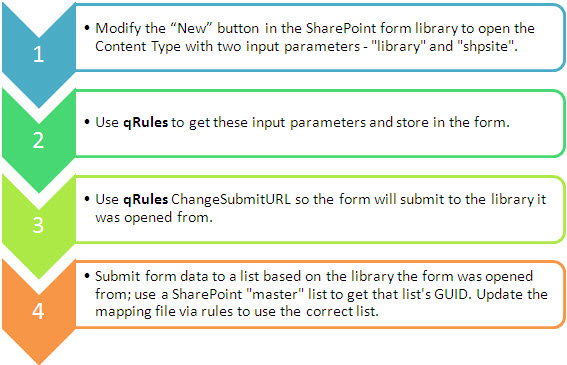
To follow the steps, you need to:
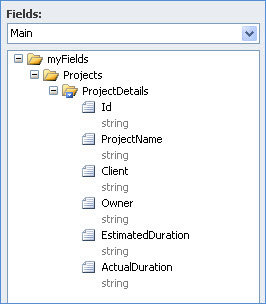
1. Create an InfoPath form template, injected with qRules v3.1. We will use a sample InfoPath form template that contains the following fields:
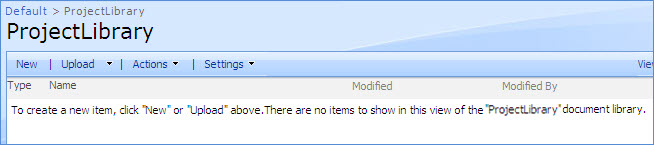
2. Create a SharePoint Library where we will open the content type from (this tutorial uses ProjectLibrary).
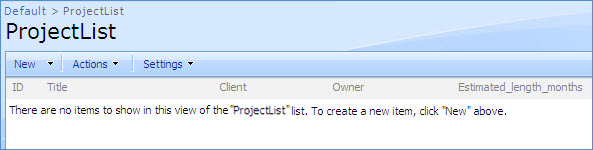
3. Create two SharePoint lists. One for form list submission and another to store the list GUID and site. This tutorial uses:
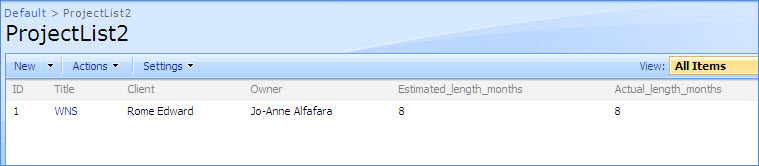
a. Project List – the form will submit data to this list.
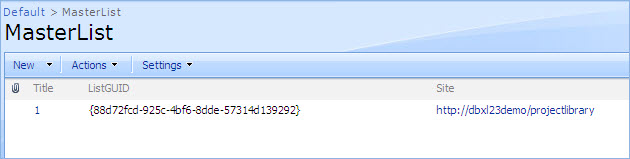
b. Master List – Master List is a SharePoint list that all users have access to. It contains two columns – one for ListGUID and one for Site (which is the library URL). When a new project is set up, the master list needs to have an entry added with the ListGUID of the SharePoint list we will be submitting to, and the URL of the form library the form will submit to.
NOTE: To know the list GUID, click Settings > List Settings. You’ll see a URL that looks like this: http://<SharePointSite_layouts/listedit.aspx?List=%7B88D72FCD%2D925C%2D4BF6%2D8DDE%2D57314D139292%7D. The List GUID is in red, but we need to decode it to obtain the GUID. You can use an online tool such as http://meyerweb.com/eric/tools/dencoder/ to obtain the GUID, which in this case is {88d72fcd-925c-4bf6-8dde-57314d139292}.
Go ahead and add the Site URL of the SharePoint library you created in step 2 (make sure to omit /Forms/AllItems.aspx and enter the URL in lowercase) and the list GUID of the SharePoint list created in step (3-a) to the master list.
1. Go to Start > All Programs > Qdabra > Tools > qRules > qRules Mapping Tool. 2. This will launch the InfoPath to SharePoint List Tool. When the form is opened, click on Define Mapping. 3. In the Source XSN field, attach your InfoPath form template (XSN). 4. Enter the root SharePoint site in the Target SharePoint Site URL field, e.g. http://SharePointSite 5. Click on the Get SharePoint Lists button. 6. In the SharePoint Lists dropdown, select the list you wish to submit items to, in this sample, “ProjectList”. 7. Click on the Extract Schemas button. 8. Since we’re using a repeating group in our form, we will have to check the box “Data is from repeating group” in the Mapping Definition section. 9. Click on the icon to display the Schema Tree task pane and select the repeating group for your data, which in this case is my:myFields/my:Projects/my:ProjectDetails. 10. Click on the icon in each Form Field row to select the fields from the Schema Tree task pane, and then select the corresponding SharePoint Column to map the fields to. You can also indicate if any of the fields you wish to submit should be treated as Rich Text. 11. When done mapping, click on the Save As qRules Mapping button. 12. Save the mapping as an XML file in your local drive. In this example, we will leave the default name as mapping.xml, although we can use any filename. 13. Once done, close the tool and open the form template in InfoPath Design mode. 14. Go to Data > Data Connections and add a receive data connection. 15. Select XML document as the source of your data and browse to the mapping.xml file that’s been saved in Step 11. 16. Leave the default to include the data as a resource file in the form template and allow automatic retrieve on form open. For simplicity, we will call this data connection “mapping”.
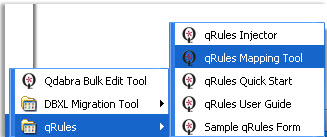
1. Go to Start > All Programs > Qdabra > Tools > qRules > qRules Mapping Tool.
2. This will launch the InfoPath to SharePoint List Tool. When the form is opened, click on Define Mapping.
3. In the Source XSN field, attach your InfoPath form template (XSN).
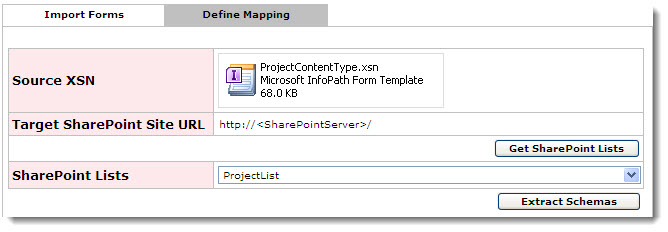
4. Enter the root SharePoint site in the Target SharePoint Site URL field, e.g. http://SharePointSite
5. Click on the Get SharePoint Lists button.
6. In the SharePoint Lists dropdown, select the list you wish to submit items to, in this sample, “ProjectList”.
7. Click on the Extract Schemas button.
8. Since we’re using a repeating group in our form, we will have to check the box “Data is from repeating group” in the Mapping Definition section.
9. Click on the icon to display the Schema Tree task pane and select the repeating group for your data, which in this case is my:myFields/my:Projects/my:ProjectDetails.
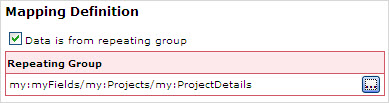
10. Click on the icon in each Form Field row to select the fields from the Schema Tree task pane, and then select the corresponding SharePoint Column to map the fields to. You can also indicate if any of the fields you wish to submit should be treated as Rich Text.
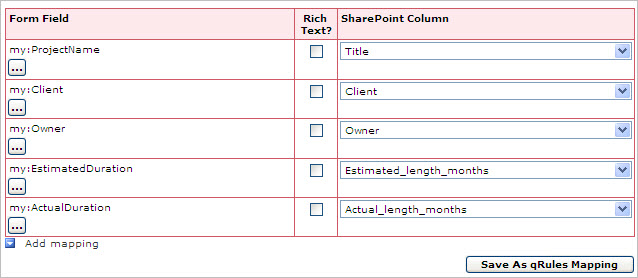
11. When done mapping, click on the Save As qRules Mapping button.
12. Save the mapping as an XML file in your local drive. In this example, we will leave the default name as mapping.xml, although we can use any filename.
13. Once done, close the tool and open the form template in InfoPath Design mode.
14. Go to Data > Data Connections and add a receive data connection.
15. Select XML document as the source of your data and browse to the mapping.xml file that’s been saved in Step 11.
16. Leave the default to include the data as a resource file in the form template and allow automatic retrieve on form open. For simplicity, we will call this data connection “mapping”.
1. Go to Data > Data Connections > Add > Create a new connection to submit data > To a document library on a SharePoint site. 2. Enter the URL to your form library, such as: 3. In the sample, we have added the formula concat("Project Form - ", now()) as the file name. 4. Click Next and name the data connection ShPLib.
1. Go to Data > Data Connections > Add > Create a new connection to submit data > To a document library on a SharePoint site.
2. Enter the URL to your form library, such as:
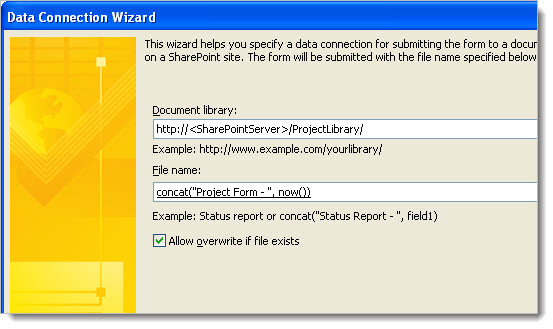
3. In the sample, we have added the formula concat("Project Form - ", now()) as the file name.
4. Click Next and name the data connection ShPLib.
1. Go to Data > Data Connections > Add > Create a new connection to receive data > SharePoint Library or list. 2. Enter the URL to your SharePoint and select the master list. 3. Select the ListGUID and Site columns. 4. Name the data connection MasterList and select check box for loading data on open.
1. Go to Data > Data Connections > Add > Create a new connection to receive data > SharePoint Library or list.
2. Enter the URL to your SharePoint and select the master list.
3. Select the ListGUID and Site columns.
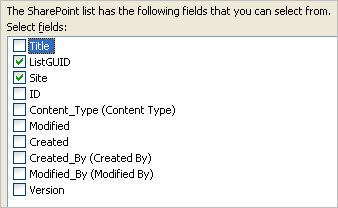
4. Name the data connection MasterList and select check box for loading data on open.
1. Add another data connection that submits data to a Web Service since SharePoint uses a web service for the list methods. The URL should be: http://SharePointSite/_vti_bin/lists.asmx where <SharePointSite> is the root site for the SharePoint list. 2. In the list of operations, select UpdateListItems. 3. For the listName parameter, select the ListCollection node from the mapping secondary data source: 4. For the updates parameter, select the Batch group node: 5. Select to include the updates parameter as an XML subtree, including selected element: 6. Name this data connection ShPSubmit, although, like the mapping connection, you may use whatever name you like. Just be certain to use the same name in the qRules command, including the same case (i.e., if the data connection is “MySpecialMappingFile” you won’t want to use “mYsPeciaLmaPPingfIlE” for the /mapping parameter).
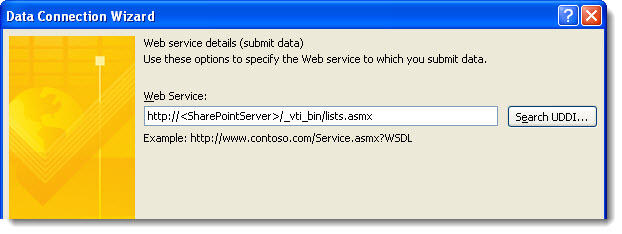
1. Add another data connection that submits data to a Web Service since SharePoint uses a web service for the list methods. The URL should be: http://SharePointSite/_vti_bin/lists.asmx where <SharePointSite> is the root site for the SharePoint list.
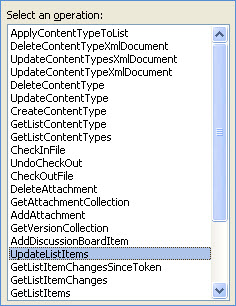
2. In the list of operations, select UpdateListItems.
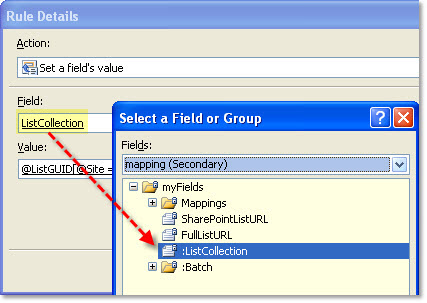
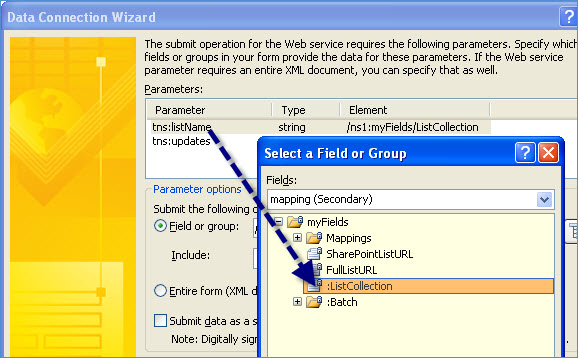
3. For the listName parameter, select the ListCollection node from the mapping secondary data source:
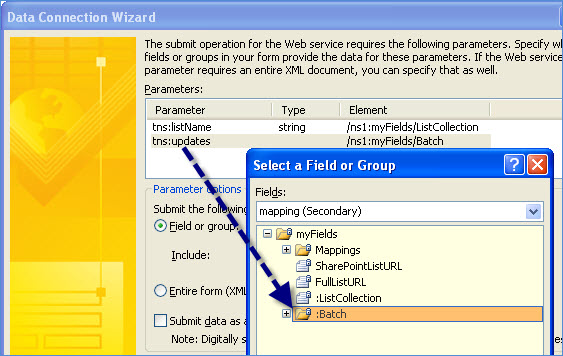
4. For the updates parameter, select the Batch group node:
5. Select to include the updates parameter as an XML subtree, including selected element:
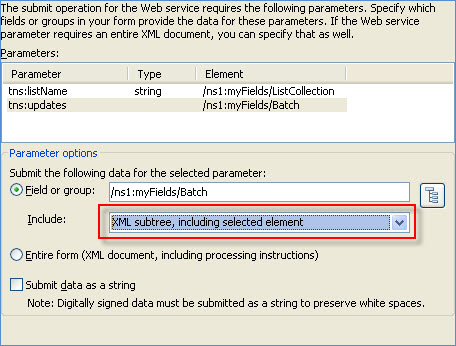
6. Name this data connection ShPSubmit, although, like the mapping connection, you may use whatever name you like. Just be certain to use the same name in the qRules command, including the same case (i.e., if the data connection is “MySpecialMappingFile” you won’t want to use “mYsPeciaLmaPPingfIlE” for the /mapping parameter).
1. Go to Data > Data Connections > Add > Create a new connection to receive data > XML document. 2. Enter the link to owssvr.dll of the SharePoint list. An owssvr.dll link is in the following format:http://<serverName>/_vti_bin/owssvr.dll?Cmd=Display&List={88d72fcd-925c-4bf6-8dde-57314d139292}&XMLDATA=TRUE&NOREDIRECT=TRUE&Query=* You need to change <serverName> to the name of your server. Change the GUID in the curly braces to the GUID to your list. If you want to test the link in the browser to see if XML is returned from your list, you can. For SharePoint 2007, you may need to remove &NOREDIRECT=TRUE for the XML to render. Select the option to access the data from the specified location: 3. Name the data connection owssvr, and deselect the checkbox for loading the data on open:
1. Go to Data > Data Connections > Add > Create a new connection to receive data > XML document.
2. Enter the link to owssvr.dll of the SharePoint list. An owssvr.dll link is in the following format:http://<serverName>/_vti_bin/owssvr.dll?Cmd=Display&List={88d72fcd-925c-4bf6-8dde-57314d139292}&XMLDATA=TRUE&NOREDIRECT=TRUE&Query=*
You need to change <serverName> to the name of your server. Change the GUID in the curly braces to the GUID to your list. If you want to test the link in the browser to see if XML is returned from your list, you can.
For SharePoint 2007, you may need to remove &NOREDIRECT=TRUE for the XML to render.
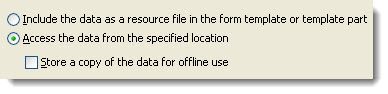
Select the option to access the data from the specified location:
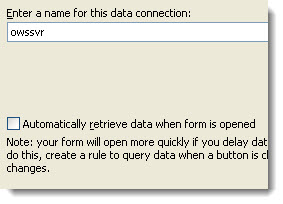
3. Name the data connection owssvr, and deselect the checkbox for loading the data on open:
SET THE RULES ON FINISHED LOADING
Get the library and site input parameters and store them in the main data source of the form
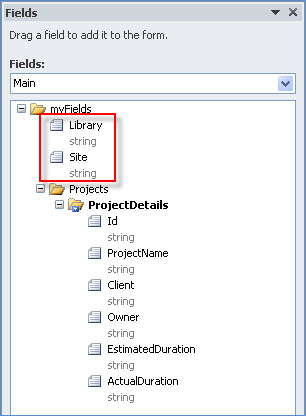
1. Add two new fields in the main data source – Library and Site:
2. Drag the QdabraRules node in the view. While you probably won’t want this showing on your final template, it is helpful when you are working on a form with qRules, as you will be able to see any error messages.
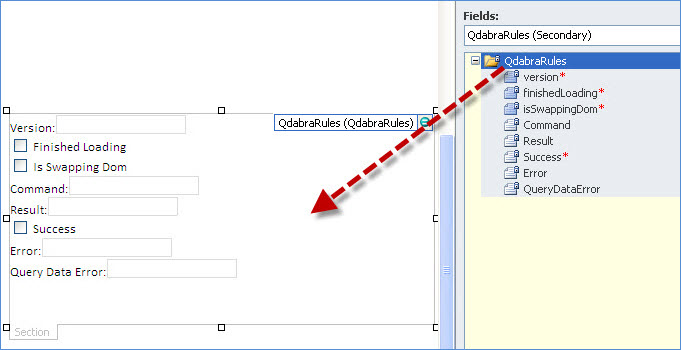
3. Double click on the Finished Loading check box. We’re going to add four rules in this field:
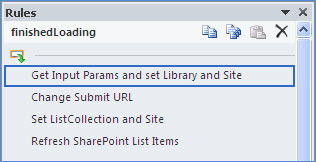
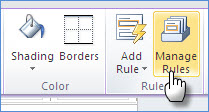
4. Click Manage Rules to open the rules task pane.
This rule will get the values for the input parameters we will set up to pass in later when we modify the “New” button.
1. Click New > Action. Name the first rule Get Input Params and set Library and Site. 2. Add the following conditions: finishedLoading (QdabraRules data source) is equal to TRUE andLibrary (main data source) is blank andSite (main data source) is blank 3. In this rule, we’re going to have 4 actions to set a field’s value. a. Set the Command (QdabraRules data source) field’s value to GetInputParameter /key=library. b. Set the Library (main data source) field’s value to the Result node from QdabraRules data source. c. Set the Command (QdabraRules data source) field’s value to GetInputParameter /key=shpsite. d. Set the Site (main data source) field’s value to the Result node from QdabraRules data source. Final rule should look like:
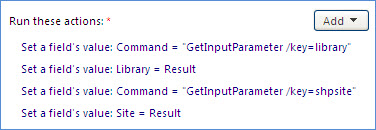
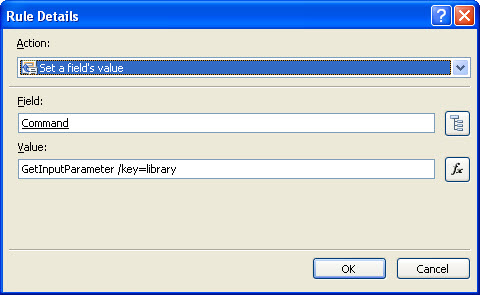
1. Click New > Action. Name the first rule Get Input Params and set Library and Site.
2. Add the following conditions:
finishedLoading (QdabraRules data source) is equal to TRUE andLibrary (main data source) is blank andSite (main data source) is blank
3. In this rule, we’re going to have 4 actions to set a field’s value.
a. Set the Command (QdabraRules data source) field’s value to GetInputParameter /key=library. b. Set the Library (main data source) field’s value to the Result node from QdabraRules data source. c. Set the Command (QdabraRules data source) field’s value to GetInputParameter /key=shpsite. d. Set the Site (main data source) field’s value to the Result node from QdabraRules data source.
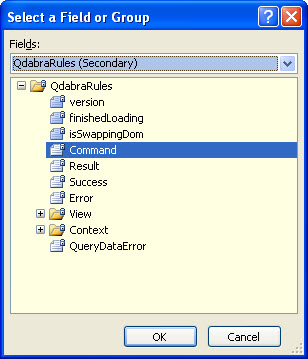
a. Set the Command (QdabraRules data source) field’s value to GetInputParameter /key=library.
b. Set the Library (main data source) field’s value to the Result node from QdabraRules data source.
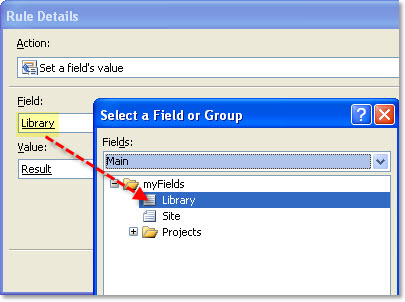
c. Set the Command (QdabraRules data source) field’s value to GetInputParameter /key=shpsite.
d. Set the Site (main data source) field’s value to the Result node from QdabraRules data source.
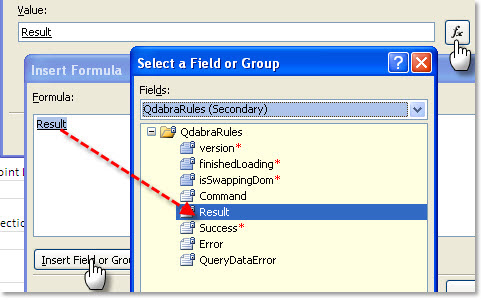
Final rule should look like:
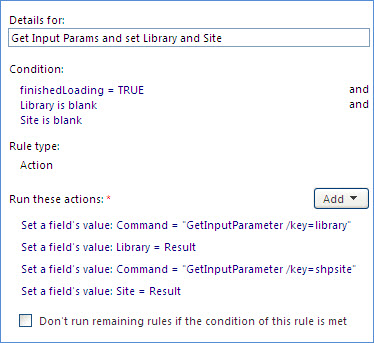
1. Click New > Action. Name the second rule Change Submit URL. 2. Add the following conditions: finishedLoading (QdabraRules data source) is equal to TRUE andLibrary (main data source) is not blank andSite (main data source) is not blank 3. Set the Command (QdabraRules data source) field’s value to concat("ChangeSubmitUrl /submit=ShPLib /url=", Site, "/", Library).
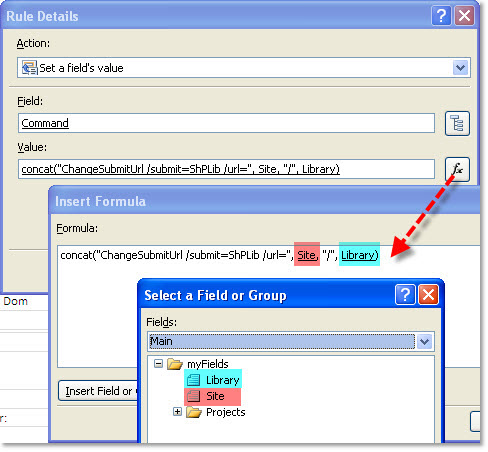
1. Click New > Action. Name the second rule Change Submit URL.
finishedLoading (QdabraRules data source) is equal to TRUE andLibrary (main data source) is not blank andSite (main data source) is not blank
3. Set the Command (QdabraRules data source) field’s value to concat("ChangeSubmitUrl /submit=ShPLib /url=", Site, "/", Library).
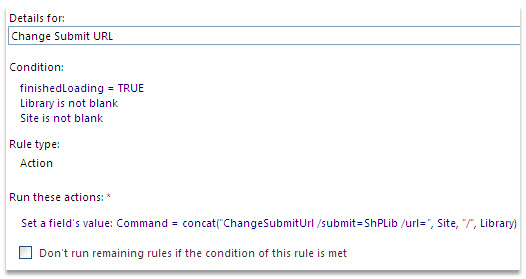
1. Click New > Action. Name the third rule Set ListCollection and Site. 2. Add the following conditions: finishedLoading (QdabraRules data source) is equal to TRUE andLibrary (main data source) is not blank andSite (main data source) is not blank 3. Set the ListCollection field’s value to the formula @ListGUID[@Site = concat(Site, "/", Library)] Where: ListCollection (mapping data source) @ListGUID (master list data source) @Site (master list data source) Library (main data source) Site (main data source)
1. Click New > Action. Name the third rule Set ListCollection and Site.
3. Set the ListCollection field’s value to the formula @ListGUID[@Site = concat(Site, "/", Library)]
Where:
1. Click New > Action. Name the fourth rule Refresh SharePoint List Items. 2. Add the following conditions: finishedLoading (QdabraRules data source) is equal to TRUE andLibrary (main data source) is not blank andSite (main data source) is not blank 3. Set the Command (QdabraRules data source) field’s value to the formula RefreshSharePointListItems /dsname=owssvr /id=my:Id /mapping=mapping /mode=Update. 4. Close the rules task pane for the finished loading field. 5. RefreshSharePointListItems requires an attribute called qRulesLastModified to be added to whatever field you are using for the /id parameter in your SubmitToSharePoint list command. Right click on the field and add a string attribute called qRulesLastModified. When items are submitted to a SharePoint list via the SubmitToSharePointList command, this attribute will be populated with the date and time of the submit. When the RefreshSharePointListItems command is run, that date and time will be compared to the Modified field from the SharePoint list to determine whether the item should be updated.
1. Click New > Action. Name the fourth rule Refresh SharePoint List Items.
3. Set the Command (QdabraRules data source) field’s value to the formula RefreshSharePointListItems /dsname=owssvr /id=my:Id /mapping=mapping /mode=Update.
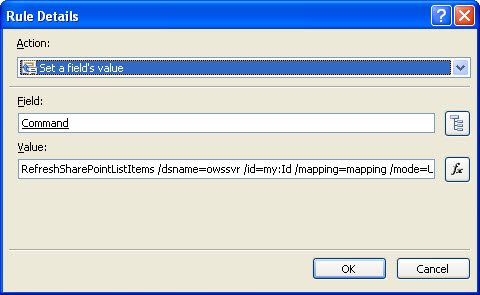
4. Close the rules task pane for the finished loading field.
5. RefreshSharePointListItems requires an attribute called qRulesLastModified to be added to whatever field you are using for the /id parameter in your SubmitToSharePoint list command. Right click on the field and add a string attribute called qRulesLastModified. When items are submitted to a SharePoint list via the SubmitToSharePointList command, this attribute will be populated with the date and time of the submit. When the RefreshSharePointListItems command is run, that date and time will be compared to the Modified field from the SharePoint list to determine whether the item should be updated.
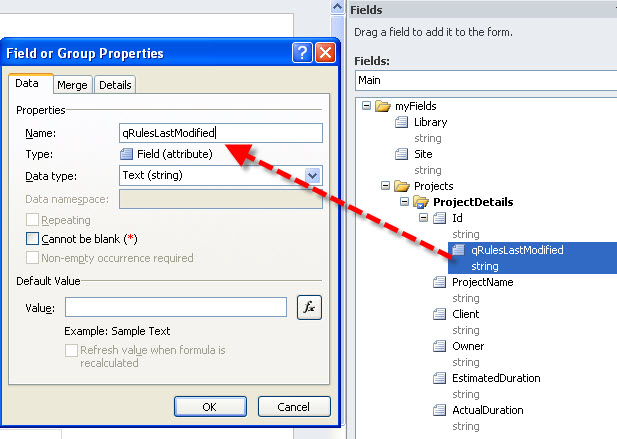
SET RULES ON FORM SUBMIT
1. Click Data > Submit Options. Check to allow users to submit the form and select option to perform custom action using Rules. Click OK. 2. Go to Data > Form Submit. 3. We are going to add two submit rules: (1) Submit to SharePoint list and (2) Submit to the SharePoint library where the form was opened from. 4. Click New > Action. Name the first rule Submit To ShP List. 5. Add a new action that set’s a fields value. 6. Set the value of the QdabraRule’s Command field to SubmitToSharePointList /submit=ShPSubmit /mapping=mapping /id=my:Id. Where: /submit – name of the Submit connection you set up to your SharePoint List /mapping – name of the Receive connection you set up to your mapping.xml file /id - the XPath to the field you want to use for the returned Id of your new SharePoint List item after your data is submitted. If your form data is repeating, you want to use the relative XPath (just the bit after the repeating group, i.e. instead of my:myFields/my:repeatingGroup/my:id, you would use my:id). If your form data is NOT repeating, use the full XPath. 7. Create another rule and name it Submit To SharePoint Library. 8. Add the conditions: Library is not blank andSite is not blank 9. Add an action to submit data using the submit data connection you created for your SharePoint library. 10. Once all the rules have been set, let’s drag some fields to the view. 11. Drag the repeating table that contains the nodes that we mapped to the SharePoint list: 12. Drag the fields: SharePointListURL, ListCollection, Site and Library to the view. We’re placing it in the view just to see their values when we test the form. 13. Save the changes to your form.
1. Click Data > Submit Options. Check to allow users to submit the form and select option to perform custom action using Rules. Click OK.
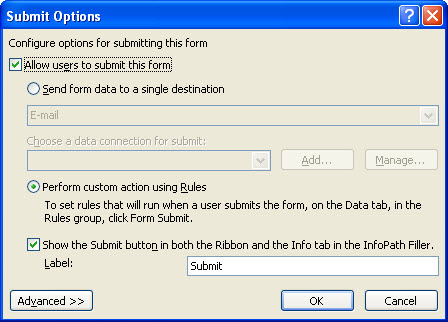
2. Go to Data > Form Submit.
3. We are going to add two submit rules: (1) Submit to SharePoint list and (2) Submit to the SharePoint library where the form was opened from.
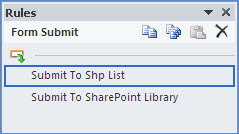
4. Click New > Action. Name the first rule Submit To ShP List.
5. Add a new action that set’s a fields value.
6. Set the value of the QdabraRule’s Command field to SubmitToSharePointList /submit=ShPSubmit /mapping=mapping /id=my:Id.
7. Create another rule and name it Submit To SharePoint Library.
8. Add the conditions:
Library is not blank andSite is not blank
9. Add an action to submit data using the submit data connection you created for your SharePoint library.
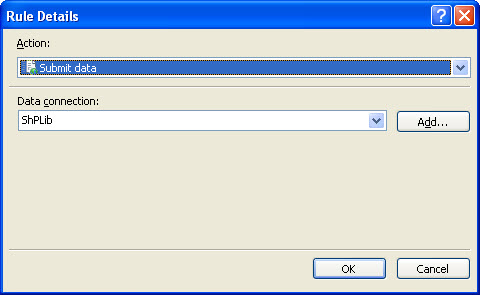
10. Once all the rules have been set, let’s drag some fields to the view.
11. Drag the repeating table that contains the nodes that we mapped to the SharePoint list:
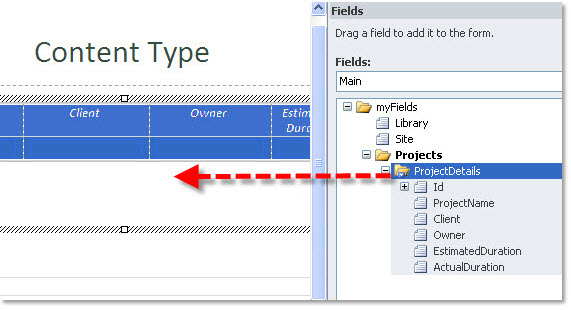
12. Drag the fields: SharePointListURL, ListCollection, Site and Library to the view. We’re placing it in the view just to see their values when we test the form.
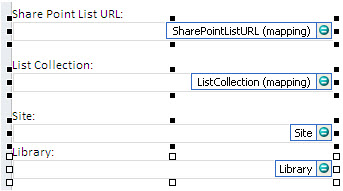
13. Save the changes to your form.
PUBLISH FORM AS A CONTENT TYPE AND USE IN SHAREPOINT LIBRARY
1. In InfoPath, click File > Publish > SharePoint Server. 2. Enter the URL to your SharePoint server. Click Next. 3. In the next window, select Site Content Type (advanced). 4. Select option to create a new content type. 5. Enter a name for your content type. Click Next. 6. When specifying the location and file name of the form template, enter http://<SharePoint Server>/FormServerTemplates/<ContentTypeName>.xsn. Click Next. 7. Select the fields to promote. Click Next and then Publish. 8. Go to SharePoint and open your SharePoint Library. 9. Click Settings > Form Library Settings. 10. Click Advanced Settings. Select “Yes” option to allow management of content types. Click OK. 11. Under Content Types section, click Add from existing site content types. 12. Select the content type you published in step 7. Click the "Add" (>) button, and then click OK. 13. Back in the form library settings, click Change new button order and default content type. 14. Uncheck the check box next to the Form content type and click OK.
1. In InfoPath, click File > Publish > SharePoint Server.
2. Enter the URL to your SharePoint server. Click Next.
3. In the next window, select Site Content Type (advanced).
4. Select option to create a new content type.
5. Enter a name for your content type. Click Next.
6. When specifying the location and file name of the form template, enter http://<SharePoint Server>/FormServerTemplates/<ContentTypeName>.xsn. Click Next.
7. Select the fields to promote. Click Next and then Publish.
8. Go to SharePoint and open your SharePoint Library.
9. Click Settings > Form Library Settings.
10. Click Advanced Settings. Select “Yes” option to allow management of content types. Click OK.
11. Under Content Types section, click Add from existing site content types.
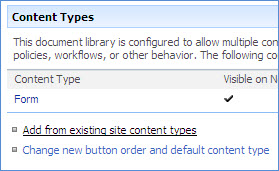
12. Select the content type you published in step 7. Click the "Add" (>) button, and then click OK.
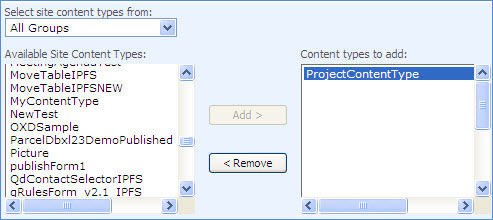
13. Back in the form library settings, click Change new button order and default content type.
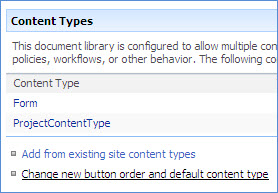
14. Uncheck the check box next to the Form content type and click OK.
MODIFY "NEW" BUTTON IN SHAREPOINT
1. Launch SharePoint Designer 2007 or 2010, depending on your version of SharePoint. 2. Click Open Site and enter the URL to your SharePoint library. 3. Once it’s finished loading, right click the library web part and select Convert to XSLT data view. 4. Click on the code tab underneath. 5. You’ll see that the code is now converted to XSLT. Put the cursor on top of the code, press CTRL+F and find “NewMenu”. 6. Highlight it and replace with the following lines of code: <xsl:variable name="library"><xsl:value-of select="substring-before(substring-after($PageUrl, concat($HttpVDir, '/')), '/Forms/')"/></xsl:variable> <td style="padding-right:10px; padding-left:10px" onMouseOver="this.className='highlight'" onmouseout="this.className='normal'"> <a href="http://<SharePointServer>/FormServerTemplates/<ContentTypeName>.xsn?shpsite={$HttpVDir}&library={$library}">New</a></td> 7. Click Save to save changes to the site.
1. Launch SharePoint Designer 2007 or 2010, depending on your version of SharePoint.
2. Click Open Site and enter the URL to your SharePoint library.
3. Once it’s finished loading, right click the library web part and select Convert to XSLT data view.
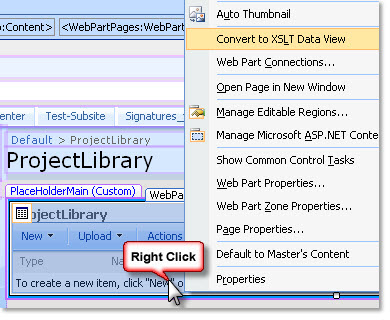
4. Click on the code tab underneath.
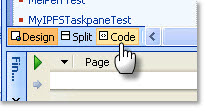
5. You’ll see that the code is now converted to XSLT. Put the cursor on top of the code, press CTRL+F and find “NewMenu”.
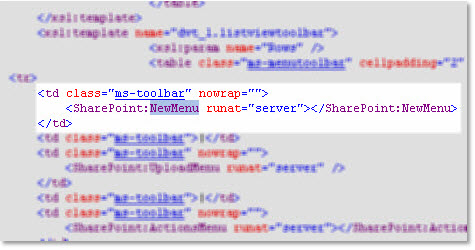
6. Highlight it and replace with the following lines of code:
<xsl:variable name="library"><xsl:value-of select="substring-before(substring-after($PageUrl, concat($HttpVDir, '/')), '/Forms/')"/></xsl:variable> <td style="padding-right:10px; padding-left:10px" onMouseOver="this.className='highlight'" onmouseout="this.className='normal'"> <a href="http://<SharePointServer>/FormServerTemplates/<ContentTypeName>.xsn?shpsite={$HttpVDir}&library={$library}">New</a></td>
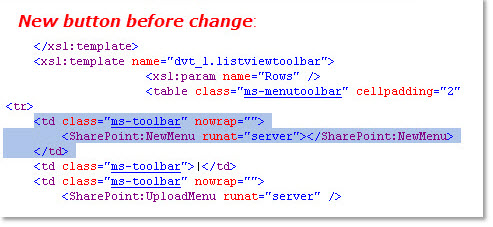
<xsl:variable name="library"><xsl:value-of select="substring-before(substring-after($PageUrl, concat($HttpVDir, '/')), '/Forms/')"/></xsl:variable>
<td style="padding-right:10px; padding-left:10px" onMouseOver="this.className='highlight'" onmouseout="this.className='normal'">
<a href="http://<SharePointServer>/FormServerTemplates/<ContentTypeName>.xsn?shpsite={$HttpVDir}&library={$library}">New</a></td>

7. Click Save to save changes to the site.
Since it’s just a link, not a button, it isn’t highlighting on hover like a “real” new button. You can add code to prettify it and mimic the orange highlighting on hovering over the New button in SharePoint.
1. Go back to the SharePoint Designer, if your library web part is still open, click the code tab. 2. Find <style type="text/css">: 3. Insert a new link after the closing braces for padding: Opx; and add the following code: td.highlight { background-color: orange }td.normal {background-color:transparent } 4. Save changes to the site.
1. Go back to the SharePoint Designer, if your library web part is still open, click the code tab.
2. Find <style type="text/css">:
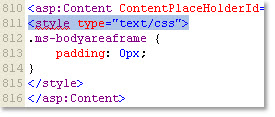
3. Insert a new link after the closing braces for padding: Opx; and add the following code:
td.highlight { background-color: orange }td.normal {background-color:transparent }
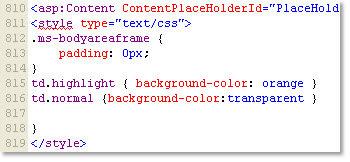
4. Save changes to the site.
TEST YOUR SOLUTION
1. Refresh your SharePoint library and click on New. 2. Click Open when prompted to open the content type. You’ll see that the form opens with the correct parameters: 3. Enter some data in the repeating fields (leave the Id blank) and click Submit button from the menu. 4. Verify that your form is submitted to the SharePoint library and SharePoint List: 5. Modify the list item. Make some changes and then click OK. 6. Open the XML from the SharePoint library and verify that it is also updated with the changes in the list item.
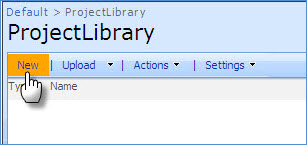
1. Refresh your SharePoint library and click on New.
2. Click Open when prompted to open the content type. You’ll see that the form opens with the correct parameters:
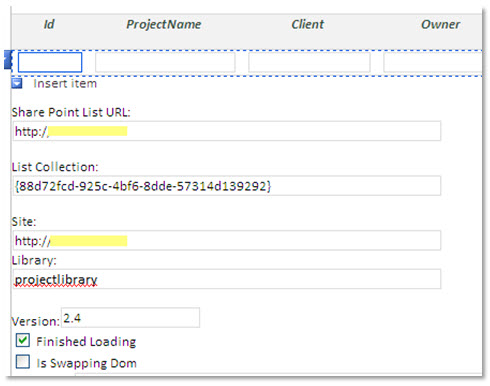
3. Enter some data in the repeating fields (leave the Id blank) and click Submit button from the menu.
4. Verify that your form is submitted to the SharePoint library and SharePoint List:
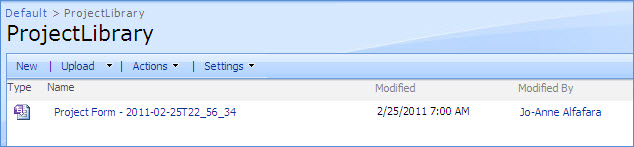
5. Modify the list item. Make some changes and then click OK.
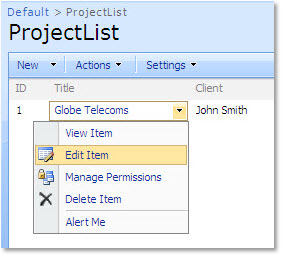
6. Open the XML from the SharePoint library and verify that it is also updated with the changes in the list item.

USE CONTENT TYPE IN ANOTHER SHAREPOINT LIBRARY AND LIST
Now that we have a content type as our form template, we can reuse it in another SharePoint library and list in the same site or even on a different sub site.
1. Create your second SharePoint library and list: NOTE: The easiest way to create your second list and avoid mapping issues would be to save the list as a template, then create your new list off it. In SharePoint, click Create and under Custom List, you’ll see your template: Below I have created my second project list out of a template. The columns are automatically copied so I don’t have to worry recreating them: 2. Add both the library and list to your “master” list. We’re adding the GUID of the SharePoint list to the ListGUID column, and the SharePoint Library URL to the Site column (omit the /Forms/AllItems.aspx and then make sure that the URL is in lowercase). 3. Go to the form library settings of your SharePoint Library, and add the content type. Remember that we already went over these steps using our first library. You may go back and review how we added the content type. 4. Modify the All Items view in the SharePoint library to use a hyperlink in place of the new button using SharePoint Designer. And then, edit the link to mimic the “new” button. You may just copy the code that you previously added to your first library. 5. Now refresh your SharePoint library, add and edit items as you’ve done previously.
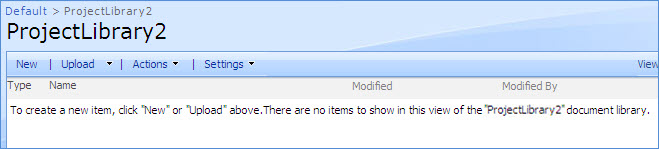
1. Create your second SharePoint library and list:
NOTE: The easiest way to create your second list and avoid mapping issues would be to save the list as a template, then create your new list off it.
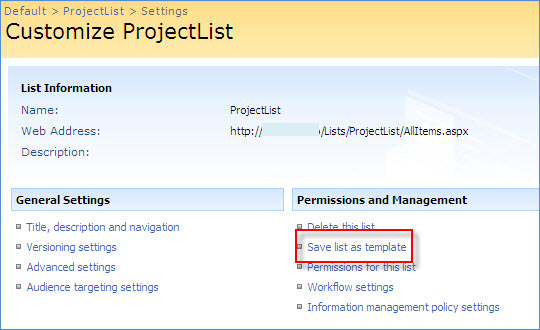
In SharePoint, click Create and under Custom List, you’ll see your template:
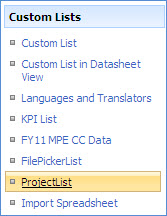
Below I have created my second project list out of a template. The columns are automatically copied so I don’t have to worry recreating them:
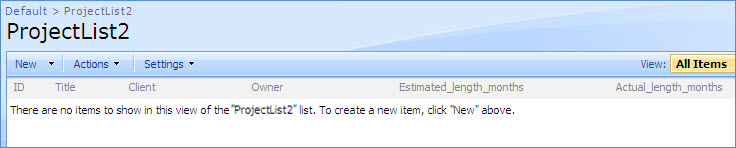
2. Add both the library and list to your “master” list. We’re adding the GUID of the SharePoint list to the ListGUID column, and the SharePoint Library URL to the Site column (omit the /Forms/AllItems.aspx and then make sure that the URL is in lowercase).
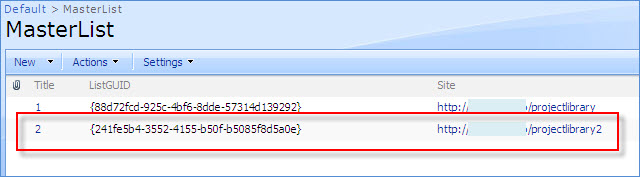
3. Go to the form library settings of your SharePoint Library, and add the content type. Remember that we already went over these steps using our first library. You may go back and review how we added the content type.
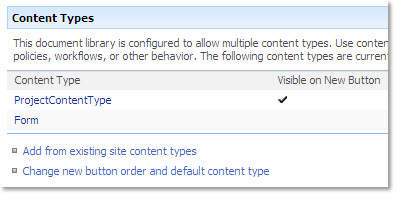
4. Modify the All Items view in the SharePoint library to use a hyperlink in place of the new button using SharePoint Designer. And then, edit the link to mimic the “new” button. You may just copy the code that you previously added to your first library.
5. Now refresh your SharePoint library, add and edit items as you’ve done previously.
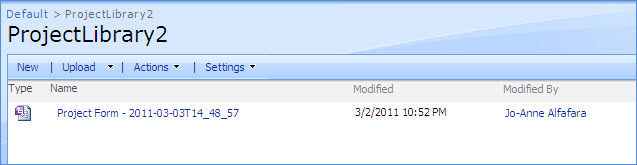
See how the form knows where to submit list items and XML! J
Another option is to save your sub site as a template – then you can easily create new sub sites that have the same library and list, with the “New” button already set up. All you’d need to do is add the library and list to your master list!
Whenever you want to expose your forms on a web page the tendency is to want to put a plain hyperlink to your XML file. The problem with this ranges from getting Open/Save dialogs all the time (see below).
In this tutorial we’re providing the script below that calls OpenXMLDocument from a data view just for this purpose. You may copy this script in a text editor of your choice and save as a .js file.
function CreateNewXMLDocument(url){ try{ // Based on WPQ3combineDocuments() var objOpenXMLDoc = new ActiveXObject("SharePoint.OpenXMLDocuments.1"); var bSuccess = false; bSuccess = objOpenXMLDoc.CreateNewDocument2(window , url , url ); } catch(e) { // Some browsers will not support this feature. window.location = url; }}
function OpenXMLDocument(url){ try { // Based on WPQ3combineDocuments() var objOpenXMLDoc = new ActiveXObject("SharePoint.OpenXMLDocuments.1"); var bSuccess = false; bSuccess = objOpenXMLDoc.EditDocument2(window , url , "InfoPath.Document" ); } catch(e) { // Some browsers will not support this feature. window.location = url; }}
Add the javascript to your website
1. Create a new folder called “script” underneath C:\Inetpub\wwwroot\wss\VirtualDirectories\80\ and put the JS file in that folder.
2. So now the JS file can be accessed at http://<SharePointServer>/script/InfoPathOpen.js.
Add a reference of the script to your website
1. Now you need to edit your page, in this case, we’re editing a data view from SharePoint designer to add reference to the javascript file.
2. Open your data view from SharePoint Designer.
3. Click the code tab found underneath.
4. Place a reference somewhere in the code. You want to put in a place where it’s not going to be repeated.
<script type="text/javascript" src="http://<SharePointServer>/script/InfoPathOpen.js"></script>
Change the link format
1. In the code tab, find the line called <td class="style1">.
2. Insert this code just after <td class="style1">:
<a href="{@Link}" onclick="OpenXMLDocument('{@Link}'); return false;"><xsl:value-of select="@DocID" /></a>
3. Save the changes to your data view.
Now refresh your list and open the link. In the example below, the DocID link directly opens the form without the pop ups.
Also, check out Jim's latest blog on how to prevent the Open/Save dialog box in SharePoint 2010 using a code snippet. Jim's technique is similar to what's shown above but does not require code level page editing.
Scenario
Do you have InfoPath forms created in different versions? Want to have old forms shown in old form template and new forms in new form template? No problem!!! Follow this document and you will be able to create side-by-side versioning of InfoPath form using Content Types.
If you want to use DBXL to map these content types to your SharePoint library, see this previous blog post.
Design the form (Version 1)
1. Open a blank form in design mode.
2. Create the following fields in the form. Notice that “Issue” group is a repeating section.
3. Drag and drop the fields into the form. Now we are done with creating the form template. Your form will look like this:
4. Save the form template locally as CustomerContact-v1.xsn. Let’s consider this as version 1 form.
Design the form (Version 2)
1. Create the next version (version 2) of the form and name it CustomerContact-v2.xsn.
2. Change a bit of the schema by adding a new field called “Company” under “CustomerInfo” and make it a required field. Add another new field “DateTime” (of datatype Date) under “Issue” and enter today() as the default value for the field.
3. Clear the previous display, and drag & drop the new schema into the form.
4. Change the control of the DateTime field to textbox, and change the display of the field to Read-only.
5. Go to form template properties and make sure the name of the form template is “CustomerContact-v2”. Save your changes to the form.
Publish the Form Templates as Content Types
1. Create a Form Library that will hold the content types (i.e. http://dbxl-vm/MyContentTypes/Forms/AllItems.aspx).
2. Open the first form template (CustomerContact-v1.xsn) in design mode.
3. Select File > Publish.
4. In the Publishing Wizard, enter the SharePoint server root where you want to publish the form template. Click Next.
5. The key thing here is to choose Site Content Type, click Next.
6. Select Create a new Content Type and click Next.
7. In the next window, enter a name for your content type (CustomerContact-v1). Click Next.
8. Specify a location and file name for the form template (e.g. http://dbxl-vm/MyContentTypes/Forms/CustomerContact-v1.xsn), and then click Next.
9. When asked to choose the columns you want to display in the SharePoint library, add the fields and click Next.
10. Click Publish. When done, click Close. Your form template will be published as content type.
11. Repeat steps 1-10 to publish CustomerContact-v2.xsn to the same content type library.
Create a new Form Library and add the Content Types
1. Create a new form library.
2. Go to your SharePoint Form Library -> Settings -> Form Library Settings -> Advanced Settings.
3. Select Yes to allow management of content types, and click OK.
4. Back in the Form Library Settings, select Add from existing site content types under Content Types section.
5. In the Add Content Types page, select the two content types that were published in the SharePoint site (CustomerContact-v1 and CustomerContact-v2) and click Add. Click OK.
6. Back in the Form Library Settings, select Change new button order and default content type under the Content Types section.
7. Choose CustomerContact-v1 as Position 1, which makes it the default content type, and CustomerContact-v2 as Position 2. Then uncheck the visible check box for “Form”. Click OK.
Create two versions of the form
1. In the form library, click the down arrow for New Document. You can see that we can choose the templates from both versions.
2. Select CustomerContact-v1.
3. Fill out the Customer Contact form and save it as “Version1Form”. Close the form.
4. Now, select CustomerContact-v2 under the New Document.
5. Fill out the Customer Contact form and save it as “Version2Form”.
6. Now we have two versions of the InfoPath forms both using their own templates to save information.
Do you want to submit using two form templates from one SharePoint library to DBXL? You can do this now in DBXL v2.4 by mapping to SharePoint using content types.
Let’s walk through the steps on setting up two content types and mapping them to DBXL.
Pre-requisites
Design the Form
We will begin by designing our forms and declaring the document type names into an XML. Declaring the document type name in XML is required if your form has code. You can skip this section if your form is code-free.
1. Design the first form. In this example, we will be adding three nodes to our main data connection (Name, Author, and Description).
2. We will label the form as Content Type1, so we can better identify the two forms later in this tutorial.
3. Declare Document Type name in XML.
a. Create an xml file with one node, which declares the name of the Document Type that you will be using. Its contents may look like this: <declaration><doctypename>ContentType1</doctypename></declaration> b. Save this xml document to your local drive. c. Open the form template in design mode in InfoPath. d. Click on Tools > Data Connections and click Add. e. Select Create a new connection to and select Receive data. Click Next. f. Select XML document and click Next. g. Click Browse and select the xml file that you created in step 3a. h. Click Next twice and then click Finish. If you receive a warning, click Ignore.
a. Create an xml file with one node, which declares the name of the Document Type that you will be using. Its contents may look like this:
<declaration><doctypename>ContentType1</doctypename></declaration>
b. Save this xml document to your local drive.
c. Open the form template in design mode in InfoPath.
d. Click on Tools > Data Connections and click Add.
e. Select Create a new connection to and select Receive data. Click Next.
f. Select XML document and click Next.
g. Click Browse and select the xml file that you created in step 3a.
h. Click Next twice and then click Finish. If you receive a warning, click Ignore.
4. Create a submit data connection.
a. Select Tools > Data Connections and click Add. b. Select Create a new connection to and select Submit data. Click Next. c. Select To a Web service and click Next. d. Enter the URL to the DBXLDocumentService, usually http://<servername>/QdabraWebService/DBXLDocumentService.asmx, and click Next. e. Select SubmitDocument from the list of operations and click Next. f. Double click the tns:docTypename parameter and select the secondary xml connectioncreated in Step 3 from the data source dropdown. g. Expand the tree to display the node, select the doctypename node, check the checkbox forSubmit data as string and click OK. h. Select the tns:xml parameter, select the Entire form toggle, and check the checkbox forSubmit data as string. i. Double click the tns:name parameter and select the field Name from the main data source. Check Submit data as a string. j. Double click the tns:author parameter and select the field Author from the main data source. Check Submit data as a string. k. Double click the tns:description parameter and select the field Description from the main data source. Check Submit data as a string. l. Click Next, enter a name for the submit data connection, and then click Finish. If you receive a warning, click Ignore. Then close the data connections dialog box.
a. Select Tools > Data Connections and click Add.
b. Select Create a new connection to and select Submit data. Click Next.
c. Select To a Web service and click Next.
d. Enter the URL to the DBXLDocumentService, usually http://<servername>/QdabraWebService/DBXLDocumentService.asmx, and click Next.
e. Select SubmitDocument from the list of operations and click Next.
f. Double click the tns:docTypename parameter and select the secondary xml connectioncreated in Step 3 from the data source dropdown.
g. Expand the tree to display the node, select the doctypename node, check the checkbox forSubmit data as string and click OK.
h. Select the tns:xml parameter, select the Entire form toggle, and check the checkbox forSubmit data as string.
i. Double click the tns:name parameter and select the field Name from the main data source. Check Submit data as a string.
j. Double click the tns:author parameter and select the field Author from the main data source. Check Submit data as a string.
k. Double click the tns:description parameter and select the field Description from the main data source. Check Submit data as a string.
l. Click Next, enter a name for the submit data connection, and then click Finish. If you receive a warning, click Ignore. Then close the data connections dialog box.
5. Configure a Submit button.
a. Add a button and double click on it to open the Button Properties. b. Change the Action dropdown to Submit and click on Submit Options. c. Check the checkbox for Allow users to submit this form and select Web Service from theSend form data to a single destination dropdown. d. Make sure that the Web Service submit data connection created in step 4 is selected in theChoose a data connection for submit dropdown. e. Click OK twice to close the dialogs.
a. Add a button and double click on it to open the Button Properties.
b. Change the Action dropdown to Submit and click on Submit Options.
c. Check the checkbox for Allow users to submit this form and select Web Service from theSend form data to a single destination dropdown.
d. Make sure that the Web Service submit data connection created in step 4 is selected in theChoose a data connection for submit dropdown.
e. Click OK twice to close the dialogs.
6. Save the XSN in your local drive. For the purposes of this tutorial, we will call the form template ContentType1.xsn.
7. Repeat steps 1-6 to create your second form template, saving it as ContentType2.xsn. You may change the form by adding new fields. Note that when you create the XML, make sure that you declare a different document type name.
1. Open the first form template (ContentType1.xsn) in design mode.
2. Select File > Publish.
3. In the Publishing Wizard, enter the SharePoint server root where you want to publish the form template. Click Next.
4. In the next window, select Site Content Type option, and then click Next.
5. Next, you may opt to create a new content type or update an existing one in your site. In this case, we are creating a new content type.
6. In the next window, enter a name for your content type (i.e. ContentType1). Click Next.
7. Specify a location and file name for the form template (e.g. http://dbxl-vm/MyContentTypes/Forms/ContentType1.xsn), and then click Next.
8. When asked to choose the columns you want to display in the SharePoint library, add the fields and click Next.
9. Click Publish. When done, click Close. Your form template will be published as content type.
10. Repeat steps 1-9 to publish ContentType2.xsn to the same content type library.
Create a new Form Library
2. In your form library, select Settings > Form Library Settings.
3. Under General Settings, click Advanced settings.
4. Select Yes to allow management of content types, then click OK.
5. Back in the Form Library Settings, select Add from existing site content types under Content Types section.
6. In the Add Content Types page, select the two content types that were published in the SharePoint site and click Add. Click OK.
7. Back in the Form Library Settings, select Change new button order and default content type under the Content Types section.
8. Uncheck Form as default content type and click OK.
Create the Document Types
1. Open the DBXL Administration Tool or DAT.
2. Click New Configuration.
3. Click the XSN File attachment field.
4. In the File name field, enter the URL to your first content type (ContentType1.xsn).
5. Click Insert. Your content type will be attached to DBXL.
6. Enter a name for the Document Type. Make sure that your Document Type name matches the same name that was hardcoded in your XML file.
7. Click Save.
8. Create your second document type (ContentType2.xsn), repeating steps 3-7.
Create the SharePoint Mappngs
1. In DAT, click Edit Configuration for ContentType1.xsn.
2. Click on the SharePoint tab.
3. Click Insert Mapping.
4. Enter the URL to the form library you created earlier.
5. Check the Content Type check box. You’ll notice that a Content Type Url field is now displayed.
6. Enter the Url to your content type (e.g. http://dbxl-vm/MyContentTypes/Forms/ContentType1.xsn)
7. Your mapping should now look like this:
8. Click Save.
9. Click Catalog.
10. Click Edit Configuration for your second content type (ContentType2.xsn).
11. Repeat steps 2-6, using the second Content Type Url:
12. Click Save.
Test the solution
1. In Internet Explorer, open the SharePoint form library you created.
2. Click on New.
3. Select ContentType1 or ContentType2.
4. Fill out the form and click Submit.
5. You can open, edit and re-submit the documents by clicking on each item in the SharePoint library.
6. In DBXL, select a document type and click new to open a blank form. Fill out the form and click Submit.
NOTE: When your form has code, do not click New in DBXL. Instead, click on the Download button.
7. You can open, edit and re-submit the documents via their document handler URL, that is, http://<servername>/QdabraWebService/Documents/<docID>/<docID>.xml, or by selecting them from the Documents tab in DAT.
There are times when you want to deploy a template to multiple SharePoint form libraries. For example, multiple teams may use the same template but need to keep their documents separate. The typical way to do this is to deploy the form twice, once for each library. However, a few problems arise when you do this:
DEPLOY A TEMPLATE.XML FILE
1. Deploy the XSN to your shared location. It can be on the same SharePoint server in a document library (using the deploy to file share publish wizard option) or any file share or web site. 2. Launch the form from that location and immediately save a blank form instance and call it "template.xml"
3. Next, browse to the first form library where you want to publish the template. In the top right View dropdown, click Explorer View. In SharePoint 2003, you can find this link displayed in the left column.
4. You will see a Forms folder. Double-click that to go there.
NOTE: Make sure Show hidden files and folders option is selected in your Folder Options. Otherwise, the folder will not be displayed.
5. Once Forms folder is opened, you will see a file called template.xsn.
6. Right-click the template.xsn and delete it.7. Copy the template.xml file you created earlier into this folder.
8. Click Form Library Settings in the library toolbar. If you’re using SharePoint 2003, click Modify Settings and Columns in the left column.
9. Under General Settings, click Advanced settings. 10. In the Document Template field, rename the Template URL from template.xsn to template.xml. Note you might think you could point directly to the other XSN from here but you can't because this link can only be a file in this library.
11. Click OK and you're done! 12. Now when you click New button in the SharePoint library toolbar it will launch the form that you deployed in the central location. 13. Repeat for other libraries where you want to use the same template.
DEFAULT CONTENT IN THE TEMPLATE.XML FILE
An advanced use of this can also be to have the template.xml file have some prefilled content that you want users to have when launching a new file. At step 2, fill in the default form data and save that locally. You can make a different copy of the template.xml with different default data for each library (only 1 per library). Then upload that file and when the user clicks in the library to create a new form, that default data will be pre-populated.
In a previous post, we looked at creating dynamic queries using QuerySharePoint in repeating tables. In that post, the repeating dropdown field dynamically queries data from a SharePoint list by using current() parameter in the concat rule. We saw the result in the form and each row was able to query the correct data from our SharePoint list based on the value selected in the dropdown:
However, it appears that another problem starts to occur when a user queries data that contains special XML characters:
For example, if the repeating field in your form (the field that sets a static query in a QuerySharePoint connection) queries a value that contains special xml characters (e.g. & and <), you’ll encounter a QuerySharePoint error.
In this case, I have this dropdown which contains a QuerySharePoint connection to query and display the Product Name as item list (static query), then upon selecting an item, another query retrieves the corresponding row values in the repeating fields (dynamic query).
If I select a value in the dropdown that contains the special character &, I get the error below:
The same thing happens when selecting a value that has < in it. In effect, the dynamic query associated with the dropdown will not work and thus gives us an empty row:
This is due to QuerySharePoint rejecting special characters, such as & and <:
To avoid this error, you must edit the rule that sets the dynamic query in the repeating table and use an XML tag in the concat that will allow these special characters.
In this case, I’ll double click the Product Name dropdown field, click on Rules:
I’ll select the first rule (that is, the rule that sets the dynamic <query> for our QuerySharePoint connection):
Click Modify and then click the value button in the Action dialog box. If you’ll recall, our concat query looks something like this:
concat("<query><columns><column name='Product_x0020_Code'/><column name='Category'/><column name='Unit_x0020_Of_x0020_Measure'/><column name='Price'/></columns><filter><eq><column name='Product_x0020_Name'/><value>", current(), "</value></eq></filter></query>")
What we need to do is just add a CDATA inside the query <value> </value>:
concat("<query><columns><column name='Product_x0020_Code'/><column name='Category'/><column name='Unit_x0020_Of_x0020_Measure'/><column name='Price'/></columns><filter><eq><column name='Product_x0020_Name'/><value><![CDATA[", current(), "]]></value></eq></filter></query>")
Note that CDATA should always start with the sequence:
<![CDATA[
And ends with:
]]>
All characters enclosed between these two sequences will be interpreted as characters. We’re adding CDATA so that our query will be able to read special characters like & and <.
After applying this solution to the form, let’s preview and select a Product Name that contains special characters:
It works without any errors. If you are using QuerySharePoint, you might want to use this tip to prevent problems in the future.
NOTES:
Are you a DBXL user who uses QuerySharePoint in your form? You might encounter a problem when using QuerySharePoint to dynamically retrieve values from your SharePoint list into a repeating table, as one of our clients experienced this.
To illustrate the scenario, imagine a form similar to this:
Basically, we want to query from a SharePoint library with a Product list that looks like:
The Product Name dropdown populates using a QuerySharePoint connection and works perfectly:
When the user selects a Product Name, the goal is to set the Code and the rest of the repeating table fields with the corresponding product values. A second QuerySharePoint connection is created to dynamically query this. The problem? The query (as generated by QueryBuilder) will not get updated when inserting new rows. The query always used the Product Name from the first row and returns the same value.
I’ll give a quick walkthrough to show you an easy fix.
With this form opened in design mode, I’ll double click on the Product Name dropdown field inside the Repeating Table, and then click Rules.
To get the product fields, I had six actions already set as follows:
I’ll select the first rule (that is, the rule that sets the dynamic <query> for our QuerySharePoint connection), click Modify and then click the value button in the Action dialog, which in turn gives me the formula dialog box:
The formula to set the value was created using Query Builder.
The concat formula that we used shows a query that looks like:
concat("<query><columns><column name='Product_x0020_Code'/><column name='Category'/><column name='Unit_x0020_Of_x0020_Measure'/><column name='Price'/></columns><filter><eq><column name='Product_x0020_Name'/><value>", ProductName, "</value></eq></filter></query>")
Notice that it uses the value ProductName to compare to the value of Product Name column in the SharePoint list. All the other columns (Product Code, Category, etc) are then filtered based on the value of the ProductName. This type of query normally works when used in a non-repeating field. In this case, using a repeating field leads to the error we saw above. If you have the same issue, what you need to do is just replace ProductName with current():
After applying this solution to the form, let’s preview and select a Product Name from the dropdown:
It does query the correct code for the Product Name I just selected. Now if I insert a new row, and select a different Product Name:
This time with no duplicates! The trick is done by the current() parameter which gets the correct value in the repeating Product Name dropdown.
If you'd like to try QuerySharePoint, you can download a free trial package of DBXL which includes the QuerySharePoint web service.
Example: concat("<query><columns><column name='Product_x0020_Code'/><column name='Category'/><column name='Unit_x0020_Of_x0020_Measure'/><column name='Price'/></columns><filter><eq><column name='Product_x0020_Name'/><value><![CDATA[", current() ,"]]></value></eq></filter></query>"
Example:
concat("<query><columns><column name='Product_x0020_Code'/><column name='Category'/><column name='Unit_x0020_Of_x0020_Measure'/><column name='Price'/></columns><filter><eq><column name='Product_x0020_Name'/><value><![CDATA[", current() ,"]]></value></eq></filter></query>"
As a DBXL user, you might encounter an error when submitting your form to a SQL database. Normally, the error returned by an InfoPath form will not give you the information you need, such as a detailed error explaining why a submit process failed. In order to help you identify these errors, you can use DBXL’s “Report Shredding Errors to the Form User” function which can be found in the DBXL Administration Tool’s Database tab, as you can see in the screenshot below:
To use this function, your form should have a data connection that uses the DBXLDocumentServiceEx Web Service. If you are a new DBXL user and you want to report database errors to users, you can follow the steps below when creating your submit data connection. Otherwise, if you already have an existing form, you have to modify the submit data connection in your form to conform to the following set up:
SET YOUR FORM TO USE DBXLDOCUMENTSERVICEEX
1. Configure a Submit button to use the DBXLDocumentServiceEx web service. a. Double click on your Submit button to display properties. b. Click on Submit Options. c. Select Web Service from the first dropdown. d. Click the Add button. e. Type in the location of the Qdabra DBXLDocumentServiceEx Web Service in the format http://<servername>/QdabraWebService/DbxlDocumentServiceEx.asmx.
f. Click Next. InfoPath will contact the server. g. In the list of web method operations, choose the web method to use for submitting the form, which is called SubmitDocument.
h. Click Next.2. Configure the parameters. a. Ignore the first parameter, called tns:docTypeName. It will default to the DocType of the form. b. Select the second parameter, named tns:xml. i. Under Parameter options select the Entire form (XML document, including processing instructions) radio button. ii. Check the Submit data as a string checkbox.
d. Select the tns:author parameter i. Select the radio button Field or Group in the Parameter options section ii. Click the button next to the Field or Group text box. The Select a Field or Group dialog will appear. iii. Select the expenseReport/employee/emailAddress node and click OK. e. Select the tns:description parameter. i. Select the radio button Field or Group in the Parameter options section ii. Click the button next to the Field or Group text box. The Select a Field or Group dialog will appear. iii. Select the expenseReport/purpose node and click OK. f. Click Next. Click Finish. 3. Save your form.
1. In DAT, attach the form as a DocType. 2. Click the Save button in DAT. 3. Go to the Database tab and make sure the Report Shredding Errors to Form User check box is selected. If not, select it.
2. Create a database mapping. For more information on how to create a mapping to your SQL database, you can read DBXL’s Getting Started document or download this document. NOTE: If you already have an existing DocType mapped to a SQL database, you may skip this step.
TEST YOUR FORM
For the purpose of this document, we need to change our SQL table design to incite an error. We removed the Identity Key from the SampleTable.
1. Click on the Documents tab. 2. Click the New link to create a new document.3. Fill out the form and submit. You will receive an error message stating the details why database shredding failed. In this case, we received the exact error pertaining to the id column which used to be an identity key.
The ‘Report Shredding Errors to Form User’ function makes error reporting much easier to understand and thus saves you a lot of time with troubleshooting.
a. Click on the File to Import attachment field and attach your InfoPath XML file.
OR
b. Click on Browse button for the folder path that contains your XML files. This function allows you to bulk import your files fast and easy.
We were recently trying to figure out why Active Directory’s GetMyInfo method is not working on one of our user’s form. The form is IPFS-enabled using a UDC connection to query the Active Directory web service. The problem was that the user could not filter the Value returned by the Active Directory method.
This is not the case when filtering on a dropdown and the form is not browser-enabled:
a. Click on Tools > Data Connections > Add. This will open the Data Connection Wizard. b. Select Receive Data and click Next. c. Select To a Web service and click Next. d. Type in the URL for the Active Directory Web Service (for example http://servername/qdabrawebservice/ADUserInfo.asmx) and click Next. e. Select the GetMyInfo method and click Next. f. Do not check Store a copy of the data in the form template and click Next. g. Check Automatically retrieve data when form is loaded and click Finish. h. Finally, close the Data Connections window.
a. Click on Tools > Data Connections > Add. This will open the Data Connection Wizard.
b. Select Receive Data and click Next.
d. Type in the URL for the Active Directory Web Service (for example http://servername/qdabrawebservice/ADUserInfo.asmx) and click Next.
e. Select the GetMyInfo method and click Next.
f. Do not check Store a copy of the data in the form template and click Next.
g. Check Automatically retrieve data when form is loaded and click Finish.
2. Create the field and the rule to set its value.
a. Navigate to Controls in the task pane and click on Text Box. b. Double-click on the textbox field in the view. c. In the Default Value section, click on the fx button to the right. d. Click Insert Field or Group. e. Select the GetMyInfo (Secondary) data source from the dropdown. f. Expand the xml tree to reach the node dataFields/tns:GetMyInfoResponse/GetMyInfoResult/ADProp g. Select Value and click Filter Data.
a. Navigate to Controls in the task pane and click on Text Box.
b. Double-click on the textbox field in the view.
c. In the Default Value section, click on the fx button to the right.
d. Click Insert Field or Group.
e. Select the GetMyInfo (Secondary) data source from the dropdown.
f. Expand the xml tree to reach the node dataFields/tns:GetMyInfoResponse/GetMyInfoResult/ADProp
g. Select Value and click Filter Data.
h. In the Specify Filter Conditions dialog, click Add. i. Select Key in the first drop down. j. Leave the second dropdown set to is equal to. k. In the third dropdown type the text "displayName" without the double quotes. Notice that InfoPath adds double quotes after you type and tab out.
h. In the Specify Filter Conditions dialog, click Add.
i. Select Key in the first drop down.
j. Leave the second dropdown set to is equal to.
k. In the third dropdown type the text "displayName" without the double quotes. Notice that InfoPath adds double quotes after you type and tab out.
l. Click OK to close every dialog. m. Save your form. n. Preview the form. The value for the key you selected is now automatically loaded to the textbox.
l. Click OK to close every dialog.
m. Save your form.
n. Preview the form. The value for the key you selected is now automatically loaded to the textbox.
To help you get your form up on SharePoint, the following steps will demonstrate how the SharePoint feature in DBXL can accomplish this for you. This assumes that you have installed DBXL v2.3 on your machine and have already configured your form as a Document Type that submits to DBXL. In this example, we already configured Expense Report template to submit to DBXL and published it as a Document Type.
3. Configure your SharePoint mapping
a. In DBXL, click on Edit Configuration for your template. b. Go to the SharePoint tab. c. Click on Insert Mapping. d. Enter the URL of the SharePoint library you wish to create. The SharePoint server should be in the same machine where DBXL is installed. e. Select Object Model. f. Check the checkboxes for Publish form and XSN and Use Forms Services. g. Click Save, and then OK in the confirmation dialog.
a. In DBXL, click on Edit Configuration for your template.
b. Go to the SharePoint tab.
c. Click on Insert Mapping.
d. Enter the URL of the SharePoint library you wish to create. The SharePoint server should be in the same machine where DBXL is installed.
e. Select Object Model.
f. Check the checkboxes for Publish form and XSN and Use Forms Services.
g. Click Save, and then OK in the confirmation dialog.
4. Enable the SharePoint library for IPFS
a. In Internet Explorer, open the SharePoint library you created, click on Settings and select Form Library Settings. b. Click on Advanced settings in the General Settings section. c. Select Display as a webpage radio button in the Browser-enabled Documents section. Click OK.
a. In Internet Explorer, open the SharePoint library you created, click on Settings and select Form Library Settings.
b. Click on Advanced settings in the General Settings section.
c. Select Display as a webpage radio button in the Browser-enabled Documents section. Click OK.
5. Test the solution
a. In Internet Explorer, open the SharePoint library created in step 7. b. Click on New. Fill out the form and click Submit. c. Go to the Documents tab in DAT and click New. Fill out the form in InfoPath and click Submit. d. You can also test: i. From DAT, open and submit the form that was created from the browser. ii. From Internet Explorer, open and submit the form that was created from DAT.
a. In Internet Explorer, open the SharePoint library created in step 7.
b. Click on New. Fill out the form and click Submit.
c. Go to the Documents tab in DAT and click New. Fill out the form in InfoPath and click Submit.
d. You can also test:
i. From DAT, open and submit the form that was created from the browser. ii. From Internet Explorer, open and submit the form that was created from DAT.
i. From DAT, open and submit the form that was created from the browser.
ii. From Internet Explorer, open and submit the form that was created from DAT.