July 2009 - Posts - Jo-Anne Alfafara
in

InfoPath Dev

Jo-Anne Alfafara

July 2009 - Posts

  • How to use QuerySharePoint with data that contains special XML characters

    In a previous post, we looked at creating dynamic queries using QuerySharePoint in repeating tables. In that post, the repeating dropdown field dynamically queries data from a SharePoint list by using current() parameter in the concat rule. We saw the result in the form and each row was able to query the correct data from our SharePoint list based on the value selected in the dropdown:

    However, it appears that another problem starts to occur when a user queries data that contains special XML characters:

    For example, if the repeating field in your form (the field that sets a static query in a QuerySharePoint connection) queries a value that contains special xml characters (e.g. & and <), you’ll encounter a QuerySharePoint error.

    In this case, I have this dropdown which contains a QuerySharePoint connection to query and display the Product Name as item list (static query), then upon selecting an item, another query retrieves the corresponding row values in the repeating fields (dynamic query).

    If I select a value in the dropdown that contains the special character &, I get the error below:

    The same thing happens when selecting a value that has < in it. In effect, the dynamic query associated with the dropdown will not work and thus gives us an empty row:

    This is due to QuerySharePoint rejecting special characters, such as & and <:

    To avoid this error, you must edit the rule that sets the dynamic query in the repeating table and use an XML tag in the concat that will allow these special characters.

    In this case, I’ll double click the Product Name dropdown field, click on Rules:

    I’ll select the first rule (that is, the rule that sets the dynamic <query> for our QuerySharePoint connection):

    Click Modify and then click the value button in the Action dialog box. If you’ll recall, our concat query looks something like this:

    concat("<query><columns><column name='Product_x0020_Code'/><column name='Category'/><column name='Unit_x0020_Of_x0020_Measure'/><column name='Price'/></columns><filter><eq><column name='Product_x0020_Name'/><value>", current(), "</value></eq></filter></query>")

    What we need to do is just add a CDATA inside the query <value> </value>:

    concat("<query><columns><column name='Product_x0020_Code'/><column name='Category'/><column name='Unit_x0020_Of_x0020_Measure'/><column name='Price'/></columns><filter><eq><column name='Product_x0020_Name'/><value><![CDATA[", current(), "]]></value></eq></filter></query>")

    Note that CDATA should always start with the sequence:

    <![CDATA[

    And ends with:

    ]]>

    All characters enclosed between these two sequences will be interpreted as characters. We’re adding CDATA so that our query will be able to read special characters like & and <.

    After applying this solution to the form, let’s preview and select a Product Name that contains special characters:


    It works without any errors. If you are using QuerySharePoint, you might want to use this tip to prevent problems in the future.


    NOTES:

    • If you are using repeating tables with dynamic queries on QueryDB and you encountered a similar issue, please use the solution advised above.
    • To get started and learn more about using QuerySharePoint in your form, please read our QuerySharePoint User Manual or read this related document.
  • How to use the QuerySharePoint Web Service in Repeating Tables

    Are you a DBXL user who uses QuerySharePoint in your form? You might encounter a problem when using QuerySharePoint to dynamically retrieve values from your SharePoint list into a repeating table, as one of our clients experienced this.

    To illustrate the scenario, imagine a form similar to this:
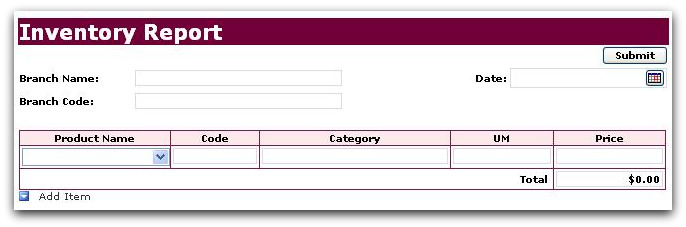
    Basically, we want to query from a SharePoint library with a Product list that looks like:
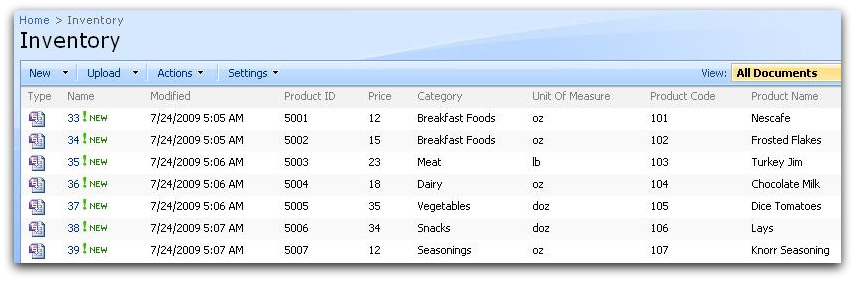
    The Product Name dropdown populates using a QuerySharePoint connection and works perfectly:
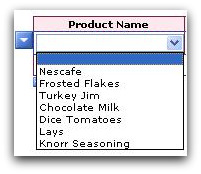
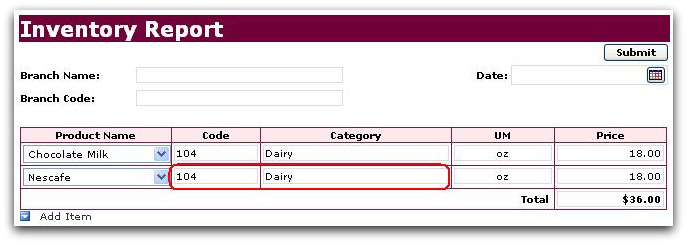
    When the user selects a Product Name, the goal is to set the Code and the rest of the repeating table fields with the corresponding product values. A second QuerySharePoint connection is created to dynamically query this. The problem? The query (as generated by QueryBuilder) will not get updated when inserting new rows. The query always used the Product Name from the first row and returns the same value. 
    I’ll give a quick walkthrough to show you an easy fix.

    With this form opened in design mode, I’ll double click on the Product Name dropdown field inside the Repeating Table, and then click Rules.
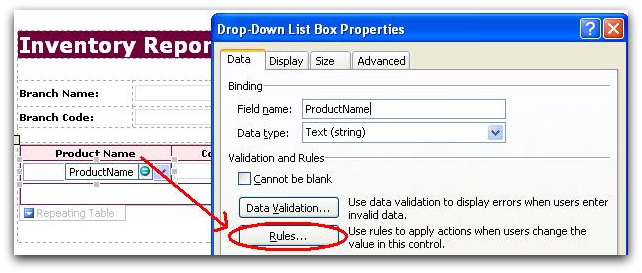
    To get the product fields, I had six actions already set as follows:
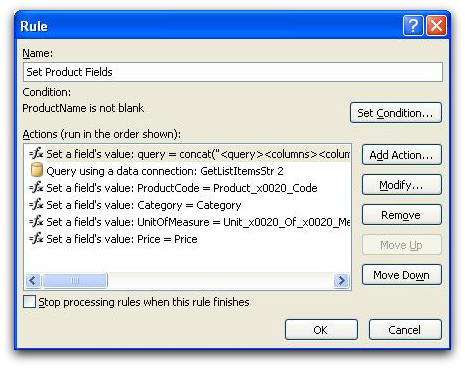
    I’ll select the first rule (that is, the rule that sets the dynamic <query> for our QuerySharePoint connection), click Modify and then click the value button in the Action dialog, which in turn gives me the formula dialog box:
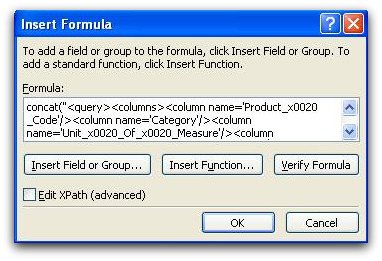
    The formula to set the value was created using Query Builder.


    The concat formula that we used shows a query that looks like:

    concat("<query><columns><column name='Product_x0020_Code'/><column name='Category'/><column name='Unit_x0020_Of_x0020_Measure'/><column name='Price'/></columns><filter><eq><column name='Product_x0020_Name'/><value>", ProductName, "</value></eq></filter></query>")

    Notice that it uses the value ProductName to compare to the value of Product Name column in the SharePoint list. All the other columns (Product Code, Category, etc) are then filtered based on the value of the ProductName. This type of query normally works when used in a non-repeating field. In this case, using a repeating field leads to the error we saw above. If you have the same issue, what you need to do is just replace ProductName with current():

    concat("<query><columns><column name='Product_x0020_Code'/><column name='Category'/><column name='Unit_x0020_Of_x0020_Measure'/><column name='Price'/></columns><filter><eq><column name='Product_x0020_Name'/><value>", current(), "</value></eq></filter></query>")

    After applying this solution to the form, let’s preview and select a Product Name from the dropdown:
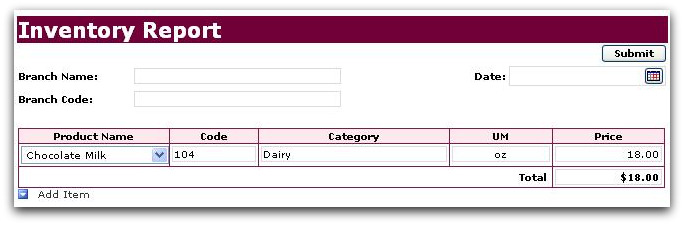
    It does query the correct code for the Product Name I just selected.  Now if I insert a new row, and select a different Product Name:
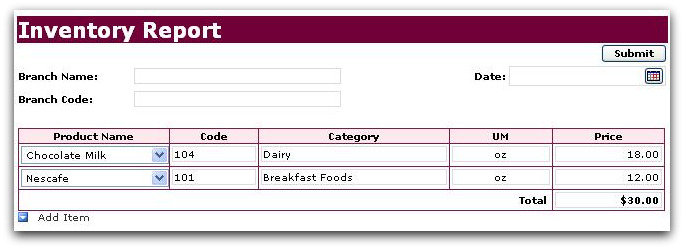
    This time with no duplicates! The trick is done by the current() parameter which gets the correct value in the repeating Product Name dropdown.

    If you'd like to try QuerySharePoint, you can download a free trial package of DBXL which includes the QuerySharePoint web service. 


    NOTES:

    • If you are using repeating tables with dynamic queries on QueryDB and you encountered a similar issue, please use the solution advised above.
    • To fix the problems caused by user input that contains xml characters, use CDATA in the concat.

    Example:

    concat("<query><columns><column name='Product_x0020_Code'/><column name='Category'/><column name='Unit_x0020_Of_x0020_Measure'/><column name='Price'/></columns><filter><eq><column name='Product_x0020_Name'/><value><![CDATA[", current() ,"]]></value></eq></filter></query>"

Copyright © 2003-2019 Qdabra Software. All rights reserved.
View our Terms of Use.