Do you want to submit using two form templates from one SharePoint library to DBXL? You can do this now in DBXL v2.4 by mapping to SharePoint using content types.
Let’s walk through the steps on setting up two content types and mapping them to DBXL.
Pre-requisites
Design the Form
We will begin by designing our forms and declaring the document type names into an XML. Declaring the document type name in XML is required if your form has code. You can skip this section if your form is code-free.
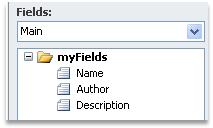
1. Design the first form. In this example, we will be adding three nodes to our main data connection (Name, Author, and Description).
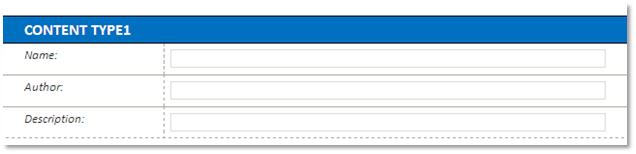
2. We will label the form as Content Type1, so we can better identify the two forms later in this tutorial.
3. Declare Document Type name in XML.
a. Create an xml file with one node, which declares the name of the Document Type that you will be using. Its contents may look like this:
<declaration>
<doctypename>ContentType1</doctypename>
</declaration>
b. Save this xml document to your local drive.
c. Open the form template in design mode in InfoPath.
d. Click on Tools > Data Connections and click Add.
e. Select Create a new connection to and select Receive data. Click Next.
f. Select XML document and click Next.
g. Click Browse and select the xml file that you created in step 3a.
h. Click Next twice and then click Finish. If you receive a warning, click Ignore.
4. Create a submit data connection.
a. Select Tools > Data Connections and click Add.
b. Select Create a new connection to and select Submit data. Click Next.
c. Select To a Web service and click Next.
d. Enter the URL to the DBXLDocumentService, usually http://<servername>/QdabraWebService/DBXLDocumentService.asmx, and click Next.
e. Select SubmitDocument from the list of operations and click Next.
f. Double click the tns:docTypename parameter and select the secondary xml connection
created in Step 3 from the data source dropdown.
g. Expand the tree to display the node, select the doctypename node, check the checkbox for
Submit data as string and click OK.
h. Select the tns:xml parameter, select the Entire form toggle, and check the checkbox for
Submit data as string.
i. Double click the tns:name parameter and select the field Name from the main data source. Check Submit data as a string.
j. Double click the tns:author parameter and select the field Author from the main data source. Check Submit data as a string.
k. Double click the tns:description parameter and select the field Description from the main data source. Check Submit data as a string.
l. Click Next, enter a name for the submit data connection, and then click Finish. If you receive a warning, click Ignore. Then close the data connections dialog box.
5. Configure a Submit button.
a. Add a button and double click on it to open the Button Properties.
b. Change the Action dropdown to Submit and click on Submit Options.
c. Check the checkbox for Allow users to submit this form and select Web Service from the
Send form data to a single destination dropdown.
d. Make sure that the Web Service submit data connection created in step 4 is selected in the
Choose a data connection for submit dropdown.
e. Click OK twice to close the dialogs.
6. Save the XSN in your local drive. For the purposes of this tutorial, we will call the form template ContentType1.xsn.
7. Repeat steps 1-6 to create your second form template, saving it as ContentType2.xsn. You may change the form by adding new fields. Note that when you create the XML, make sure that you declare a different document type name.
Publish the Form Templates as Content Types
1. Open the first form template (ContentType1.xsn) in design mode.
2. Select File > Publish.
3. In the Publishing Wizard, enter the SharePoint server root where you want to publish the form template. Click Next.

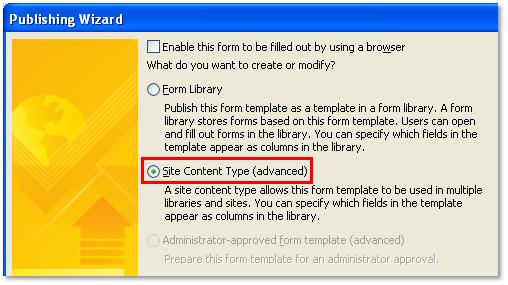
4. In the next window, select Site Content Type option, and then click Next.
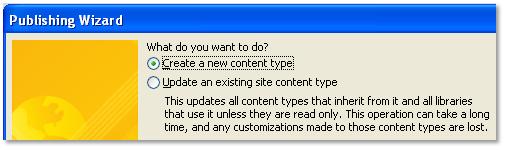
5. Next, you may opt to create a new content type or update an existing one in your site. In this case, we are creating a new content type.
6. In the next window, enter a name for your content type (i.e. ContentType1). Click Next.
7. Specify a location and file name for the form template (e.g. http://dbxl-vm/MyContentTypes/Forms/ContentType1.xsn), and then click Next.
8. When asked to choose the columns you want to display in the SharePoint library, add the fields and click Next.
9. Click Publish. When done, click Close. Your form template will be published as content type.
10. Repeat steps 1-9 to publish ContentType2.xsn to the same content type library.
Create a new Form Library
1. Create a new form library.
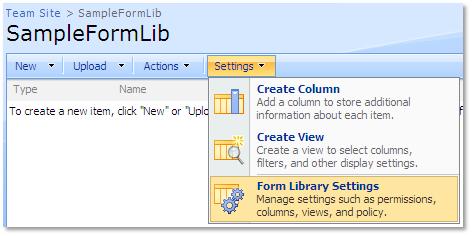
2. In your form library, select Settings > Form Library Settings.
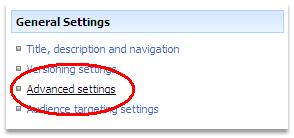
3. Under General Settings, click Advanced settings.
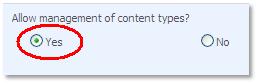
4. Select Yes to allow management of content types, then click OK.
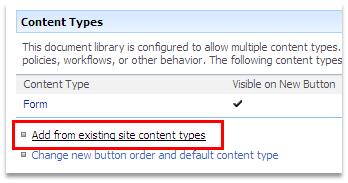
5. Back in the Form Library Settings, select Add from existing site content types under Content Types section.
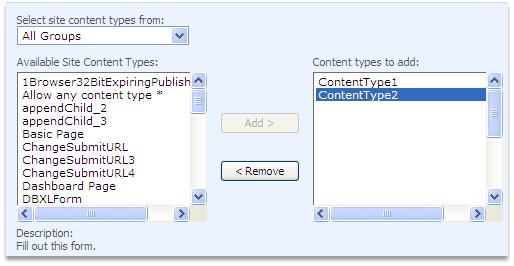
6. In the Add Content Types page, select the two content types that were published in the SharePoint site and click Add. Click OK.
7. Back in the Form Library Settings, select Change new button order and default content type under the Content Types section.
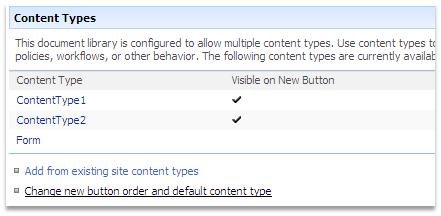
8. Uncheck Form as default content type and click OK.
Create the Document Types
1. Open the DBXL Administration Tool or DAT.
2. Click New Configuration.
3. Click the XSN File attachment field.
4. In the File name field, enter the URL to your first content type (ContentType1.xsn).
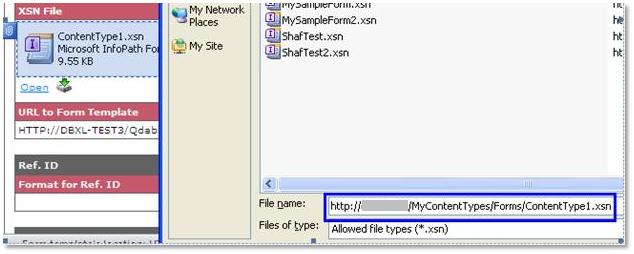
5. Click Insert. Your content type will be attached to DBXL.
6. Enter a name for the Document Type. Make sure that your Document Type name matches the same name that was hardcoded in your XML file.
7. Click Save.
8. Create your second document type (ContentType2.xsn), repeating steps 3-7.
Create the SharePoint Mappngs
1. In DAT, click Edit Configuration for ContentType1.xsn.
2. Click on the SharePoint tab.
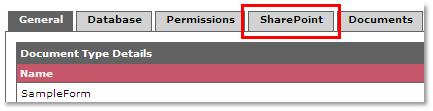
3. Click Insert Mapping.
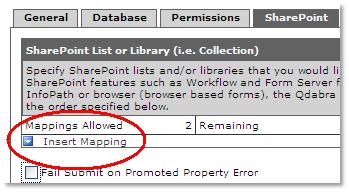
4. Enter the URL to the form library you created earlier.

5. Check the Content Type check box. You’ll notice that a Content Type Url field is now displayed.
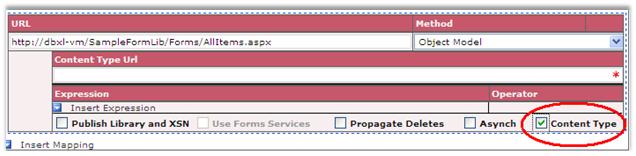
6. Enter the Url to your content type (e.g. http://dbxl-vm/MyContentTypes/Forms/ContentType1.xsn)
7. Your mapping should now look like this:
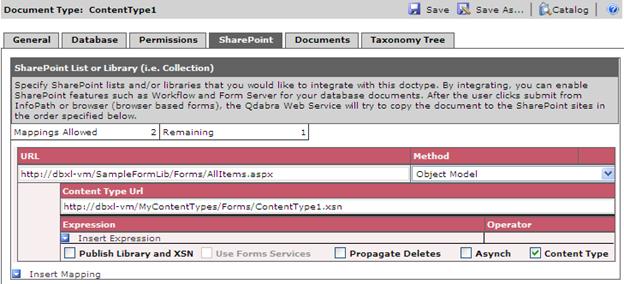
8. Click Save.
9. Click Catalog.
10. Click Edit Configuration for your second content type (ContentType2.xsn).
11. Repeat steps 2-6, using the second Content Type Url:
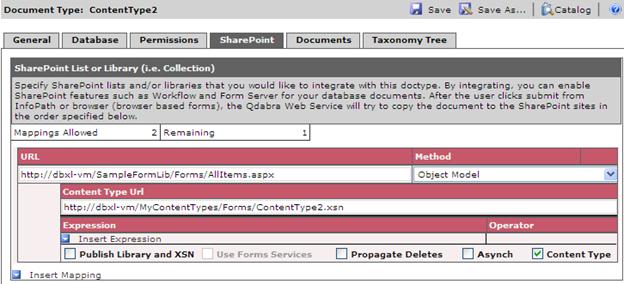
12. Click Save.
Test the solution
1. In Internet Explorer, open the SharePoint form library you created.
2. Click on New.
3. Select ContentType1 or ContentType2.
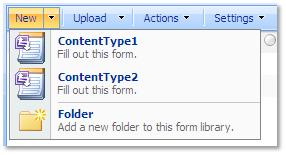
4. Fill out the form and click Submit.
5. You can open, edit and re-submit the documents by clicking on each item in the SharePoint library.
6. In DBXL, select a document type and click new to open a blank form. Fill out the form and click Submit.
NOTE: When your form has code, do not click New in DBXL. Instead, click on the Download button.
7. You can open, edit and re-submit the documents via their document handler URL, that is, http://<servername>/QdabraWebService/Documents/<docID>/<docID>.xml, or by selecting them from the Documents tab in DAT.