Scenario:
Whenever you want to expose your forms on a web page the tendency is to want to put a plain hyperlink to your XML file. The problem with this ranges from getting Open/Save dialogs all the time (see below).
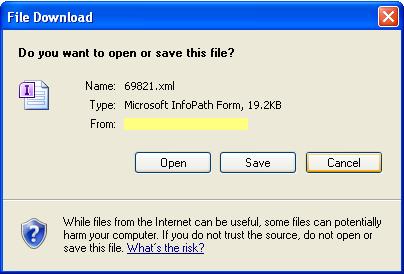
In this tutorial we’re providing the script below that calls OpenXMLDocument from a data view just for this purpose. You may copy this script in a text editor of your choice and save as a .js file.
function CreateNewXMLDocument(url)
{
try{
// Based on WPQ3combineDocuments()
var objOpenXMLDoc = new ActiveXObject("SharePoint.OpenXMLDocuments.1");
var bSuccess = false;
bSuccess = objOpenXMLDoc.CreateNewDocument2(window , url , url );
}
catch(e)
{
// Some browsers will not support this feature.
window.location = url;
}
}
function OpenXMLDocument(url)
{
try
{
// Based on WPQ3combineDocuments()
var objOpenXMLDoc = new ActiveXObject("SharePoint.OpenXMLDocuments.1");
var bSuccess = false;
bSuccess = objOpenXMLDoc.EditDocument2(window , url , "InfoPath.Document" );
}
catch(e)
{
// Some browsers will not support this feature.
window.location = url;
}
}
Add the javascript to your website
1. Create a new folder called “script” underneath C:\Inetpub\wwwroot\wss\VirtualDirectories\80\ and put the JS file in that folder.
2. So now the JS file can be accessed at http://<SharePointServer>/script/InfoPathOpen.js.
Add a reference of the script to your website
1. Now you need to edit your page, in this case, we’re editing a data view from SharePoint designer to add reference to the javascript file.
2. Open your data view from SharePoint Designer.
3. Click the code tab found underneath.
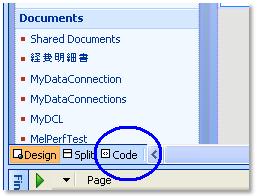
4. Place a reference somewhere in the code. You want to put in a place where it’s not going to be repeated.
<script type="text/javascript" src="http://<SharePointServer>/script/InfoPathOpen.js"></script>

Change the link format
1. In the code tab, find the line called <td class="style1">.
2. Insert this code just after <td class="style1">:
<a href="{@Link}" onclick="OpenXMLDocument('{@Link}'); return false;">
<xsl:value-of select="@DocID" /></a>

3. Save the changes to your data view.
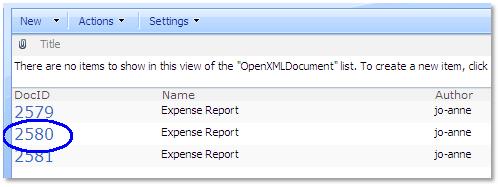
Now refresh your list and open the link. In the example below, the DocID link directly opens the form without the pop ups.
Also, check out Jim's latest blog on how to prevent the Open/Save dialog box in SharePoint 2010 using a code snippet. Jim's technique is similar to what's shown above but does not require code level page editing.