These email recipient techniques go even further to provide more in-depth solutions for your forms.
qRules GetUserProfileByName
command – Retrieves user information from a SharePoint’s
GetUserProfileByName web service.
- Pros: It works both on Office 365 and browser.
- Cons: It requires qRules and site collection admin for browser
forms.

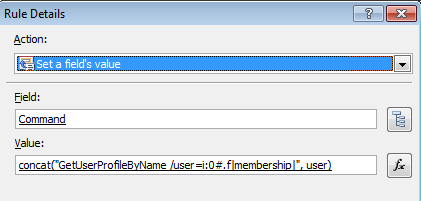
On the image above, qRules uses the GetUserProfileByName Command to query data corresponding to the
email recipient selected.
Clicking the Get User Properties button triggers qRules Command,
and then populates the GetUserProfileByName
Secondary data source with the use of the formula shown below.
Qdabra Active Directory Web Service (ADWS) – It uses Query Active Directory to get information.
- Pros: It gets email and other properties. It can also search for
users via substrings, enumerate all users, get user groups, get manager info
and synchronized with AD. No SharePoint needed.
- Cons: ADWS web service required (doesn’t work with O365)
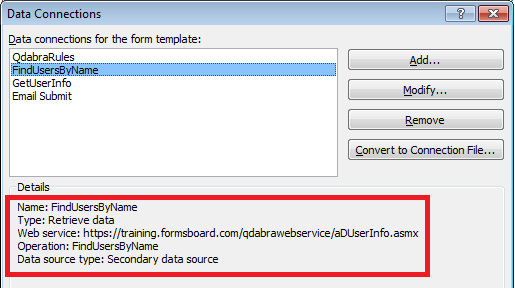
This method has a People Picker-like ability but instead uses an
Active Directory. The image below shows a search using a substring, and it
displays all possible user accounts containing the substring value via Qdabra’s
Web Service FindUsersByName.
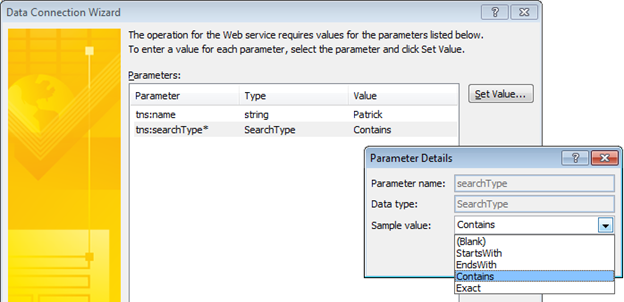
At the data connection of the web service, you can set the Search
Type to value “Contains” so that querying allows you to retrieve the entire
data that matches the value or criteria you are searching for.
The image below shows all users having the name “Patrick”.
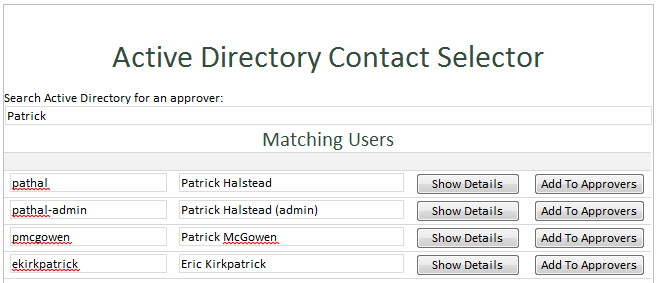
In this form, the recipients are added to a repeating table
(Approver’s List) using qRules’ Insert command - this allows you to insert
values onto a repeating table when you click the Add to Approvers button .
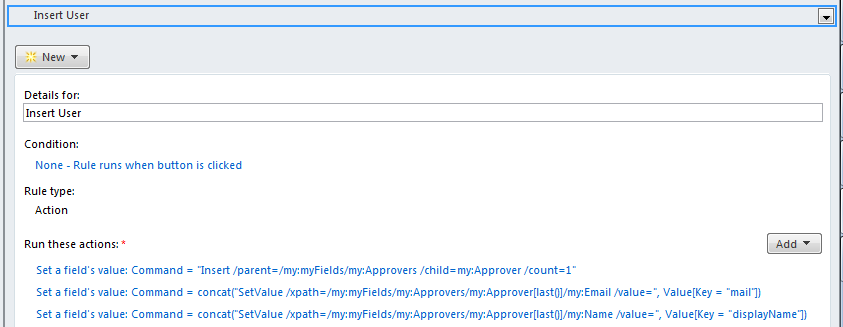
This is how the data is displayed:

Bonus:
Copying Multiple Emails
One potential problem is when you need to send email to multiple
people. You can merge the values when promoting to a SharePoint column. But,
how do you merge in the form.
A solution for that is the Double Eval Technique (People Picker
sample)
- Pros: It works
- Cons: It’s tricky
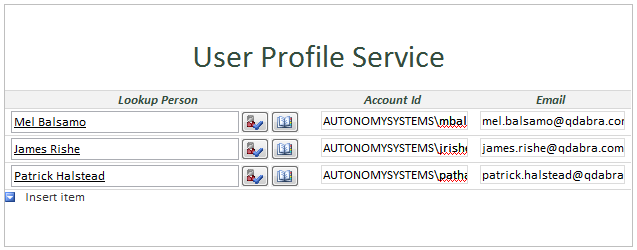
The image above shows that three recipients have been selected,
however if you use the Email field,
the value will still be inside a repeating table rendering the data unusable
for sending. In order to have this working, you would need to concatenate these
values on a different field, and use this value instead.
Steps:
1. Add
a new field which will contain the concatenated value.
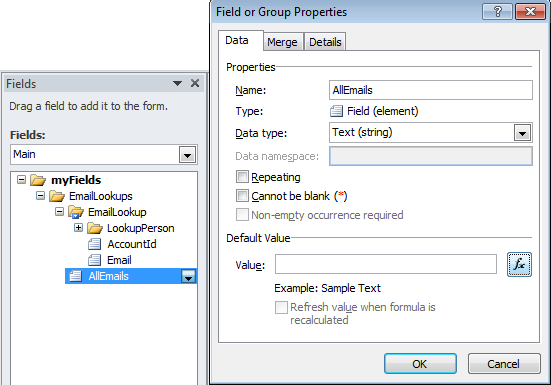
2. Click the fx button to add a formula.

3.
Add the formula below:
eval(eval(Email[.
!= ""], 'concat(., "; ")'), "..")
- Highlight Email
and click the Insert Field or
Group button.
- Select the Email field from the Main Data source
Additional notes:
If you double click the Email field and check the Filter Data, you will
notice that this value will only run on the condition that Email is not blank.

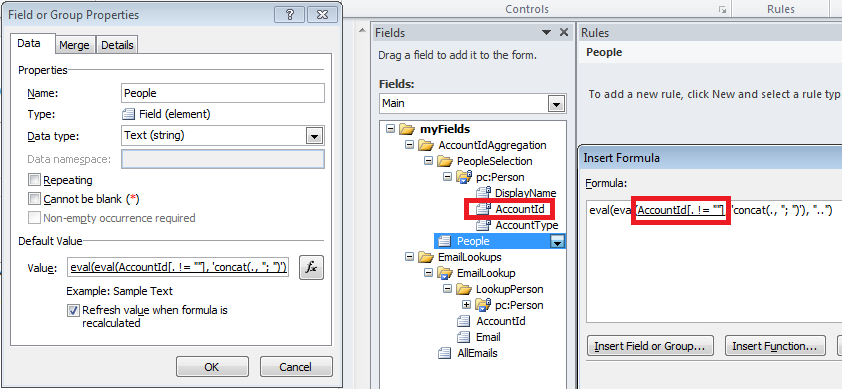
The
formula used here is a Double Eval
technique which returns and links together all Email values chosen from the People Picker group.
Your
form should now have a field containing the concatenated e-mail values which
you can use for bulk sending.

This
technique can also be directly used with the AccountId from the People Picker group which works perfectly with
SharePoint Designer Email workflows.
Another solution would be the Table Trigger Technique (Active
Directory sample)
- Pros: it’s easier to implement than Double Eval
- Cons: it requires default values (blank rows)
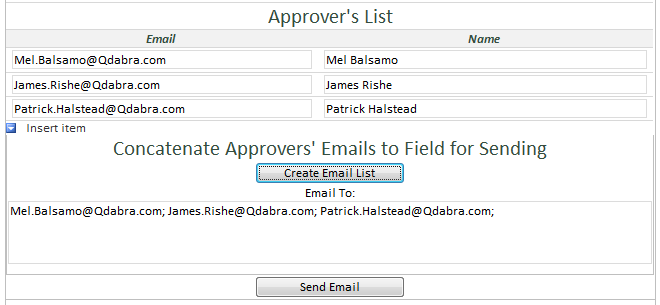
Going back to the Active Directory Web Service sample, after
inserting the list of recipients or the Approvers, you would need to
concatenate these by performing a concat formula which combines all the values
inserted onto the repeating table.
You can also integrate this technique with other approaches
provided that the data is inside a repeating table.
Once
you have the e-mail addresses set, you can now perform this method:
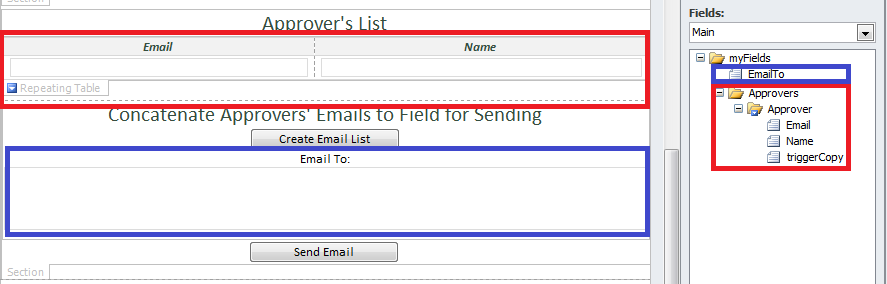
Steps:
- Add a triggerCopy field to the recipient group.
- At the home tab, click Manage Rules.
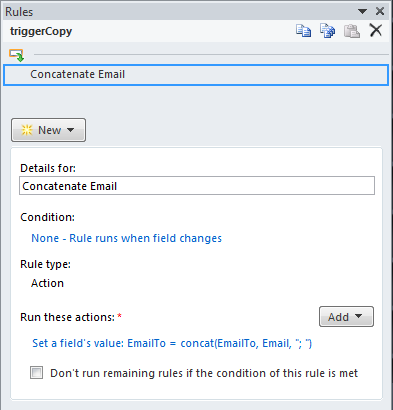
- Add an action rule which Sets a fields Value.
- For the Field, select EmailTo (this is the field which hold
all the recipient’s addresses).
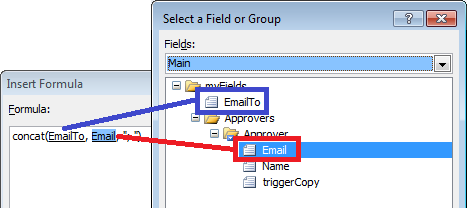
- For the Value, click the fx button and add the formula:
concat(EmailTo,
Email, "; ")
Click
the Insert Field or Group button and
associate the fields accordingly.
7.
Click OK twice to exit the rule
details.
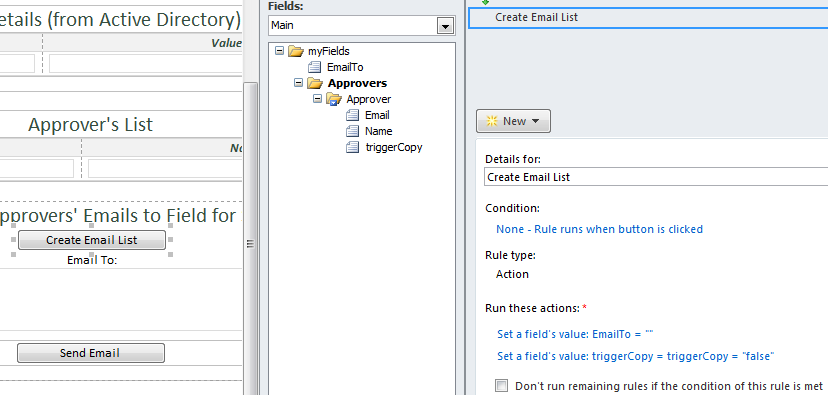
Your rule should somehow look
like this:
8. Add a button which will create
the Email List.
9. Add an action rule which sets
the EmailTo field to a blank value.
10. Add another rule which Sets a fields Value.
11. For the Field, select the triggerCopy field.
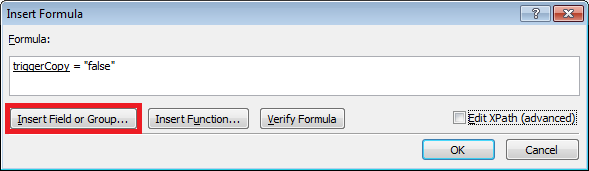
12. For the Value, click the fx button and add the formula:
triggerCopy = "false"
13.
Click the Insert Field or Group button to associate the triggerCopy field to
the formula.
This is what your rule should
look like:
Test your form!