What can you do by involving email
addresses in your InfoPath forms?
You can use them to send
e-mails from your form. Emails
are also commonly used in workflows.
Having this feature in your form
will save you the time and effort, especially when you need to notify someone
that a form has been submitted, approved, or
rejected.
Another important benefit of email forms is that they allow any user to download the form sent via email, open
it, fill it out, and submit it back as an email form.
Two scenarios:
- Single email – sequential
notification/workflow
- Multiple emails –
broadcast/parallel workflow
Various Ways of Adding Email Recipients
There are various ways to add an email recipient to an InfoPath form. We will
tackle these and give a few simple methods of how to do so.
Manual Entry – The users type in the emails.
One or more text fields hold email values.
- Pros: It’s easy, flexible and use patterns to validate an email
entry.
- Cons: It can’t validate that the email actually exists.

This technique only requires the user to enter a valid email.
Add
an email pattern validation rule which should have the ability to match an
email pattern, and set a condition for the email address
field to match an Email Custom Pattern as shown in
the image below.

You will see several preset pattern selections and you will need to use the email pattern
in this case. Although this technique verifies that the email entered has the
format of an email address, it does not validate if the recipient’s email is correct.
Static Selection in Form – The users select from a list
in the form. A dropdown or checkbox inserts the
address into one or more text fields in your form.
- Pros: This technique is easy and it has valid email addresses.
Cons:
It uses a fixed list. Updating this list
requires republishing the form.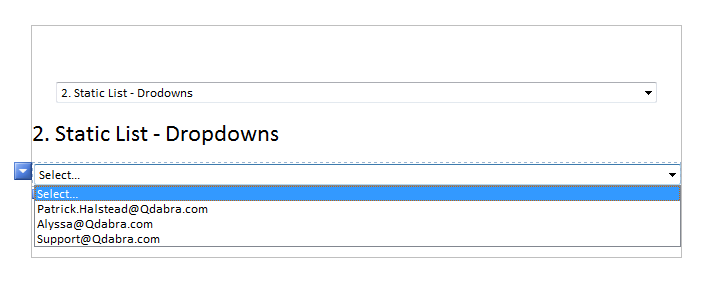
This technique uses hard coded
entries on the form. To add these entries,
right-click dropdown field and configure the properties to Enter the choices manually, and Add the email recipients.
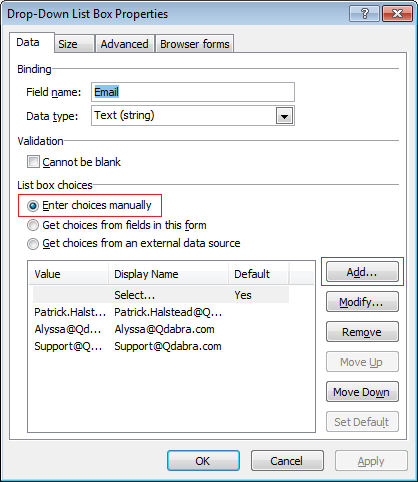
Since the list of recipients is hard coded and entered
manually by the form creator, it is certain that the email addresses listed
are valid. However, changes or updates will require you to re-publish the form. You
may also use this technique for check boxes or optional/radio buttons.
Dynamic List Query – The form loads a list of
values queried from an XML file from a SharePoint site. The drop down list,
which displays the recipients, is bound to an external data source which
inserts email addresses into one or more text fields.
- Pros: It’s easy, the addresses are valid, and you can
update the list without republishing the
form.
- Cons:
It uses a fixed list and requires list maintenance.

This approach involves looking up values from an XML file in your
SharePoint site. Unlike the first technique, which uses values stored in the
form, this method allows you to add, edit, and remove recipients from the list
since it uses a secondary data source from SharePoint. To proceed with this
method, you would first need to have a library with repeating data containing
the list of email recipients.
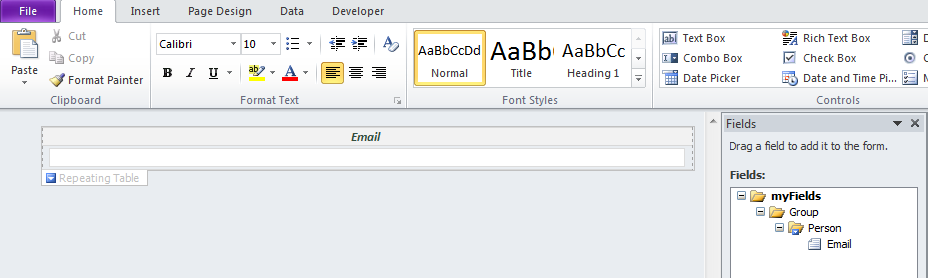
If you view this form in design mode, you will notice that it is
just a simple form with a repeating table used for storing data. Once you have published this form, you may proceed adding more
content.

To use this list, you will need to get
the XML link by following the steps below:
- Click on the
library or list from the Navigational Links
- Copy the URL of
the list or library - http://<MyServer>/<MySite>/
- Note: Only
copy the server and site name.
-
Specify the XML
Form's name
- Add .xml at
the end
- Your link
should look like this:
http://<MyServer>/<MySite>/<FormName>.xml
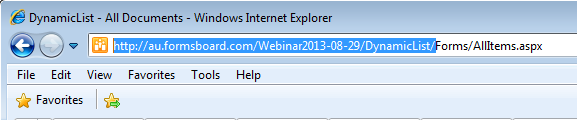
Use this list and add it as a data connection to an XML file.
Add a Data Connection which recieves data from
the SharePoint Library or List which contains the email list. Create
a Data Connection which Receives Data from an XML Document in SharePoint. Specify
the XML data using the XML link created earlier and click Next.
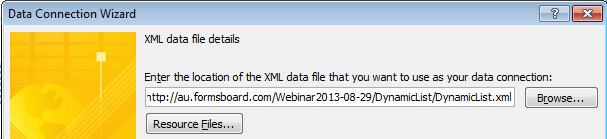
Select
Access the data from the specified location. Click
Next.

Specify a name for the connection
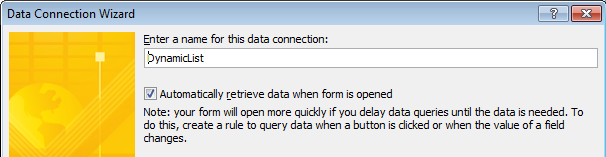
Optional:
If you
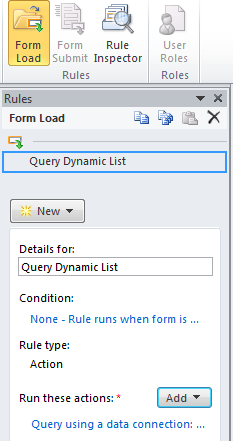
decide to uncheck the Automatically
retrieve data option, you may instead use a Form Load rule located at the Data
tab to Query the Dynamic List when form is opened.
Now that the Data Connection has been established, you can
proceed with configuring the drop-down list.
This is quite similar to the first technique; however,
instead of encoding the recipients onto the form, you will query the list from
the secondary data source from SharePoint.
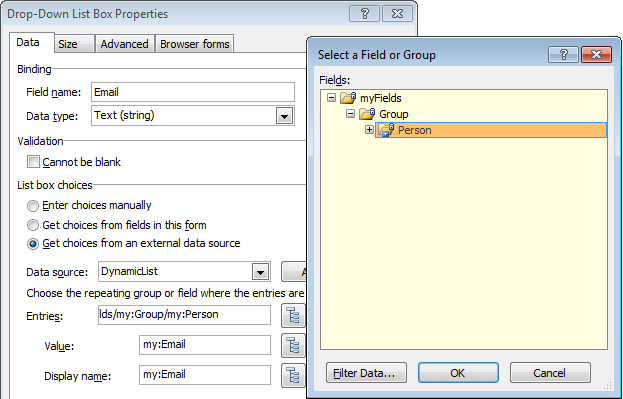
- Right click the drop-down list
- Click properties
- Select Get the list from an external
data source
- Select the Repeating Group for the Entries
- Configure the Value and Display Name as preferred
Though this technique may seem to be a bit intricate, it
allows you to quickly update the list of email recipients without having to
re-publish the form (since it is not hard coded) at any given time.