As the second part of the adding email recipients post, these techniques for adding email fields to your forms take a step up from the beginning techniques in part 1.
People Picker – The users select Global Address List (GAL). This special InfoPath control was
first added in InfoPath 2007.
- Pros: It integrates with workflows. It’s also easy to add and
flexible.
- Cons: It won’t give you e-mail addresses out of the box but you
can use it with GetUserProfile to extract the email addresses. It can’t
control, extend nor can use rules.
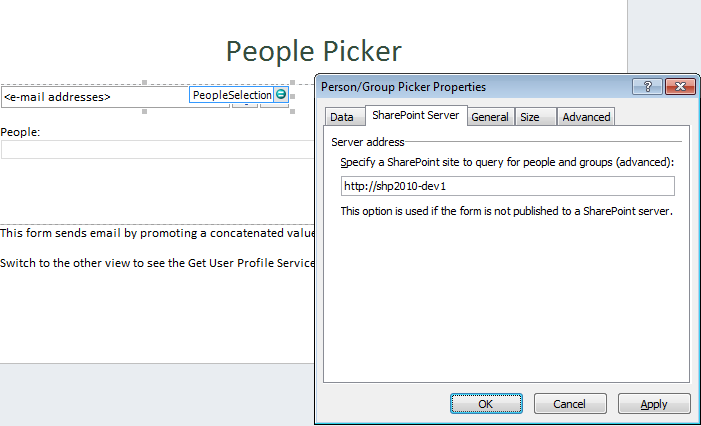
The image above shows the control’s
properties configured to query information from a SharePoint site. In preview mode, you can
already use this control and search for users or email recipients.

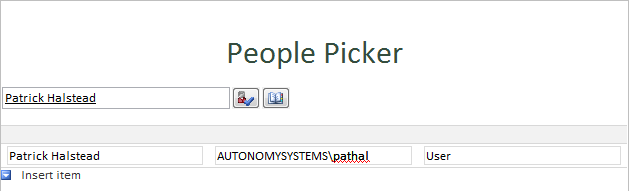
However, this control does not
have the recipient’s email address outright for display; rather it would give
you the Display Name, Account ID, and the Account Type.
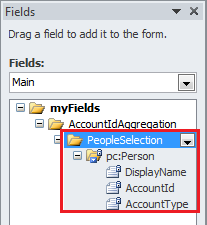
A workaround is to query the
information using the SharePoint User Profile Service.
SharePoint User Profile Service – The form queries a web
service. It retrieves the user profile information from SharePoint’s
GetUserProfile web service.
- Pros: It gets email and integrates with the People Picker.
- Cons:
It doesn’t work with Office 365. It can’t search for user. It doesn’t synch
with AD quickly. It can’t enumerate users and it can’t get all groups for
users.
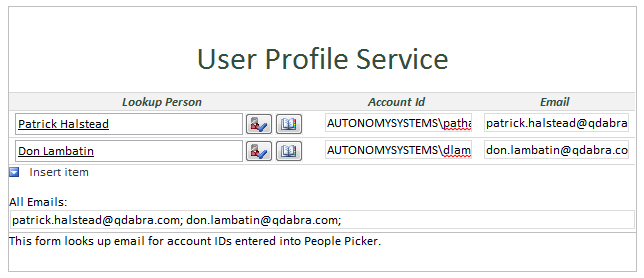
This is one of the commonly used techniques for sending
email, but a lot of users encounter
difficulty in
retrieving the actual email addresses. In order to obtain the actual
address, you will need to query the GetUserProfile
web service using a data connection and set the email value once
the account has been populated with the selection.
If you already have the People Picker all set, the next step you need
to perform is to add the GetUserProfile
connection. First add a data connection which receives data from a SOAP Web
service and enter the User Profile Service URL using the pattern below:
http://<myserver>/_vti_bin/UserProfileService.asmx?WSDL
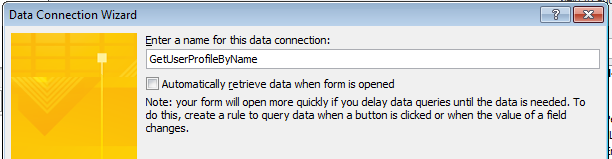
Select
GetUserProfileByName and click next
until you reach the last page of the wizard.
 \
\
Remember to un-tick the check box since you will only query using
this connection if the People Picker has been populated.
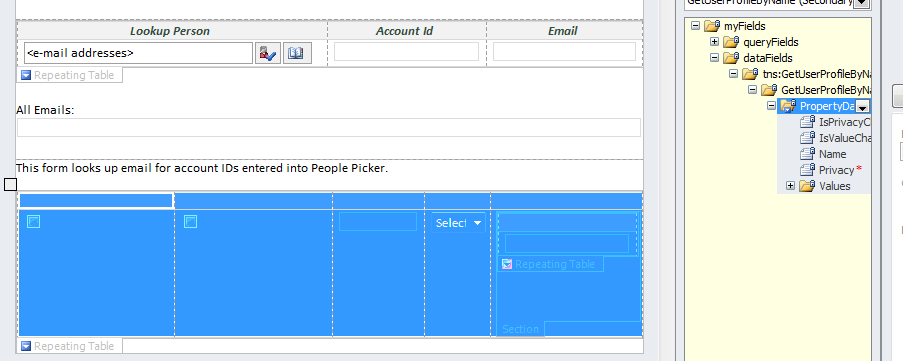
The image below shows that there are two groups, one is for the
People Picker Group, and the other for the email Look up.
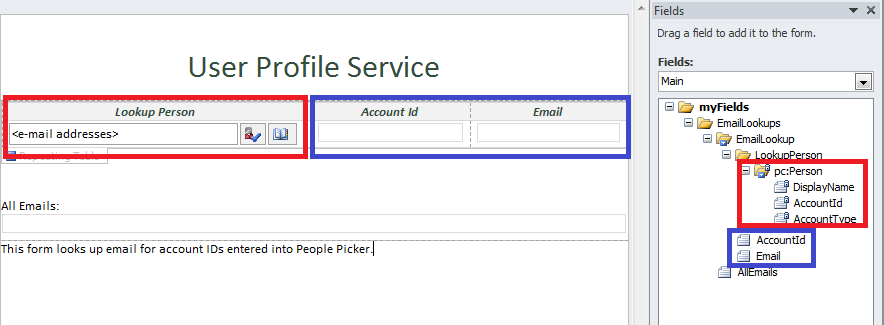
To proceed with this, create two fields. One field for the AccountId look up field, and another email field which contain the
addresses.
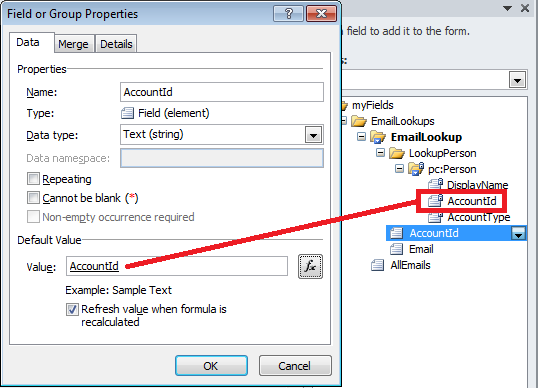
At the AccountId look up field,
set its default value to the value of the AccountId from the
People Picker group.
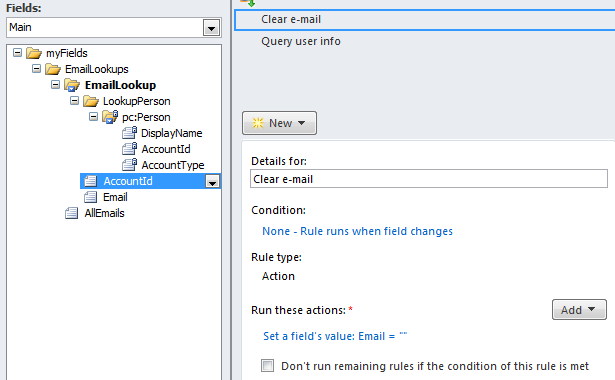
Then create a rule which sets the email field to blank whenever the AccountId look up field changes.
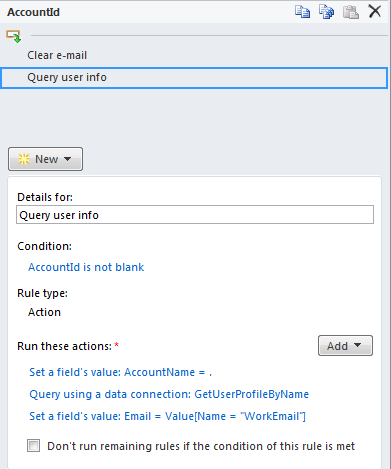
Add another rule which will perform three actions:
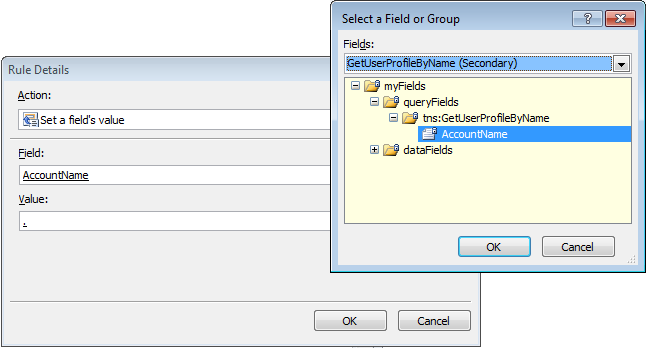
1. Set a field’s value
Set
the AccountName field of the GetUserProfileByName Secondary Data
connection to the value of the AccountId
look up field.
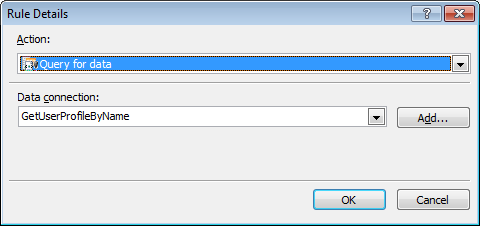
2. Query for data
Select the GetUserProfileByName data connection.
3.
Set a field’s value
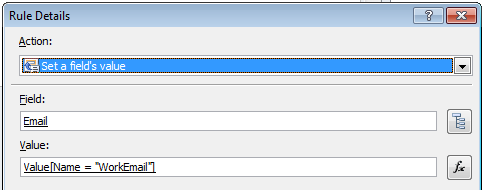
- For the Field, select Email.
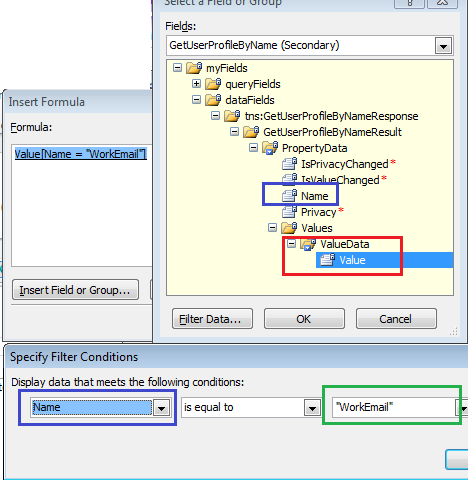
- Click the fx button and select the Value field from the GetUserProfileByName secondary data
connection.
- Filter the data with the
condition that the Name is equal to
“WorkEmail” (use Type text to enter
this value).
Note: WorkEmail may not
always be the value of the email, to check or this value, drag the repeating
table of the secondary data source, preview the form, and enter a value for the
People Picker.
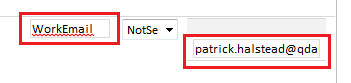
Scroll down and look for the instance which displays an email.
Here is another blog which thoroughly discusses InfoPath’s Get user information
without writing code.