InfoPath Dashboards
Dashboards provide an at-a-glance view of KPIs; it is a
real-time user interface, showing a presentation of the current status of a
particular objective or a business process like sales, marketing, productions, and
other essential items. The data presented normally consists of repeating tables.
Aside from that, there are interesting InfoPath techniques
which can be used for dashboards, like InfoPath’s ability as a web page editor,
creating overlays, and other features. The processes are simple and ideal for
easy deployment.
To display the
report, you will first need to have data submitted to a SharePoint site.
In a previous webinar without using qRules, we
have discussed mapping a library to a SharePoint list using CAML.
If you already have
a library or list containing a number of data, you can already use these values
and display them in a dashboard.
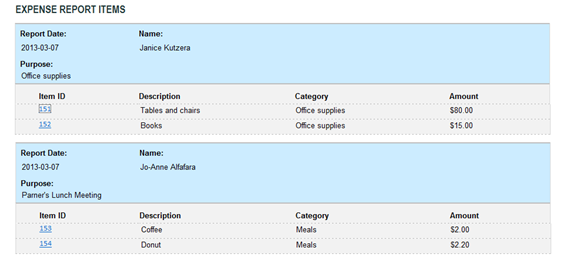
The image above displays
a parent and the child table set up. The header is inside the child or the
repeating section from the secondary data source, and we’ve just dragged the
fields inside the repeating group onto the repeating section.
How do we pull repeating data from SharePoint?
First, you would
need to have data connections which retrieve data from SharePoint. The example
above uses a regular SharePoint connection, one connection from a Library,
which is the Parent table, and the other table is for the child which is from a
SharePoint list.
The header section or the Parent table resides inside the
other section which is the repeating table or the child table.

Parent Table– SharePoint Library
Child Table– SharePoint List
To present this
data, you must first create a Repeating
Section for the child table. In this case, the Expense Items repeating table.

Create a Section inside the Repeating Section using the same repeating group from the Child
Table – ExpenseItems.

Now that you have
the repeating sections arranged, distribute the desired fields of the Child
Table -ExportItems into the Repeating
Section.
Note that using a
Custom Table located at the Insert tab helps you keep your design neat and
tidy.
Your form should now
look similar to this design:
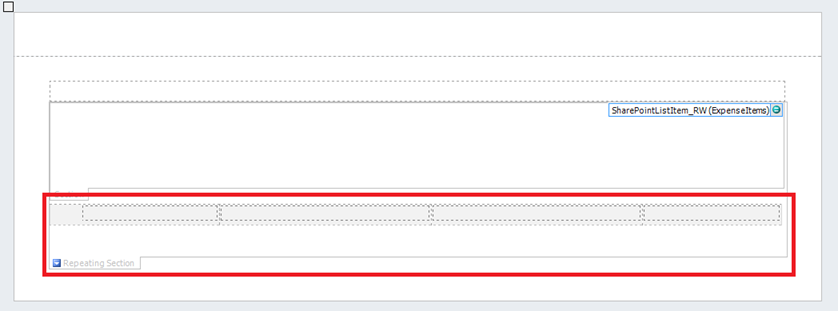
Perform the same
procedure with the Parent Table fields.
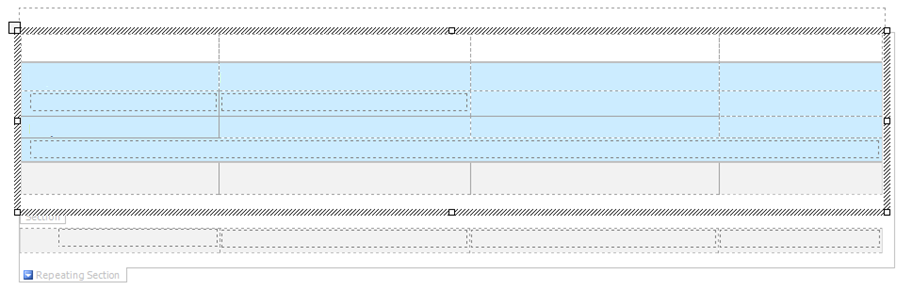
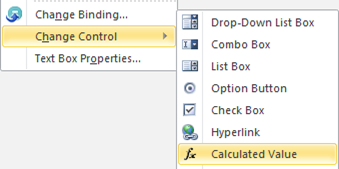
To keep the borders
hidden, you may opt to change the control and use a Calculated Value instead of
a Text Box.
Once you’re done, label
the fields accordingly.
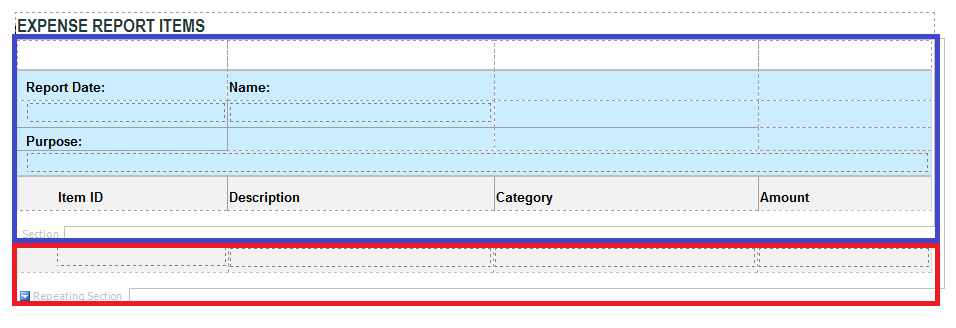
In this diagram, you
will notice that the labels for the Child Table are nesting within the Parent
Table –Header section. Using a formatting rule will prevent the labels from
re-occurring on each instance of the repeating data.
If you preview your
form at this stage, you will notice that the header appears for every child
table instance. You will need to add a formatting rule which hides the Parent
Table for every repeating Parent ID.

Hide the section if
it meets the The Expression:
preceding-sibling::d:SharePointListItem_RW[d:ParentId
= current()/d:ParentId]
Preview your form! If there is no
displayed data, check both data connections and tick the check box where it
says Automatically retrieve data when
form is opened.

This
approach does not require any complex coding, it’s out of the box and easy to
deploy. However, there are scenarios wherein the need for a code is necessary. Like
this complex form sample below, you will notice that it similarly has a
parent-child table relationship, but if you look more closely, you will find
that the form contains several layers of nesting.
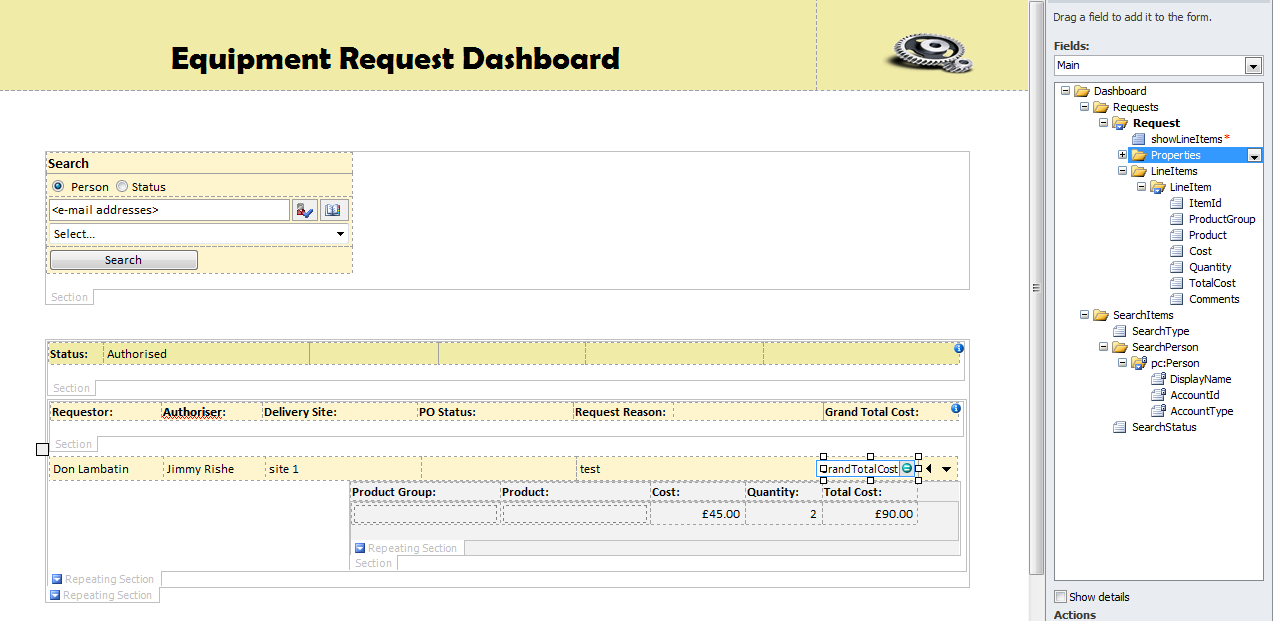
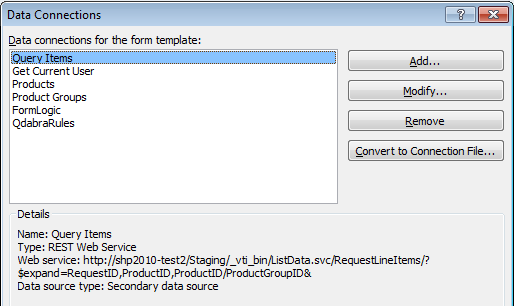
Aside from the layered nesting, the form also has several
data connections. One of which is an OData
Service (Query Items connection)
which performs a complex query for multiple lists, and two other connections
querying the Products and Products Groups tables from the
SharePoint Lists. It has the ability to query the current user (Get Current User connection). A Form Logic which carries out several
tasks, and lastly, it is qRules
injected.
Search Function
What’s interesting
about the complex form is that it has the ability to perform a search function which
is very useful if you have a lot of data. It makes the dashboard a lot more
readable and user friendly.
The technique is
actually quite simple. What this function does is that it filters out the querieFields of the secondary data
source before querying the data – check this webinar for more information on filtering queries.

Hyperlinks
Another InfoPath feature
you can make use of is a hyperlink:
The hyperlink can be
a variable field like the Item ID
below which is a unique ID, and also being used as the Display Name for each entry.
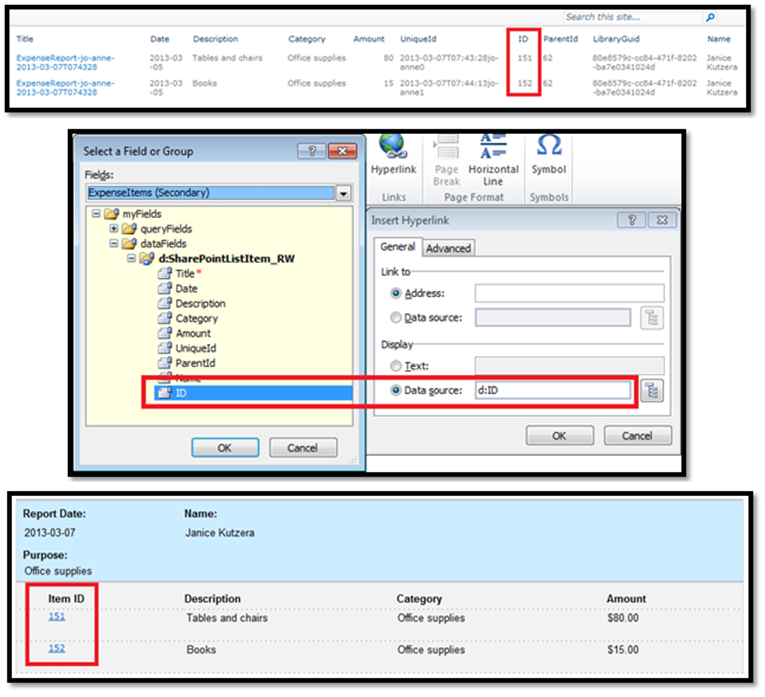
Assigning the Link Address is a bit tricky. Using a
formula similar to this pattern below will direct you to the xml file.
Concat(“http://<MyServer>/<SitePath>/_layouts/FormServer.aspx?XmlLocation=/<SitePath>/<LibraryName>/”, FormName, “.xml&DefaultItemOpen=1”)
Substitute MyServer, SitePath, and LibraryName with
actual link values of the SharePoint
Library. The FormName uses the SharePoint list’s Title, which is the File
Name when submitting to the Library via Expense Report form.

Overlays
You can also use InfoPath to create overlays. An overlay
works like a magical illusion which makes a pop-up appear like they’re floating
from your page whenever a part of your website is clicked.
InfoPath as a Web Page Editor
Another great thing
is that InfoPath can be used as a Web page editor. To use
InfoPath as a web page editor, you need to add the Info Path web part to your
page where you can directly modify the
content, appearance and behavior of a SharePoint site page by using a browser.
To create a web page, navigate to the SharePoint Library, go to Site
Actions and click on Edit Page.
Click on the tiny inverted triangle. This allows us to edit
the page. After clicking the triangle, click on Edit Web Part. At the right
side, the editing section will appear.

Here you can hide the library at the Advanced section. Tick
the check box to hide the library.
To create one, click Add
a web part > Forms > InfoPath Form Web Part > Add. Then select a
form. In this case, you can select your dashboard.

All the editing you do here will appear on the web page as a
web part.
Performance-related publishing issues
When you publish a
form from SharePoint, InfoPath sends a whole lot of request to SharePoint. This
is where you can use Fiddler. Fiddler is a great tool to use for troubleshooting
publishing issues. It allows you to see and inspect what’s going on behind the
scenes between your programs and the outside world such as the web.
How to Watch the Process in Fiddler
It is also a free
tool which you can download and install.
- Start Fiddler.
- For first time users, enable the
Server_ThinkTime column in the left pane.
- Perform publishing process.
- Wait for publishing process to either
finish, or for the requests to stop for a while.
- Use Ctrl+F to search for the text
BrowserEnable.
- Observe the web request that is located,
particularly looking at the XML tab for the response.
Browser Enable User Form Template
When publishing a form to the Sandbox, SharePoint will only allow
that to run by only 30 seconds. That’s by default. It is advisable to keep that
time as low as possible.
Safe: <2 seconds
Caution: ~60 seconds
Danger: >4 minutes
What are some things that cause timeout issues in publishing?
1. Forms with Large views
A very large form may take up to 10 minutes to publish. To
solve this, we should split the page into smaller views so it could publish in
a smaller amount of time. Another way to see how large a file is, is to check
the size of the file when you export the source
file – for InfoPath 2010, go to File > Publish >Export Source Files.
2. Heavily-Nested Sections
Nested Sections are convenient for hiding and showing data,
depending on what you need to see or show. However, forms with a lot of nesting
become too complex thus will take a longer time to publish. Even Path Designer
would be having trouble with heavily-nested forms. It would take at least 10
seconds to switch from one view to another. So we should avoid nesting sections
too deep.
Improving Publishing Performance
- Avoid huge views.
- Split large views up
into smaller views, or even a single view combining toggled sub-sections.
- Try to keep the views
within 3-4 screen lengths.
- Avoid heavily-nested
section controls.
- Use sections where
they are needed for show/hide, etc., but don’t overuse them.
- Consider splitting
your view up into smaller views.
- Avoid nesting sections
more than 6 levels deep.
- Avoid large forms.
- Consider having a
separate form templates for separate data entries.
- Watch the publishing
process to see what it’s doing.
The 30-Second Sandbox Timeout
Sandbox allows people to publish code to SharePoint without
going through an administrator. In order to prevent these codes from performing
poorly, you can set limits, and by default, Sandbox allows it to only run for
30 seconds.
The timeout limit can be changed by running a script on the
SharePoint server:
- Log into the SharePoint
server as an administrator.
- Modify
IncreaseTimouts.ps1 script to set desired timeout lengths.
- WorkerProcessExecutionTimeout
is the Sandbox timeout.
- $cpu.AbsoluteLimit
should be at least as long as this
- Run IncreaseTimeouts.ps1
in SharePoint Management Shell
- Restart SharePoint User
Code Host (Sandbox) service
People Pickers inside sections bound to secondary data
sources will cause forms to show errors in the browser. Even if the section
directly containing the People Picker is bound to the main data source, this
issue will occur, so ensure that none of the sections around your people
pickers are bound to secondary data sources.
On a side note, if you are working with tens of thousands of
rows of data, the most scalable
solution is to use a database. And you can use a BCS or Web Service to pull
data. But if you don’t want to create your own webservice, you can use Querydb,
and you can download our free Web
service trial for that.