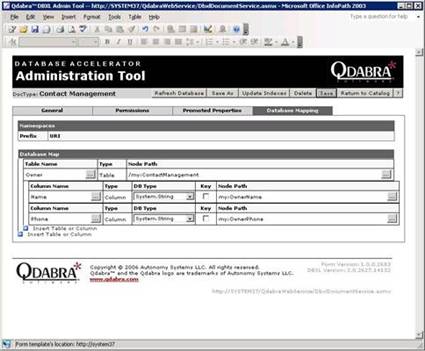
In general, the left side of the Database Map section deals with the target database schema, and the right side deals with the XML schema. Either type in the name of the table or press the browse button to open the Database schema task pane. To insert a name from the database schema task pane, simply double-click on it. The database schema task pane establishes a remote connection to the SQL database to derive its schema using the connection string provided in the Data Source field, so make sure that everything is configured correctly to enable this feature.
For the Node Path field, you may either click the browse button, or simply type in the name of the node. Note that the node path from one item to its children is relative and you only need to specify the path from the parent to the child for DBXL to be able to find the correct node. Also note that any valid XPath will work for these fields, so if necessary, you may employ any kind of special XPath that you can cook up. For more information about XPath, see this tutorial: http://www.w3schools.com/xpath/default.asp