There are a few threads on here detailing how to add a button to a form in the 2007 version of InfoPath, which will allow you to print the form instead of doing so via file/print toolbar.
None of the threads have a proper detailed description of what to do. Just bits and pieces that you have to then try and work out what to do with.
I've written this thread to overcome this ... follow this and you will be able to do as I've done - insert a print button on the form and when you click it, it will open up the MS Office Print dialog box where you can select what to do.
I've used the snipping tool within MS Office to insert some graphical images too.
Here goes ...
1. Click on Tools, then choose Form Options, and from there choose Programming from the list under the "Category:" heading. In the box entitled "Form Template Code Language", choose Visual Basic. In the box immediately underneath it entitled "Project location for Visual Basic and C# code:" set the directory path of where InfoPath is going to save your VB code. This can be anywhere you like. It is worth noting at this point that there is one other important option on this same screen - Remove Code. If you get to the end of this tutorial, you would have inserted and subsequently modified the "default" VB code generated by default. Therefore - IF YOU CLICK ON THE Remove Code BUTTON AFTER YOU FINISHED, YOU WILL WIPE TOTALLY ALL THE EXTRA CODE YOU'VE INSERTED, NO MATTER WHETHER THAT WAS ONE LINE OR THOUSANDS OF LINES! Therefore, my advice is to think very carefully before clicking on Remove Code!!
Anyway, now you've set this characteristic up, this particular InfoPath form will generate and allow you to modify VB code. In case you're wondering, I've not tried using the C# function. Therefore everything that now follows is associated with VB ONLY!
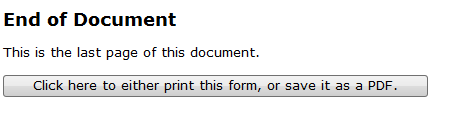
2. In your form, you are going to need to insert a button, and edit it. Below is a screen shot showing a very simple layout in one of my forms. It is on the last page, but obviously you can place an equivalent looking button any where you like. You don't need to edit it so it says what I've put either - you could disguise it as a button that does something else if you wish. The text is not releveant - only the function underneath it.
Here's what it looks like if you double click it.

To make this button simulate the Ctrl + P functionality otherwise available via the "File" toolbar in InfoPath, click on the "Edit Form Code..." button.
If you have not yet inserted any of your own code into the form, a dialog window will briefly flicker telling you it is building the initial version of the VB scripted code. This is done so that this InfoPath form has its default script built. (if you go back to point 1 and repeat the exercise, you should see that the Remove Code button is now active - it wasn't before as no code existed up to this point).
The number in the "ID:" box in the above diagram will vary according to how many functions, buttons etc. you have in your form. The number you can see in my example is 284, as that's how many controls there are in it. It doesn't matter what the number is, but it is relevant to the editing of the VB code.
Anyway, as a consequence of pressing "Edit Form Code...", you should now see another window which has been opened up in the "Microsoft Visual Studio Tools for Applications" tool. This is what is used to maintain the VB code for this InfoPath form. The window display shows many things, and I'm not about to explain Visual Studio Tools here. Suffice to say, that the product opens up in the section where you need to edit.
Here's a screen shot of what it looks like.
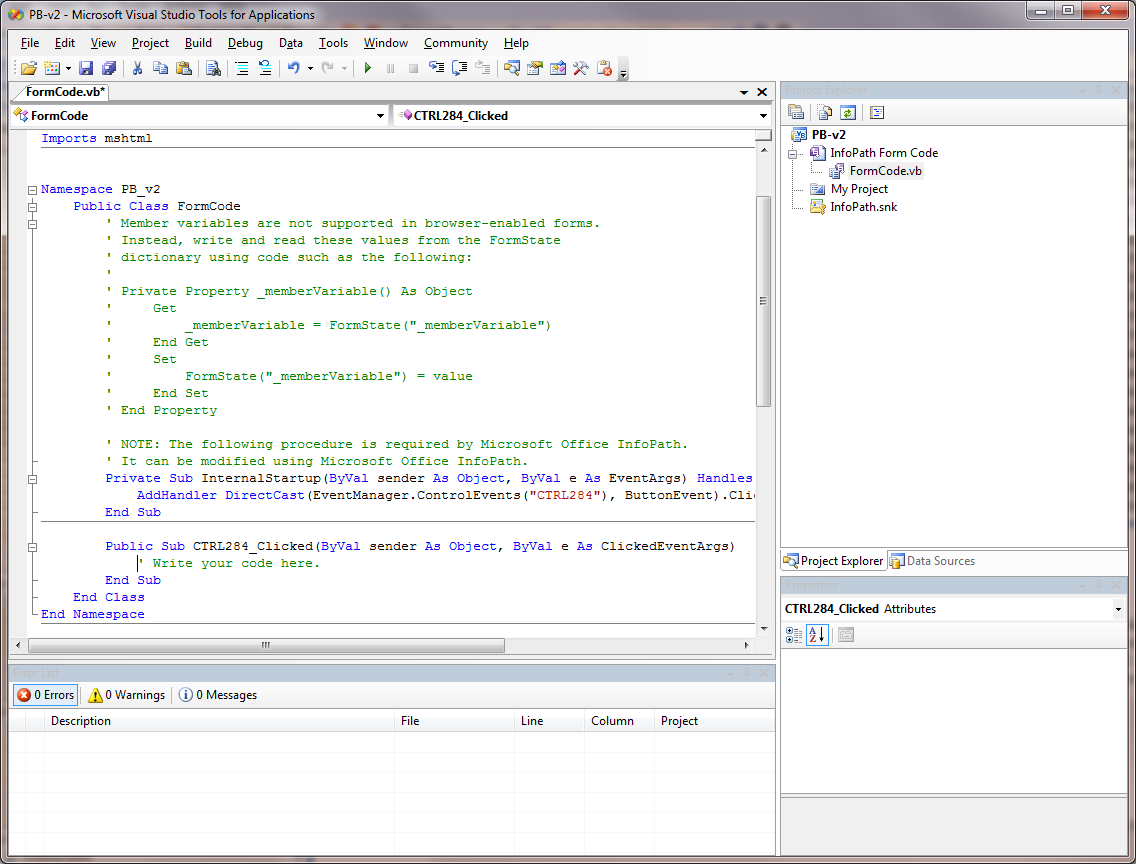
3. The cursor is already positioned where we want to edit. Replace the (green) line ' Write your code here. with "Me.Print(2)" without the " quotes i.e. just Me.Print(2)
This will ensure that when the button is pressed in the InfoPath form, that the Ctrl + P functionality is replicated. A window will appear from which you can select what you want to do. A screen image of that appears further down.
If you do NOT want this print window to appear, and just want the form printed to your Windows pre-determined default printer, then remove the number 2 from within the brackets. i.e. Me.Print()
Now you have inserted one of the two options I've described, here's what the screen now looks like.

What we've effectively done is insert an instruction against the control called CTRL284_Clicked which is the same number as we saw against the ID: identifier on the Button Properties tab in InfoPath.
In the case of my example, I've included the number 2 between the brackets, as I want the Print Window Options screen to appear when my users click on the button when they're working on it in InfoPath.
4. Close the "Microsoft Visual Studio Tools for Applications" tool, by simply pressing the X in the top right. This will save whatever the code looks like - you don't have to independently save it before closing it.
5. We are now back in the InfoPath form. Therefore at this point, save and publish it to wherever you normally do. In my case, I save it to a SharePoint web page. Then close InfoPath and go to your published location.
6. Next, launch the published form, fill a few parts of it in, then click on that button.
Below is what appears.
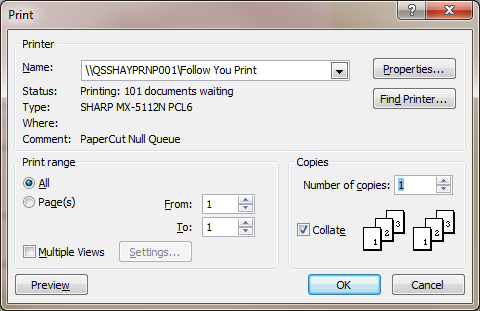
As you can see, the button has simulated Ctrl + P from the File menu.
From here, select as you normally would.
You may recall I said on my button "Click here to print this form, or save it as a PDF". Printing is easy- just select which printer from the Print drop-down. However if you want to save it as a PDF, I thoroughly recommend that at your site, the administration team install CutePDF writer (as the screen shot below shows). This will not only then prompt you to say where you want the form saved in PDF format, but also what you want to call it. The real big plus point here though, is that the integrity of the form is maintained. It saves it to PDF and when you then open it in PDF it looks exactly the same as it does when viewed via InfoPath. A far cry from the "export as PDF" functionality with InfoPath, which is really poor, and frequently misaligns your form whilst saving it as a PDF. Have to say, that part of InfoPath is fairly rubbish!

So - I know that might seem like a lot of step and reading - but it 100% works.
Good luck!