Blank rectangles on forms - InfoPath Dev
Sign in
|
Join
|
Help
in
General
InfoPath
(Entire Site)
InfoPath Dev
InfoPath Dev is dedicated to bringing you the information and tools you need to be successful in your Microsoft Office InfoPath development projects.
Home
Blogs
Forums
Photos
Downloads
InfoPath Dev
»
InfoPath
»
General
»
Blank rectangles on forms
Blank rectangles on forms
Last post 03-13-2020 11:34 AM by
granDelimiter
. 4 replies.
Page 1 of 1 (5 items)
Sort Posts:
Oldest to newest
Newest to oldest
Previous
Next
03-13-2020 06:33 AM
granDelimiter
Joined on 12-22-2019
Posts
64
Blank rectangles on forms
Reply
Contact
I need one view of each form for engineers to print and fill out by hand. These are in case they get to a site without their computer or a good connection. I need a good way to put blank white rectangles where the controls would be. Text boxes would work, but then I'd get a million warnings about non-bound text boxes. What might be even better would be if I could make the dividing lines in tables thick and colorful. When I select cells and click "Borders" on the Layout tab the thicknesses only go up to 6, and I have not even been able to make that work, it just keeps going back to 2. Is there a way to format table lines? Is there a better way to do blank boxes for writing in? Thanks
03-13-2020 08:13 AM
In reply to
Hilary Stoupa
Joined on 06-20-2008
Posts
13,297
Re: Blank rectangles on forms
Form1.xsn
Mark as Not Answer
Mark as Answer
...
Reply
Contact
Can you insert pictures? Under the Insert tab > Picture - you could have an image of the rectangle you'd like.... I'm not sure why borders aren't working for you - that seems strange. Here's a sample with a table using borders. Although to me, 6 seems extremely bold and more ink than I'd want to use for printing.....
Hilary Stoupa
03-13-2020 10:12 AM
In reply to
granDelimiter
Joined on 12-22-2019
Posts
64
Re: Blank rectangles on forms
Mark as Not Answer
Mark as Answer
...
Reply
Contact
6 looks plenty wide, from your example. I should be able to just select one or more table cells, right click and choose 'borders and shading' and choose the wide (6) line type - right? It is not budging. For my first form I used text boxes all set to the same dummy field. Once one is done it can quickly be pasted it over all the controls. I'll try using a white picture for my second list, but I see pictures don't have the option of setting dimensions is 'percent', so they may not be as versatile. Thanks
03-13-2020 10:46 AM
In reply to
Hilary Stoupa
Joined on 06-20-2008
Posts
13,297
Re: Blank rectangles on forms
scr.png
Mark as Not Answer
Mark as Answer
...
Reply
Contact
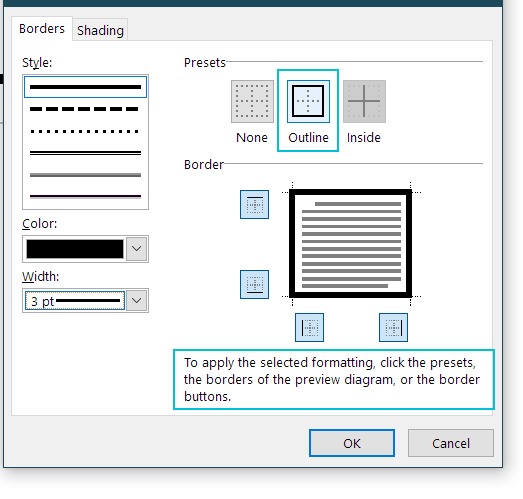
Well, after you select the line size, you need to click the outline button, or the individual border buttons. Of course, for table cells you also can't set to percent, so you may just want to continue using a text box.
Hilary Stoupa
03-13-2020 11:34 AM
In reply to
granDelimiter
Joined on 12-22-2019
Posts
64
Re: Blank rectangles on forms
Mark as Not Answer
Mark as Answer
...
Reply
Contact
When I follow your directions I can get the borders up to 6. The text box solution gives me more versatility including colors control, so I'll stick with it. Thanks
Page 1 of 1 (5 items)
Copyright © 2003-2019
Qdabra Software
. All rights reserved.
View our
Terms of Use
.