Many InfoPath solutions that use SharePoint for hosting require that the web site that the form is published to be located in the Local intranet zone in Internet Explorer. For Corporate Intranet sites this is usually not an issue because the website will automatically come up in the Local intranet zone by default and no user intervention is required.
However, there are situations when user intervention is required and the user must add the website to the local intranet zone manually through Internet Explorer. Two examples of situations where this often occurs is for users who access the Corporate network through VPN or for SharePoint sites that are extranet enabled.
Recently I have seen a number of support requests from IE7 users who had followed well documented "Add the site to your local intranet" instructions only to find that the setting would not save in Internet Explorer. Upon further investigation I discovered that these users would attempt to add a site to the local intranet zone only to be told by IE that the site already existed in the Internet zone. Here is the message that these users reported to me:
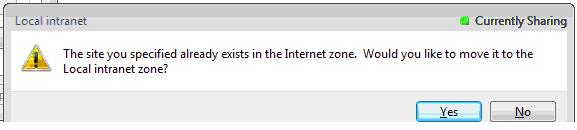
When the users clicked Yes to move the site from the Internet zone to Local intranet the site would appear in the list of local intranet sites (as expected). However, when the user applied the changes and exited out of the Internet options dialog box the site would not be moved to the Local Intranet zone. In fact, upon further investigation, a user could actually add multiple instances of the same site to the local intranet zone at the same time which is not supposed to be allowed by IE.
The only solution for this issue that I have found is to have the users reset their Internet Explorer settings:
- Close all instances of IE and other applications (close all windows)
- Open IE, click on Tools | Internet Options
- Select Advanced from the tab options
- Click on Reset
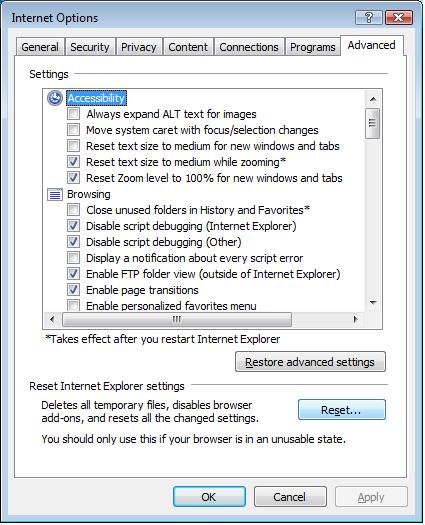
NOTE: You should only use the Reset Internet Explorer settings option as a last resort option as the dialog box indicates above.