Jennifer Walts
in

InfoPath Dev

Jennifer Walts

  • Free Webinars - “InfoPath Forms: Your Bridge to Online Data Sources”

    Join us Thursday and see how InfoPath makes it so easy to use with online data. We'll show you how to:
    • Create a data connection - Pull data from an XML config file into your form
    • Convert your data connections into UDCs - UDCs work in the browser and can be easily shared and reused across forms
    • Accelerate forms creation and improve consistency using XML Template Parts


    Topic: “InfoPath Forms: Your Bridge to Online Data Sources ”

    Date: Thursday, June 9, 2011

    Times: This webinar will be presented twice - 7-8 a.m. Pacific / 10-11 a.m. Eastern and 8-9 a.m. Pacific / 11 a.m.-12 p.m. Eastern

    Instructor: Patrick Halstead, InfoPath MVP and Qdabra Founder

    Registration: http://www.qdabra.com/en/training/FreeWebinar_Registration.aspx

    These webinars are part of free weekly series that explore how you can use Qdabra Database Accelerator (DBXL) and Qdabra qRules to unleash the power of InfoPath.

    Technical requirements:

    • Live Meeting client
      • Install the Live Meeting client prior to the webinar. Click the webinar link above and follow the instructions
    • Headset/speakers with microphone attached to your computer
      • We will use Live Meeting audio instead of the telephone
      • Test audio before class: Voice & Audio > Options > Set up audio and video

     Questions? Contact [email protected].

  • Free Training (Lab 4): Track Responses from Your Event Form

    This is last of four free labs Qdabra is offering to help people learn how to build InfoPath forms. In previous labs, you created an event form template, improved the design, and then made the form smarter.

    In this lab, we will:

    • Create an R.S.V.P. form
    • Add form logic (conditional formatting and rules)
    • Publish it to a separate SharePoint library
    • Add an email submit to an email back to the event organizer
    • Create SharePoint view with grouping by event (sorted by attendStatus) to show response and use sum to count “yes” attendees

    CREATE AN R.S.V.P. FORM

    We will create a simple InfoPath form that guests can use to respond to event invitations.

     1.  Launch InfoPath Designer 2010 and design a new blank form template.

     2.  Enter “R.S.V.P. Form” as a title to the form.

     3.  Add a new group under myFields named details in the main data source.


     4.  Under details, add the Fields (elements) eventTitle and hostname, both with a data type of Text (string).


     5.  Drag the details group onto your canvas and drop it, letting InfoPath create controls.


     6.  Switch to the Home tab, and under Controls, select the Option Button control. Leave the default number to 3 and click OK. This will add three radio buttons on your canvas.

     7.  Go to the Main Data Source and notice that a new field named field1 has been added as well. Double-click on the field to view its properties.

     8.  Change the name to something descriptive, such as attendStatus, and then click OK.

     9.  On the design canvas, left click to the right of the radio button and type these labels: Attending, Maybe Attending, and Not Attending:


     10. Right-click on each of the option buttons to open the properties and change ‘Value when selected’ to Attending, Maybe Attending, and Not Attending:


     11. Add a new group under myFields and name it additionalGuest.

     12. Add a child node to the additionalGuest group. Name it bringGuests, keep type as Field (element), and change the data type to True/False Boolean with default value = FALSE.

     13. Add a repeating field (still under the additionalGuest parent group) named additionalGuests, data type = Text (string):


                      Click the Show Details checkbox and your schema should look similar to this:


     14. Drag the additionalGuest group onto your canvas and allow InfoPath to insert controls for you.

     15. Add some formatting to your form, such as theme, fonts, borders/shading, spaces. Save your changes and close your template.

    USE DATA FROM YOUR EVENT PLANNER FORM

    The RSVP Form template (see Lab 4 folder) is already set up to use a data connection to a SharePoint library to provide information for some drop down controls. You’ll need to update the form to point to the library you created for your Event Planning form.

     1.  Save the template locally:


     2.  Right click on the saved file and select Design to open the form in design mode.

     3.  Modify the data connection:

       a. Click the  Data Connections button on the Data tab:


       b. Make sure EventPlanner is selected and click Modify:


       c. Enter the correct SharePoint site location for your My Site and Next:


       d. Select the SharePoint Library you published your event planning form to and click Next.


       e. Only select Event Title and Host Name in the next window and Next:


       f.  Leave other settings as is and click Next until the wizard closes. Close the Data Connections dialog.

     4. Preview your form. If you have filled out and submitted Event Planning forms to your form library, your drop downs will have values for you to choose from. Close the preview. It would be nice  to also only be able to select the correct host for each event, so we’ll add a filter to the hostName dropdown:

       a.  Right click the Host Name drop down control and select Drop-Down List Box Properties:


       b.  Click the button next to the Entries field:


       c.  Click the Filter Data button to add a filter.

       d.  Click Add to add a new filter.

       Set the Event_Title field as equal to the eventTitle field in your main form:


       Click OK more times than you ever thought possible to close all the dialogs. Preview your form again, and after selecting an event title, you should only see appropriate host name options:


    ADD FORM LOGIC (RULES AND CONDITIONAL FORMATTING)

     1. Add rules:

        a. Right click on any of the attendStatus option buttons and select Rules > Manage Rules…

        b. Click New > Action.


        c. Click the Condition dialog


        d. Leave the default values in the first and second dropdowns. In the third dropdown, select Type text…, type in Not Attending and then click OK.


        e. Click on the Add dropdown; and select Set a field’s value.


        f. For the Field, select bringGuests and leave the Value blank.


       g. Click OK to accept your changes and close the dialogs.

     2. Add conditional formatting:

       a. In the Main Data Source, right click on bringGuests and select Rules.

       b. Select New > Formatting.


       c. In the first dropdown of the Conditional Format dialog, choose Select a field or group…

       d. Select the attendStatus field and click OK.


       e. Leave the second dropdown to the default of “is equal to”.

       f. In the third dropdown, select Type text… and type in Not Attending.

       g. Click OK.

       h. Check the box Disable this control.

     Your conditional formatting should be similar to this:


    ADD AN EMAIL SUBMIT

    The RSVP Form template we started using midway through this lab already has a field added for the hosts’s email address. If you are using that template, skip to Step 3. If you need to add this yourself, continue to Step 1.

     1. Right click the hostname field and add a new field named email:


     2. Add another row to the layout table and place a control under the host name for the email:


     3. Add a submit connection to your form to submit via email:

       a. On the Data tab, select To E-mail from the submit connection:


       b. Click the fx button for the To field, click Insert Field or Group and select your newly added email field:


     Take a second to be really happy about the size of that formula editing window. It was ridiculously tiny in previous versions of InfoPath!

       c. You can use a concat formula to create a subject line for your email:


       d. Leave defaults set for the rest of the wizard. Add a button to your form (Home > Controls > Objects > Button). Richt click on the new button, Button properties, and change the  action to Submit so your users can submit their forms through email. Click OK.


    PUBLISH YOUR FORM TO A SEPARATE SHAREPOINT LIBRARY

     1. Save your form template and then go to File > Publish > SharePoint Server.


     2. Enter your SharePoint My Site URL (i.e. http://<YourSharePointSite>/my/personal/<username>, replacing <YourSharePointSite> with your actual site, and <username> with your user name and then click Next.

     3. In the next screen, leave the default selection to Document Library and click Next.

     4. Select the option to create a new document library and click Next.

     5. Enter a name for your new SharePoint library, pehaps RSVP Forms, and then click Next.

     6. Promote/Add columns for the fields: eventTitle, hostName, and attendStatus.


     7. Click Next > Publish > Close.

      You are now finished with Lab 4 and we hope you’ve enjoyed Qdabra’s free training labs. Want to learn more and become an InfoPath master? Check out our in-person and online training options.

      Requirements for the free training labs:

    •   Microsoft InfoPath 2010 and Microsoft SharePoint 2010 (contribute permissions) - parts of the labs can be completed without SharePoint. While most of the labs can be completed with InfoPath 2007, the instructions and screenshots are for InfoPath 2010.
  • Free Training (Lab 3): Making it Smarter

    This is the third of four free labs Qdabra is offering to help people learn how to build InfoPath forms. We’re working with a form template for an event (think Evite), and I hope you’re already thinking about what electronic form you can create for your company or organization.

    In Lab 2, you made your Infopath form template look and work better. In this lab, we will make it smarter.

    • Investigate using a SharePoint lookup to add guests using the Qdabra Contact Selector
    • Add InfoPath’s default  Person/Group Picker control to your view
    • Create a separate view that adds a more advanced contact selector
    • Compare Person/Group Picker with Contact Selector
    • Configure forms to submit to SharePoint and email guests
    • Add a button to open another form
    • Add an Events Web part to the SharePoint homepage that lists events from the Form Library


    ADD A SHAREPOINT LOOKUP TO ADD GUESTS USING THE CONTACT SELECTOR

    We have included a pre-configured layout of Qdabra’s Contact Selector template part to save you time in configuring the XTP yourself. We will need to use a new XSN for this lab that has the Contact Selector already added to the Guests view.

    1.   Right click on the Event Planning (After Lab 2) XSN from the Lab 3 folder, and select Design:


     
    2.   This will open the template in Design mode in InfoPath. You’ll need to re-save the template, since it was downloaded from another location. On the File tab of the Ribbon, select Save As:
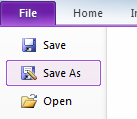

     
          And save the template as Event Planning.

    3.   From the Page Design tab, make sure View > Guests view is selected.
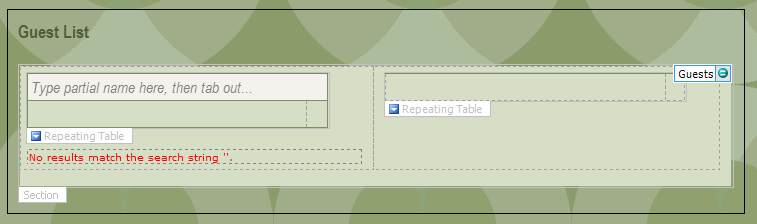
         You’ll see that there is a new section in the Guests view since you worked in the form in Lab 2:
     
    4.   Publish your form template to your SharePoint library to test the SharePoint lookup feature. Use the publishing instructions in Labs 1 or 2.

       a.   Click Open the SharePoint library in the browser and Add document.

       b.   Type a partial name in the text box provided. You may type in the first three letters of your name, for example. When done, tab out of the field and click Yes if prompted by a security notice dialog.

          Note that the search is performed in the SharePoint list: http://<YourSharePointSit> /UserList, i.e. users must exist in this list for you to be able to select them using the Contact Selector XTP.

       c.   A list of users that match your search string should appear. Select as many users as you wish and click on the corresponding arrow (  ) key.

       d.   The user’s name will then appear on the right-hand side of the Guest List section. Click on the red button to remove a user.

          You may continue selecting and adding users as desired.

    ADD PERSON/GROUP PICKER CONTROL TO A VIEW

      1.   Return to the form template you had opened in Design mode at the beginning of this lab. Place your cursor in the table with the Contact Selector section and add a new row to the table:

         a.   Right click and select Insert > Rows Below:
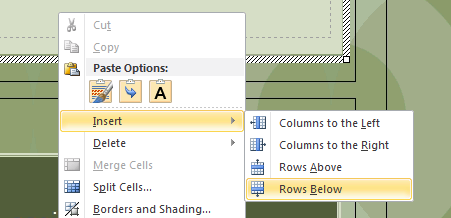

     
      2.   Merge the table cells in the new row:

         a.   With the table cells highlighted, right click and select Merge Cells:
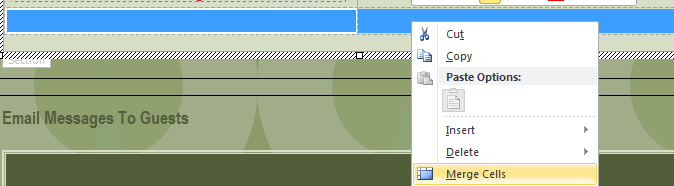
      3.   From the Home tab, add a Person/Group Picker control in the new row:

         a.   With your cursor in the new row, from the Home tab, click on the Person/Group Picker control:
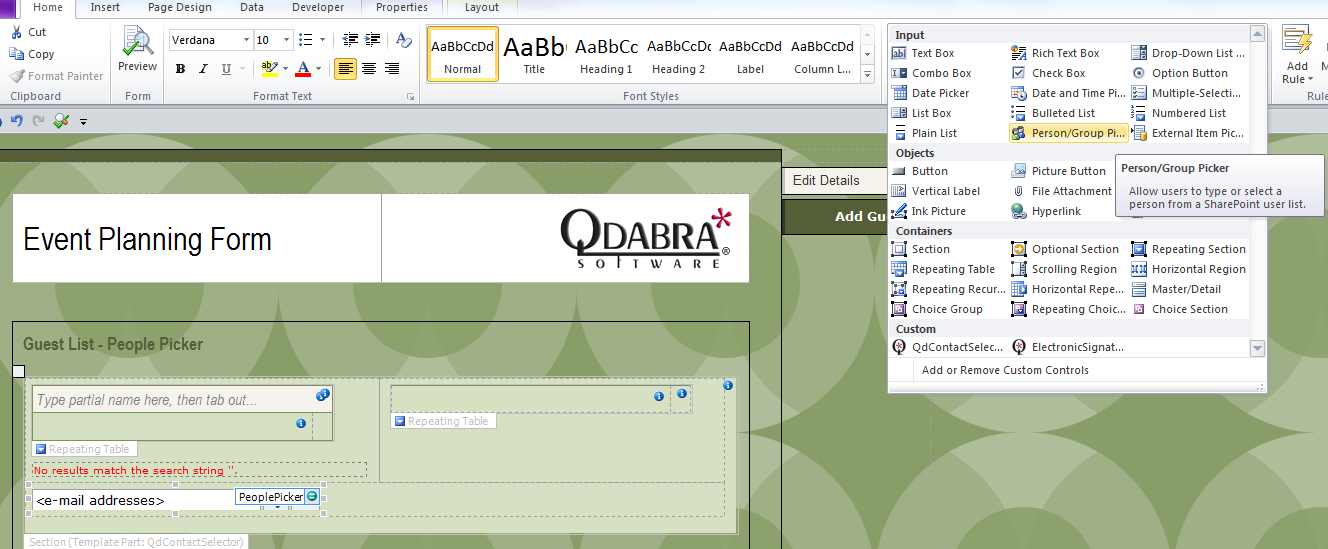

     
      4.   Right click on the newly added control to learn about its properties:

         a.   Data tab:
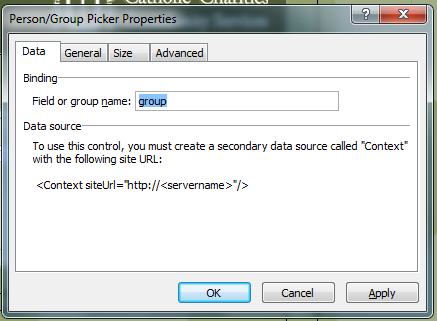
         The secondary data connection named Context has already been added to this template for use with the Person/Group Picker.

      5.   Preview your form to try the Person/Group Picker. Multiple users can be added by separating their user names with semi-colons, as in Outlook:
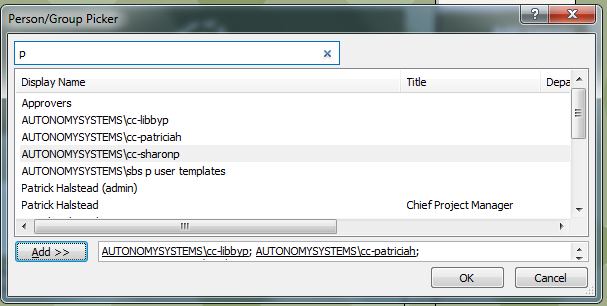

     
    CONFIGURE FORMS TO SUBMIT TO SHAREPOINT AND EMAIL GUESTS

     1.   Add a SharePoint submit data connection.

         a.   In InfoPath, go to Data > Data Connections > Add.

         b.   In the first screen of the Data Connection wizard, select a new connection to submit data and click Next.

         c.   Select the option to submit data To a document library on a SharePoint site and click Next.

         d.   In the next screen:

            i.   Enter the URL to your document library.

            ii.  For the File name, click on the fx button and enter the formula: concat(my:Details/my:eventTitle, " - ", my:Details/my:hostName)

            iii. Click OK, check the box to allow overwrite if file exists, and then click Next.

       e.   Click Finish to exit out of the wizard.

     2.   Add an Email submit data connection.

       a.  Click on the Add button to add another data connection.

       b.  Select the option to submit data and click Next.

       c.  Select the option to submit data As an e-mail message and click Next.

       d.  In the next screen, click on the fx button next to the To: field.
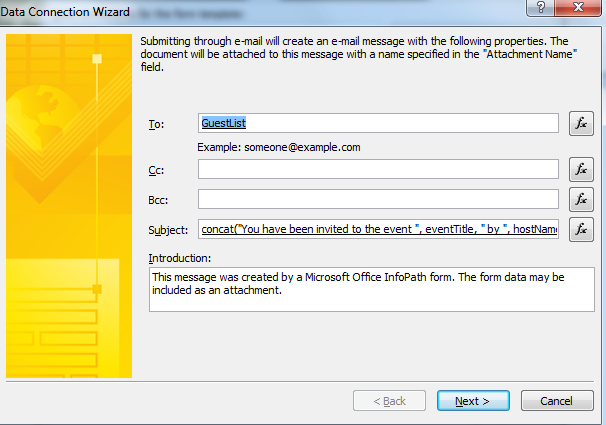
          i.    Click on the Insert Field or Group… button.

          ii.   Expand the Guests group and select the GuestList field.

          iii.  Click OK twice.

       c.  For the Subject, click on the fx button and enter the formula: concat("You have been invited to the event ", my:Details/my:eventTitle, " by ", my:Details/my:hostName, ".")

       d.  Click OK. Your current screen should look similar to this:

       e.  Click Next.

       f.    In the next screen, select the option to Send only the active view of the form and no attachment.

       g.  Click Next, Finish, then Close.

     3.   Customize the email message.

       a.  Place your cursor inside the box of the ‘Email Messages to Guests’ section.

       b.  In the Main Data Source, expand the Details group and right-click on the eventTitle field and in the dialog, select More…
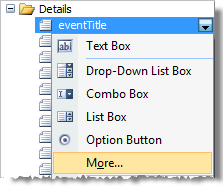

     
       c.  In the Select a Control dialog, select Calculated value and click OK. This will add the eventTitle field as an expression box in your canvas. Center-align the control to make the alignment appealing. Also make sure to use a light font color in the expression box because the background is dark.

      d.  Select Page Design tab, and select Designer view.
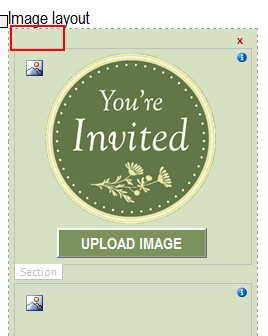
      e.  Once again, look for the table under the Image section. Click inside the Image Layout table:
     
       f.   In the Layout tab > Select > Table: 
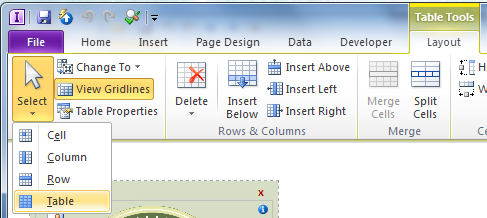
    Your entire table should now be highlighted in blue. Copy the table to your clipboard by clicking Ctrl + C on your keyboard.

       g.  In the Page Design tab, select Guests to switch back to the guests view.

       h.  Place your cursor right under your eventTitle expression box, right click, Paste Options > Merge Formatting.
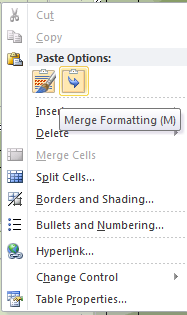

     
    Center-align to make it appear nice.

       e.  Make the image smaller by double-clicking on the picture control, going to the Size tab and reducing the Width to 50% or 75%. Do this for both picture controls.

       f.   Since there will be no picking/uploading new images in this view, delete the two buttons: Upload Image and Pick New Image. You may also delete the section where you see the text ‘Click here to enlarge.’ Make sure to also delete any extra spaces that have been left.

      g.   From the Main Data Source, drag the message field right under your image control. Remove the label and adjust the spacing as necessary.

      h.   Delete all other unnecessary text/placeholders.

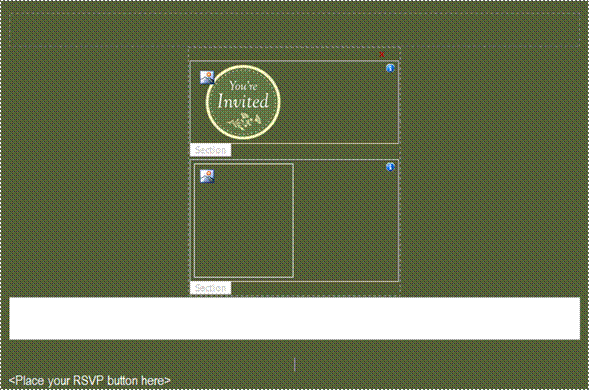
    Your current screen should look similar to this:
     4.   Add a Send button.

       a.  Place your cursor under the horizontal line at the bottom part of your Guests view canvas (see ‘<Place your Send button here>’).

       b.  Select Page Design tab, and select Designer view.

       c.  Look for the Send button and copy it on your clipboard.

       d.  Switch back to your Guests view and paste the button under the horizontal line at the bottom section.

       e.  Click on the button, and then from Home > Add Rule > When This Button is Clicked > Submit Data.
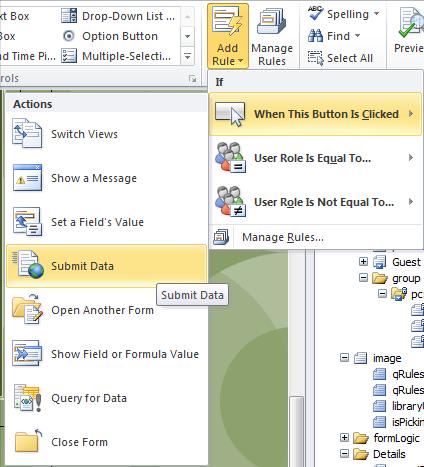

     
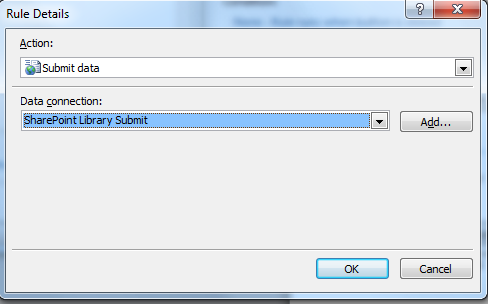
       f.  The first action would be to submit using the SharePoint Library Submit data connection, so click OK.
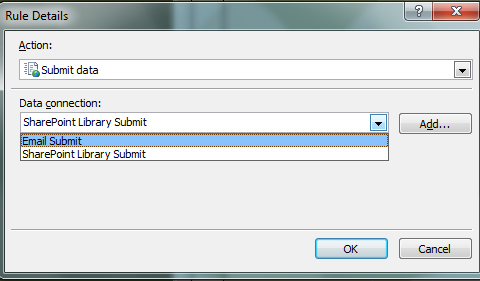
       g.  Add another action to submit using the Email Submit data connection and click OK.

     
       h.  The third action would be to Show Message that states something like “The form has been submitted to your SharePoint library and to your guests.”

       i.  Click OK until all the dialogs are closed.

     5.   Save your changes, publish to your SharePoint library, and Add document to review your changes.

    PROS AND CONS FOR PERSON/CONTACT PICKER VS CONTACT SELECTOR

     1.   Person/Contact Picker – This is an InfoPath control that allows you to type or select users and groups from a SharePoint site and validate those users against a directory provider.

       a.  Pros:

         i.   Person/Group Picker must connect to a SharePoint site to work. This can be done two ways—either publish the form first or add a secondary data source with the site URL.

         ii.  You can make it a required field.

         iii. You can click the address book button to perform a search.
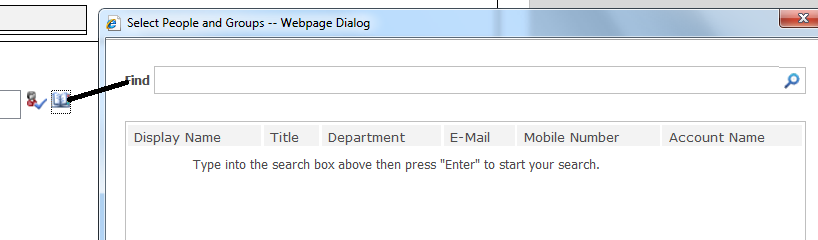

     
         iv. We can add multiple entries by separating entries with a semi-colon.

         v.  Can add people and groups.

       b.  Cons:

         i.   All the entries are separated by ';' separator.

     2.   Contact Selector – This is a free Qdabra XTP that allows you to add multiple contacts to your form without code or ActiveX.

       a.   Pros:

         i.   Can easily add people/group.

         ii.  Can add multiple entries (repeating section).

       b.   Cons:

         i.   Must add ADWS (Active Directory Web service) data connection.

        ii.  Cannot make it a required field because it’s from secondary data source.

        iii. Must change the Xpath expressions in the rules.


    ADD A BUTTON TO OPEN ANOTHER FORM

    This is an optional step for Lab 3. You can also do this during Lab 4.

     1.   From the Designer view, copy the Please R.S.V.P. button:
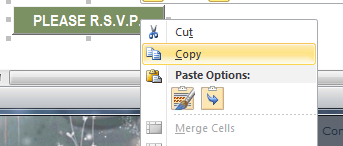

     
     2.   Paste the button into the Guests view:


     
     3.   Create a new rule for the button with an action to open another published form to fill out, such as the RSVP form you’ll create in Lab 4:
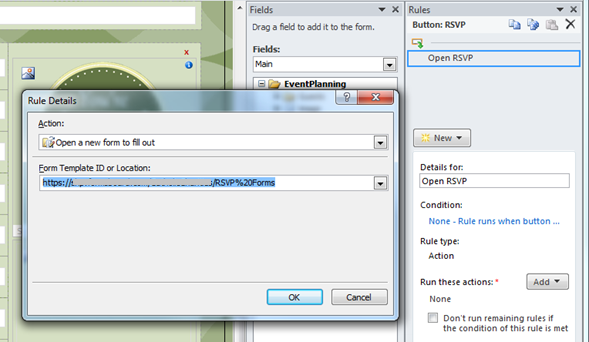

     
     4.   After you create and publish your RSVP form in Lab 4, you can edit this rule to point to that published location. Click OK.

     ADD A WEB PART

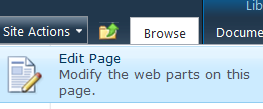
     1.   Select the document library to which you want to add a Web part, and click Site Actions > Edit Page.

     
     2.   Select Page Tools tab > Insert.


     
     3.   Select Web Part.
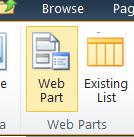

     
     4.   Under Categories, select List and Libraries and then choose your document library or list (the one you’re adding a Web part to). This tutorial uses the MyEventPlanner document library as an example.
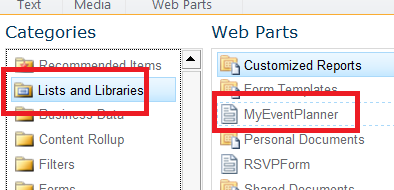


     5.  Click Add button located at right most corner of the page.

     6.  Below is a sample of how the Web part you just added may appear:
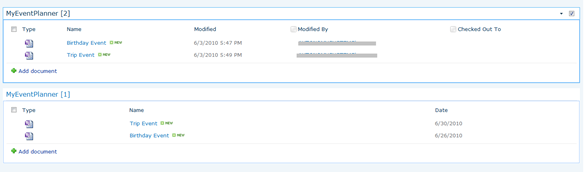

     
     7.  You can edit your new Web part to modify its properties:
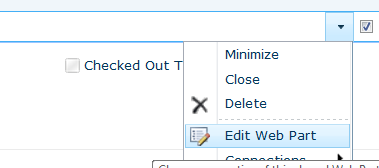
        a.  Click on the drop down arrow that is located at right upper corner of the Web part, and select Edit Web Part:
     
        b.  Under Selected View drop down, select a default view that is All Documents.
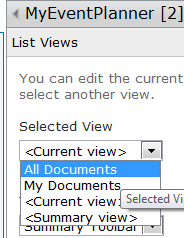

     
        c.  Click OK.
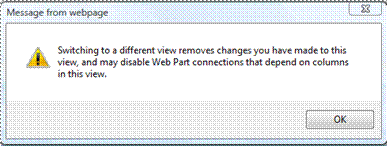

     
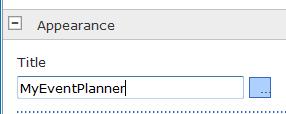
        d.  Under the Appearance section, enter a Title for your Web part.

     
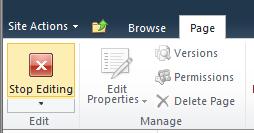
        e.  Click OK to save your changes. Under the Page tab of the ribbon, you can now click Stop Editing to exit the edit mode:
     

    You are now finished with Lab 3. We’ll release Lab 4 Friday, July 23. If you have any questions, feel free to post them to the Newbie Questions forum. Once you’ve complete these labs, you’ll be ready to become an InfoPath master. Learn about our in-person and online options.

    Requirements for the free training labs:

    ·         Microsoft InfoPath 2010 and Microsoft SharePoint 2010 (contribute permissions) - parts of the labs can be completed without SharePoint. While most of the labs can be completed with InfoPath 2007, the instructions and screenshots are for InfoPath 2010.

  • Free Training (Lab 2): Make Your InfoPath Form Template Look and Work Better

    This is the second of four free labs Qdabra is offering to help people learn how to build InfoPath forms. We’re working with a form template for an event (think Evite), and I hope you’re already thinking about what electronic form you can create for your company or organization.

    In Lab 1, you built the event form template. In this lab, we will:

    • Add a background image to the form template
    • Add a picture control with default image
    • Convert the picture control to save as link and upload image to SharePoint using rules
    • Configure email notifications in the SharePoint library


    ADD A BACKGROUND IMAGE

    1.  Open the Event Planning form you created in Lab 1 in InfoPath Design mode (right click and select Design).   

            If you do not have a saved form, you can start with an XSN we provide:

           a.  Copy the Lab 2 folder and save it someplace you’ll be able to find it again.

           b.  Right click on the Event_Planning_(After_Lab_2) XSN and select Design:


           c.  This will open the template in Design mode in InfoPath. You’ll need to re-save the template, since it was downloaded from another location. On the File tab of the Ribbon, select Save As:


                 And save the template as Event Planning.

    2.   In the Page Design tab, make sure that the Details (default) view is selected.


    3.   Click on the Properties button. In the View Properties dialog, you can customize the background by changing the color and/or using a background image. For the purposes of this lab, we will do the latter. Check the box ‘Use a background picture’ and browse to an BackgroundImage.gif image in your Lab 2 folder.


    4.   Locate “Background Image.gif” and click Insert.

    5.   Check the boxes ‘Tile horizontally’ and ‘Tile vertically’ and click OK.

           Your form should look similar to the below one:


    ADD A PICTURE CONTROL WITH DEFAULT IMAGE

    1.   In the Main Data Source, you will see an image field. Click on the down arrow > Properties  and a dialog box opens where you can see the Data Type is set to ‘Picture or File Attachment (base64).’ Click OK. Drag this field onto your canvas, right inside the empty space, and choose Picture.

    2.   Right click on the picture control > Picture Properties. select Specify default picture and click Browse.

    3.   Locate “YouAreInvitedImage.gif” in your lab folder and click Insert.

    4.   Go to the Size tab, leave the Height set to auto, and for the Width, enter 100%.

    5.   Click OK. You should now see a default image in the picture control (users will still be able to change this image as desired).


    CONVERT THE PICTURE CONTROL TO SAVE AS LINK IN SHAREPOINT

    The SaveToSharePoint command allows you to save a file, a set of files, an image, or a set of images to a SharePoint document library. This will save a link in the form instead of the actual image and reduce the size of the XML.

    1.   In InfoPath, from the Page Design tab, select the Designer view. In this view, you will see a pre-configured layout table and controls that you can use in your form design.

    2.   Click inside the Image Layout layout table:


    3.   In the Layout tab > Select > Table:


          Your entire table should now be highlighted in blue. Copy the table to your clipboard by clicking Ctrl + C on your keyboard.

    4.   In the Page Design tab, select Details to switch back to the details view.

    5.   Remove the picture control that you have added in the previous section of this lab by highlighting and deleting it.

    6.   Place your cursor in the empty section, right click, Paste Options > Merge Formatting.


          You should be able to see the image below:


          Extra credit: Let’s take a quick look on how rules work.

              a.   Return to the designer canvas (Page Design > View > Designer). From the Home tab > Manage Rules. Click the Upload Image button in the table. There are two rules associated with this button; select the SaveToSharePoint rule. The first action in this rule calls the qRules SaveToSharePoint command.

              b.   To view the command syntax being used, click on that action, and then click on the fx button. This command saves the content of the image field (specified in the /xpath parameter) to the SharePoint library URL (specified in the /url parameter). Click OK two times to close all the dialogs.

    7.   To set the library URL where our images will be saved to, go to the Main Data Source and double-click on the libraryURL field.


    8.   In the Default Value section of the Data tab, enter your SharePoint library URL, that is: http://<YourSharePointSite>/my/personal/<username>/<YourDocLibrary> replacing  <YourSharePointSite> <username>  and <YourDocLibrary> with your actual SharePoint site url, actual user name and the document library name on your My Site where you would like to save your images. Click OK when done.

    9.   Save your InfoPath form template (File > Save).

    PUBLISH TO SHAREPOINT LIBRARY

    1.   Select File > Publish. If you’ve previously published this form to your SharePoint library, you can use the Quick Publish button (make sure the URL displayed by the Quick Publish button is for your form library). If it is not you will need to choose SharePoint Server:

           a.   The Publishing Wizard opens. Enter the URL to your SharePoint My Site and click Next.


           b.   Keep the default “Form Library.” Click Next.


           c.   If you created a form library in Lab 1, you can publish to that. Otherwise, keep the default “Create a new form library.” Click Next.
    Name your form library Events:
     
           d.   Next > Next > check Open this form library > Publish.


    To test your image control, click Add document when your SharePoint document library opens. Pick new image > Click here to insert a picture and upload any image from your local machine. On successful upload, you should be able to see a new image submitted into your SharePoint library.


    CONFIGURE EMAIL NOTIFICATIONS IN THE SHAREPOINT LIBRARY

    SharePoint 2010 allows us to configure notifications to a single user and/or group either through email or text message (SMS). For the purposes of this lab, we will set up email alerts.

       1.   Go to your SharePoint library and switch to the Library tab of the Library Tools menu, then click on the Alert Me button:


       2.   In the Alert Me options, select Set Alert on this library.

       3.   Complete the New Alert wizard:

              a.   Enter the title for the alert. The title will be included in the subject of the notification sent for the alert so we’d want something descriptive; something like ‘New items’.

              b.   In the Users field, enter the user name or e-mail address of the person(s) and/or group(s) whom you wish to send alerts to. Separate multiple entries with semicolons.

              c.   Leave the default delivery method to send alerts via email using your email address.

              d.   For the ‘Change Type’, you can specify the type of changes that you want to be alerted to. For this lab, we’d only want to receive notifications when new items are added, so select that option.

              e.   You may also specify whether to filter alerts based on specific criteria, or restrict your alerts to only include items that show in a particular view. Leave the default filter to send alert when anything changes.

              f.    Leave the default frequency to send notification immediately.


       Your new alert settings should be similar to this:

       4.   Click OK.

       5.   You should receive an email for the new alert that you have successfully created.


    You are now finished with Lab 2. We’ll release Lab 3 on Friday, July 16. If you have any questions, feel free to post them to the Newbie Questions forum. Once you’ve complete these labs, you’ll be ready to become an InfoPath master. Learn about our in-person and online options.

    Requirements for the free training labs:

    • Microsoft InfoPath 2010 and Microsoft SharePoint 2010 (contribute permissions) - parts of the labs can be completed without SharePoint. While most of the labs can be completed with InfoPath 2007, the instructions and screenshots are for InfoPath 2010.
  • Free Training: Design Your InfoPath Form Template (Lab 1)

    As I blogged last week, Qdabra is offering four free labs you can use to learn how to build InfoPath build forms. Let’s get started by building an InfoPath form template for an event (think Evite).

    For this lab, you are provided with a sample form template (Event Planning (Beginning XSN).xsn). We will:

    • Add the schema
    • Modify the layout
    • Publish the form to SharePoint
    • Create a view in SharePoint

    ADD THE SCHEMA

    1.  Save Event Planning (Beginning XSN).xsn someplace you’ll be able to find it again.

    2.  Right click on the Event Planning (Beginning XSN).xsn from your Lab1 folder, and select Design.


    3.  This will open the template in Design mode in InfoPath. You’ll need to re-save the template, since it was downloaded from another location. On the File tab of the Ribbon, select Save As:


    4.  Save the template as Event Planning.

    5.  In the main data source, select EventPlanning group.


    6.  In the Actions section, select Add Field.
     
    7.  Name this Details, change Type to Group, and click OK.


    8.  Select the Details group, and click Add Field and add the following fields (element):


    MODIFY THE LAYOUT

    1.  The tables have already been created on your sample template canvas. Simply drag-and-drop the fields into their corresponding placeholders. Delete the titles that get included on drag-   and-drop.

         Your layout may look similar to this after having dragged and dropped the Location field and deleted its title:

                        
    2.  In the header, enter the form name and replace the logo as desired.

         Your form should look like this:


    3.  Click File > Save and give your form template a descriptive name.

    CREATE A USERLIST

    1.  Navigate to your SharePoint site.

    2.  Click Site Actions > More Options…


    3.  Click List > Custom List, and enter a name to your custom list (this tutorial uses UserList as a list name). Click Create.


    4.  For the newly created list, Click List > List Settings.


    5.  Click Create column that is located under Columns section.


    6.  Enter UserName for a Column name, and select Yes for Require that this column contains information. Click OK.


    7.  Create two more columns of name FullName, and EmailAddress. Finally all the three columns should look similar to the below layout:


    8.  Go back to the UserList and click Add new item.

    9.  Enter data in the fields as shown below, and click Save.


    MODIFY USERLIST DATA CONNECTION

    1.  Back in the InfoPath form, click Data > Data Connection.

    2.  Select UserList data connection, and click Modify…:


    3.  Enter the location of your SharePoint site. Click Next:


    4.  Select the UserList list that you created earlier. Click Next:


    5.  Select UserName, FullName, and EmailAdress columns:


    6.  Click Next two times.

    7.  Click Finish:


    PUBLISH YOUR FORM TO SHAREPOINT

    1.  Go to File > Publish, and select SharePoint Server (not Quick Publish).


    2.  In the next screen, enter the URL to your SharePoint My Site and click Next.


    3.  Keep the default “Form Library.” Click Next.


    4.  Keep the default “Create a new form library.” Click Next.

    5.  Enter a descriptive name for your form library and click Next.

    6.  Promote the columns: Event Title and Date, both under Details.


    7.  Click Next > Publish, check Open this form library, and then Close.

    8.  You should be directed to your SharePoint library, where you can verify it has been successfully created and that the Event Title and the Date columns appear.

    9.  Click Add document to verify that your form opens in InfoPath and review the changes you made when you modified the layout. Close the form.


    After your form has been published once to this location, you will be able to use the Quick Publish feature (File > Quick Publish) for one-click publishing.

    ADD A DEFAULT VIEW TO YOUR SHAREPOINT LIBRARY

    1.  Navigate to the SharePoint site where you published your form.

    2.  Under Library Tools > Library, make sure the Default view All Documents is selected from the Current View drop down.


    3.  Select Library tab > Modify View > Modify View, to modify your default view. 


    4.  Uncheck Modified, Modified By, Checked Out To columns, and set Date column position to 3.


    5.  Under Sort section, select Date column to sort by, and select Show items in descending order checkbox.


    6.  Under Filter section, select Show items only when the following is true checkbox, and select Date for Show the items when column drop down, and for the second drop down select is greater than, and set the column value to [Today].


    7.  Click OK to save your changes.


    You are now finished with Lab 1. We’ll release Lab 2 Friday, July 9. If you have any questions, feel free to post them to the Newbie Questions forum. Once you’ve complete these labs, you’ll be ready to become an InfoPath master. Learn about our in-person and online options.

    Requirements for the free training labs:

    • Microsoft InfoPath 2010 and Microsoft SharePoint 2010 (contribute permissions) - parts of the labs can be completed without SharePoint. While most of the labs can be completed with InfoPath 2007, the instructions and screenshots are for InfoPath 2010.
  • Free Training: Learn InfoPath 2010 and SharePoint 2010 by Building an Event Form

    Qdabra has four free labs that are a great place to start if you’re new to InfoPath and want to build forms.


    Lab 1 gets you started building an InfoPath form template. You learn how to:

    • Add schema
    • Modify the layout
    • Publish the form to SharePoint
    • Create a view in SharePoint
     

    Lab 2 introduces you to design elements and walks you through how to make the work better by integrating with SharePoint.

    • Add a background image to the form template
    • Add a picture control with default image
    • Convert the picture control to save as link and upload image to SharePoint using rules
    • Configure email notifications in the SharePoint library
     

    By the time I got to Lab 3, I was much more comfortable working in InfoPath and ready to focus on making my form smarter.

    • Investigate using a SharePoint lookup to add guests using the Qdabra Contact Selector
    • Add InfoPath’s default Person/Group Picker control to your view
    • Create a separate view that adds a more advanced contact selector
    • Compare Person/Group Picker with Contact Selector
    • Configure forms to submit to SharePoint and email guests
    • Add a button to open another form for RSVPs
    • Add an Events Web part to the SharePoint homepage that lists events from the Form Library
     

    Lab 4 continues to build on creating an event planning solution instead of just an event form.

    • Create an R.S.V.P. form
    • Add form logic (conditional formatting and rules)
    • Publish it to a separate SharePoint library
    • Add an email submit to an email back to the event organizer
    • Create SharePoint view with grouping by event (sorted by attendStatus) to show response and use sum to count “yes” attendees
     

    We’ll be releasing the labs once a week on Fridays, starting July 2. If you have any questions, feel free to post them to the Newbie Questions forum. Once you’ve complete these labs, you’ll be ready to become an InfoPath master. Learn about our in-person and online options.


    Requirements for the free training labs:

    • Microsoft InfoPath 2010 and Microsoft SharePoint 2010 (contribute permissions) - parts of the labs can be completed without SharePoint. While most of the labs can be completed with InfoPath 2007, the instructions and screenshots are for InfoPath 2010
  • Congratulations to MVP Award Winners Greg Collins and Clayton Cobb

    Qdabra is especially excited for two recent Microsoft MVP Award winners, recognized for their demonstrated commitments to technical communities by sharing their high-quality, real-world expertise.

    ·         Greg Collins, lead InfoPath developer at Qdabra, became an MVP for the sixth time! Many of you know Greg, who is a frequent contributor in the InfoPathDev.com forums and the public InfoPath Newsgroup.  Greg is recognized by Microsoft as a key contributor to the improvement and stability of InfoPath by finding and reporting major and minor issues and providing numerous product feature ideas—some of which have been implemented. Greg is one of three MVPs at Qdabra.

    ·         After a year as the #1 “answerer” for InfoPath on MSDN, WarrTalon, a.k.a. Clayton Cobb, is finally getting recognized for his InfoPath product promotion and support efforts. He was just awarded InfoPath MVP. Clayton has a great web site where he blogs about SharePoint and InfoPath. You’ll find him on MSDN and InfoPathDev.com forums answering many questions about SharePoint 2010 and InfoPath. Please welcome him as our newest MVP.


  • Form Detailing: Spring Cleaning for Your InfoPath Forms

    For some of us, spring is in the air. We can’t help you clean the winter grime off your car, but we can help make your InfoPath form shine. Qdabra offers a detailing service–you send us your InfoPath form templates and we analyze them and send you a detailed report.

    Check us out on Twitter – @InfoPathDev or @QdabraSoftware – and see how you can get your form detailed for free! We will randomly select a  person who is following us and re-Tweets the offer. You get our compact form service, normally $95, where we review one form (one to three views and less than 40 fields) and send you a detailed report.

    Our reports contain:

    • Best Practices - we list any best practices your form is missing. For example, is your data source well-structured?
    • Performance - can your form's performance be improved? We give you a quick summary of ways to make your form faster.
    • Cost of Ownership - how can you simplify your form to reduce maintenance costs down the road? We list several ways to simplify your form while not changing its functionality.
    • Security - does your form have security issues? We perform a quick threat analysis and send you results.
    • Visual Design - can you improve the look and usability of your form? Our UI gurus review your form’s look and feel and recommend improvements.

    See an example report (PDF).

    Even if you are not selected to get the free detail service, you can still have your forms detailed. See more information and pricing here.

Copyright © 2003-2019 Qdabra Software. All rights reserved.
View our Terms of Use.