Setting a variable based on a drop down list - InfoPath Dev
in

InfoPath Dev

Setting a variable based on a drop down list

Last post 11-17-2011 05:00 AM by ErnestoM. 1 replies.
Page 1 of 1 (2 items)
Sort Posts: Previous Next
  • 11-16-2011 08:35 AM

    • SeanMG
    • Not Ranked
    • Joined on 11-16-2011
    • Posts 2

    Setting a variable based on a drop down list

    First off, brand new to InfoPath and loving it, but I'm sorry if this question has been answered a hundred times.  Searched the forum and sounded like cascading dropdowns would possibly achieve it, but dont think it's the solution.

    Here is what I am attempting to do:

    I have a dropdown list populated through a data connection that lists all IDs that uniquely identify an object, then the user selects their object.  I want to use this selected ID in following data connections to populate text fields.

    such as select * from table where column = [populated ID]

    Is this possible?  If so, whats the functionality called and Ill sort through the forum and Google for instructions.


    Thanks!

  • 11-17-2011 05:00 AM In reply to

    Re: Setting a variable based on a drop down list

    Hi-

    The InfoPath out-of-the-box data connections don't filter so I think you already have what you need.

    The data connection lists all the IDs in and populates a dropdown.

    The user selects an option from the dropdown.

    Using that ID, you can filter. Create a rule on the dropdown and set the condition to "when the dropdown is not blank".

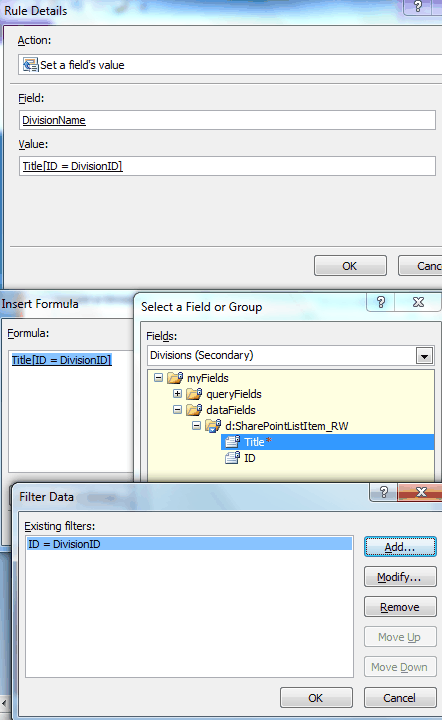
    Then have actions that set a field's value, such as name (from the main data source) = name (from the secondary data source) [ID=ID]

    The stuff in brackets is the filtering. You might need to play around with the filtering to make sure you understand it and set it correctly.

    I'm attaching a screenshot of an example.

    Hope this helps.

    Ernesto Machado
    Qdabra® Software/ InfoPathDev.com
    The InfoPath Experts – Streamline data gathering to turn process into knowledge.™


Page 1 of 1 (2 items)
Copyright © 2003-2019 Qdabra Software. All rights reserved.
View our Terms of Use.